Leads
Applies to: Owner, Administrator, Manager, Receptionist (capture and work leads); Viewer (view only). Last reviewed: 2026-11-18.
A lead is someone who has enquired about lessons but is not a student yet. The Leads list is where you capture enquiries, keep track of where each one stands, and turn them into students.
Who can use Leads
Plan
Leads is the feature LEADS.
| Plan | Leads |
|---|---|
| Free Trial | Included, free |
| Starter | Not available |
| Professional, Enterprise, Enterprise Plus, Enterprise Custom | Available with the paid Leads add-on (R 1 499 setup once, R 1 499 a month) |
When Leads is not available, the Leads group is not in the left menu. Opening the page directly shows one of two panels:
- Activate the Leads add-on - "Leads is a paid add-on: a once-off setup fee, then a monthly fee. Any leads you already have are kept and come back as soon as it's paid." with a Go to Billing button, or "Ask your administrator to activate it." for users who cannot see billing.
- Leads are part of the Professional plan - with a View plans button.
Permissions
| Permission | Allows | Default roles |
|---|---|---|
| Leads.View | Open the Leads and Follow-ups pages, view a lead | Owner, Administrator, Manager, Receptionist, Viewer |
| Leads.Create | New Lead | Owner, Administrator, Manager, Receptionist |
| Leads.Edit | Edit a lead, change its status, convert it, and schedule, edit, complete and delete follow-ups | Owner, Administrator, Manager, Receptionist |
| Leads.Delete | Delete a lead | Owner, Administrator, Manager |
Instructor and Finance have no Leads permissions by default. A school can change these under Settings > Roles.
Opening the page
Left menu > CRM > Leads > All Leads (/leads).
The Leads group has three entries: All Leads, Follow-ups and Campaigns. Campaigns is a "Coming soon" page; see Limitations.
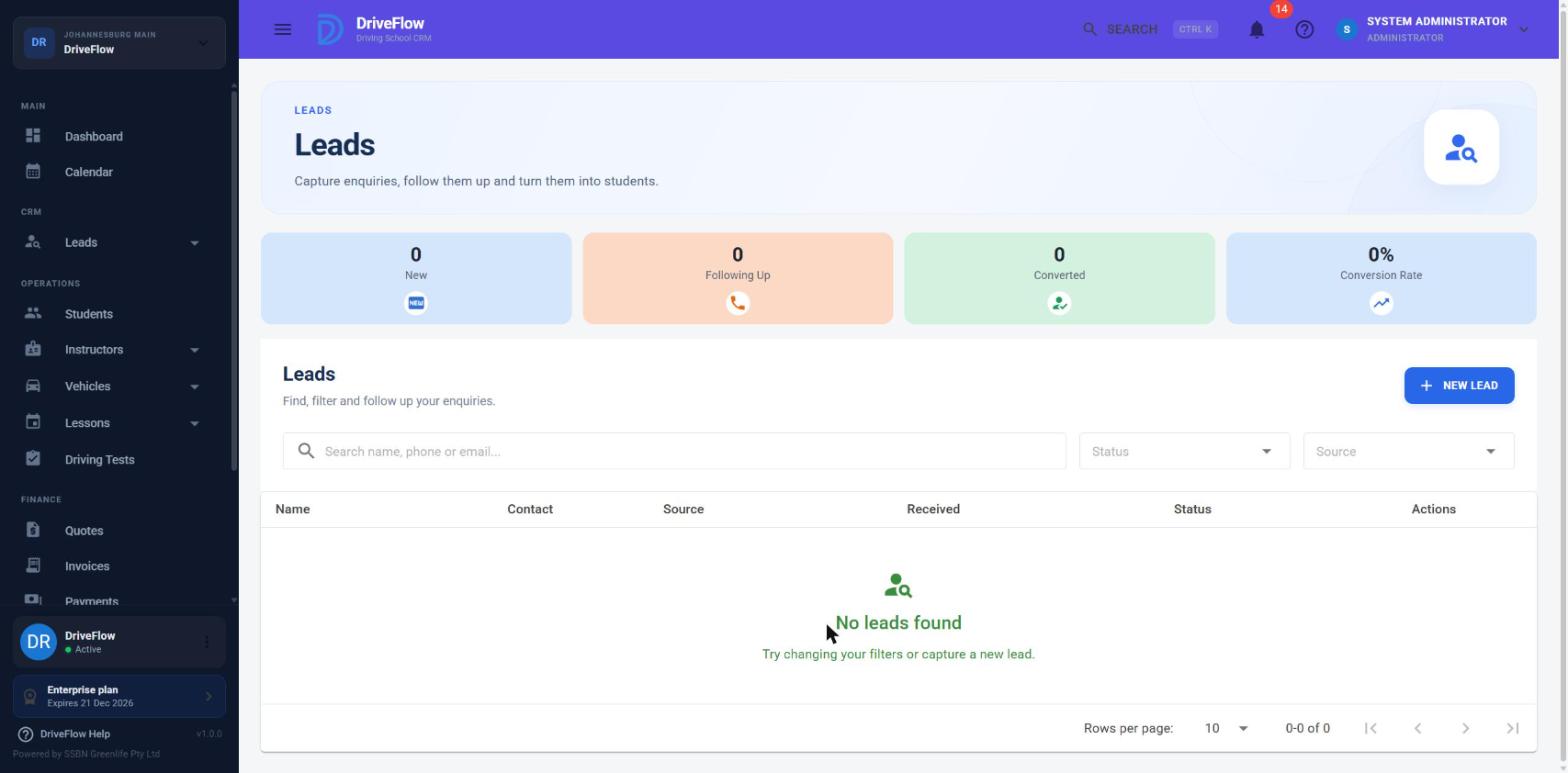
What the page shows
Summary cards
| Card | Counts |
|---|---|
| New | Leads with status New. |
| Following Up | Leads with status Contacted or Qualified. |
| Converted | Leads with status Converted. |
| Conversion Rate | Converted as a percentage of closed leads, where closed means Converted plus Lost. Open leads are not in the calculation. With no closed leads it shows 0%. |
Example: 12 converted and 8 lost gives 12 ÷ 20 = 60%.
Toolbar
- Search name, phone or email... - searches first and last name, email, phone number and alternate phone number.
- Status - filter by one status.
- Source - filter by one source.
- New Lead - for users with Leads.Create.
Table
| Column | Shows | Sortable |
|---|---|---|
| Name | Full name, with the branch underneath when the lead has one | Yes |
| Contact | Phone number, with the email underneath | No |
| Source | Where the lead came from | Yes |
| Received | The date the lead was created | Yes |
| Status | The status chip; for a converted lead, the student number underneath | Yes |
| Actions | The ⋮ menu | No |
Newest leads are listed first. When nothing matches: "No leads found - Try changing your filters or capture a new lead."
Statuses
| Status | Colour | Meaning |
|---|---|---|
| New | Blue | Just captured; nobody has dealt with it yet. Every lead starts here. |
| Contacted | Orange | You have been in touch. |
| Qualified | Dark blue | A serious prospect. |
| Converted | Green | The lead became a student and is linked to that student. |
| Lost | Red | Not going ahead. |
flowchart TD
    N[New] <--> C[Contacted]
    C <--> Q[Qualified]
    N <--> L[Lost]
    C <--> L
    Q <--> L
    N -->|Register as Student or Link Existing Student| V["Converted (final)"]
    C -->|Register as Student or Link Existing Student| V
    Q -->|Register as Student or Link Existing Student| V
Lost can be moved back to New, Contacted or Qualified.
Rules:
- You can move a lead freely between New, Contacted, Qualified and Lost, in any order.
- You cannot choose Converted by hand: "Convert the lead to a student to mark it converted."
- Converted is final: "This lead is already a student; its status can't be changed." A converted lead also cannot be edited.
- A Lost lead cannot be converted or given a follow-up until you move it back to another status.
Sources
Manual, Facebook, Instagram, Website, WhatsApp, Phone, Walk-in, Referral.
The source is only a label that you choose (or that DriveFlow sets to Facebook or Instagram for leads from adverts). Choosing "Website" or "WhatsApp" does not connect anything; only Facebook and Instagram lead ads are captured automatically. A new lead's source defaults to Manual.
Capture a lead by hand
Needs Leads.Create.
- Go to Leads > All Leads.
- Click New Lead.
-
Fill in the form:
Field Required Notes First Name Yes Up to 100 characters. Last Name Yes Up to 100 characters. Phone Number One of phone or email Up to 50 characters. "A phone number or an email is required". Email One of phone or email Must contain an @. Up to 255 characters. Alternate Phone (optional) No Up to 50 characters. Source Yes Defaults to Manual. Branch (optional) No If you leave it empty, the lead gets your own branch when your user belongs to one; otherwise it has no branch. Notes No Up to 4 000 characters. "What are they interested in? When should we call back?" -
Click Create Lead.
You see "Lead created." and the lead appears at the top of the list with the status New.
Set a reminder
Creating a lead by hand does not create a follow-up. Schedule one from the lead's menu if you need a reminder; see Follow-ups.
Messages
| Message | Why |
|---|---|
| First name is required. / Last name is required. | The field is empty. |
| Enter the lead's first name. / Enter the lead's last name. | Only spaces were entered. |
| Enter a phone number or an email address. | Both are empty. |
| Enter a valid email address. | No @ in the email, or it is too long. |
| Names may not be longer than 100 characters. | |
| Phone numbers may not be longer than 50 characters. | |
| Notes may not be longer than 4000 characters. | |
| Choose where the lead came from. | The source is not valid. |
| Branch not found. | The chosen branch does not exist in your school. |
Note
DriveFlow does not check for duplicates: two leads with the same phone number or email can be created.
The lead's menu
Click ⋮ in the Actions column.
| Menu item | Shown when |
|---|---|
| View | Always. |
| Edit | You have Leads.Edit and the lead is not Converted. |
| Schedule Follow-up | As Edit, and the lead is not Lost. |
| Mark as New / Contacted / Qualified / Lost | As Edit. Every status except the current one. |
| Register as Student | As Edit, the lead is not Lost, and you have Students.Create. |
| Link Existing Student | As Edit, and the lead is not Lost. |
| Open Student number | The lead is converted and you have Students.View. |
| Delete | You have Leads.Delete. |
View a lead
Click ⋮ > View. The Lead Details dialog shows:
- the name and status,
- Contact: Phone, Alternate Phone, Email,
- Details: Source, Branch ("Not assigned" when empty), Received, and Last Updated when the lead has been changed,
- Student: the linked student with an Open student link, for a converted lead,
- Advert: Form, Campaign and Submitted, for a lead from Facebook or Instagram,
- Notes,
- Follow-ups: every follow-up for the lead with its type, due date and time, who it is assigned to, a chip (Done, Overdue or Open), and its notes or, once done, its outcome. "No follow-ups yet." when there are none.
Screenshot to be added
Screen: Lead Details dialog. Should show: Contact, Details, Advert, Notes and Follow-ups sections for a Facebook lead.
Edit a lead
- Click ⋮ > Edit. The dialog is titled "Edit Lead - name".
- Change the fields (the same fields and rules as for a new lead).
- Click Save Lead. You see "Lead saved."
Change a lead's status
Click ⋮ > Mark as Contacted (or another status). You see "Name marked as Contacted." There is no confirmation step and no reason is asked for, including for Lost.
You can also change the status while completing a follow-up; see Follow-ups.
Assigning leads
A lead itself has no owner. There is no "assigned to" field on a lead. What you assign is the follow-up: each follow-up can be given to a staff member, or left for "Anyone".
Handing a lead to a colleague
To hand a lead to a colleague, schedule a follow-up assigned to them.
A lead can belong to a branch. The branch decides which branch-restricted users can see it, in the same way as other branch data in DriveFlow.
Convert a lead to a student
There are two ways. Both end with the lead marked Converted and linked to the student.
Register as Student (the lead is not yet a student)
Needs Leads.Edit and Students.Create.
- Click ⋮ > Register as Student.
- The new student form opens with the lead's details filled in: first name, last name, email, phone number, alternate phone number, notes, and the branch if the lead has one.
- Complete the rest of the student form and save it.
When the student is saved, the lead is automatically marked Converted and linked to the new student. If that last step fails you see a warning, "The lead couldn't be marked as converted: …"; the student has still been created, and you can link the lead with Link Existing Student.
Clicking Cancel on the student form takes you back to Leads.
The student form itself, including plan limits on the number of students, is described in the students documentation.
Link Existing Student (the person is already a student)
Needs Leads.Edit.
- Click ⋮ > Link Existing Student.
- The dialog says "Choose the student lead name became. The lead will be marked as converted."
- Find and select the student in the Student field.
- Click Link Student.
You see "Name converted to a student."
After converting
- The lead's status is Converted and cannot be changed.
- The student number is shown under the status in the list, and the menu has Open Student number.
- If the lead had no branch, it takes the student's branch.
- The lead can no longer be edited or given follow-ups. Existing open follow-ups are not closed automatically; complete or delete them on the Follow-ups page.
| Message | Why |
|---|---|
| This lead has already been converted to a student. | It was converted before. |
| Student not found. | The student does not exist or is not visible to you. |
Converting to a quote
There is no "convert lead to quote" function. Quotes are made for students (or as walk-in quotes) in the Quotes area and have no link to leads. To quote someone who is still a lead, either register them as a student first or use the quoting options described in the quotes documentation.
Delete a lead
Needs Leads.Delete.
- Click ⋮ > Delete.
- Confirm "Delete the lead for name?" with Delete.
You see "Lead deleted." The lead disappears from the list, the summary cards and searches, and its follow-ups disappear from the Follow-ups page. A converted lead can be deleted too; the student is not affected.
No restore screen
There is no screen to restore a deleted lead.
Finding a lead from the header search
The search box in the page header also finds leads (by name, phone or email) for users who can see them. Choosing a lead result opens the Leads page with that name already searched.
Example
A mother phones to ask about lessons for her daughter Naledi.
- The receptionist clicks New Lead, enters "Naledi Mokoena", the mother's phone number, Source Phone, and the note "Code 8, wants Saturday lessons, call back Thursday with prices".
- She opens the lead's menu, chooses Schedule Follow-up and sets a call for Thursday 10:00, assigned to herself.
- On Thursday she calls, completes the follow-up with the outcome "Sent price list, will decide by Monday", sets the lead to Contacted and books the next follow-up for Monday.
- On Monday the family signs up. The receptionist chooses Register as Student, completes the student form and saves. The lead shows Converted with the new student number.
Limitations and notes
- Campaigns is not built. Leads > Campaigns shows "Coming soon - Campaigns are on the way". It has no functions.
- No lead owner field and no automatic distribution of leads among staff.
- No duplicate detection, no merging of leads and no import from a spreadsheet.
- No export of the leads list was found on this page.
- No lost reason and no status history. Only the latest status and the date of the last change are kept.
- No email, SMS or WhatsApp is sent from a lead by DriveFlow. Contact happens outside DriveFlow (the call and WhatsApp buttons on follow-ups open your own phone or WhatsApp).
- No lead-to-quote link.
- The Leads menu is hidden when the add-on is unpaid, so the "Activate the Leads add-on" panel is only reached by address. The Billing page is the place to go.
- Leads is not in the mobile app. No leads screens were found in the app's menu.
- Deleting is a "soft" delete: the record is hidden, not physically removed. There is no screen to restore one.
- How a lead with no branch is shown to users who are restricted to a branch was not tested for this page.
Related articles
- Follow-ups: reminders to contact each lead.
- Meta lead capture: leads from Facebook and Instagram adverts.
- Add-ons: activating the Leads add-on.
- Meta: Facebook and Instagram: connecting your Facebook Page.
- Student registration: the student form used when converting.