Lesson calendar
Applies to: Owner, Administrator, Manager, Receptionist, Instructor, Viewer. Last reviewed: 2026-11-18.
DriveFlow has one main calendar and four smaller calendars. This page explains what each shows, how to move around, and what you can do from them.
The calendars at a glance
| Calendar | How to reach it | Shows | Views | Drag to reschedule |
|---|---|---|---|---|
| Calendar (main) | Menu Calendar (/calendar) |
Lessons and driving tests for the school | Day, Week, Month | Lessons and driving tests |
| Lessons page, calendar view | Menu Lessons > Lessons, then the Calendar button | Lessons only | Week, Day | Lessons |
| Instructor Calendar | From an instructor (/instructors/{id}/calendar) |
One instructor's lessons | Week, Day | No |
| Student Calendar | From a student (/students/{id}/calendar) |
One student's lessons | Week, Day | No |
| Vehicle Calendar | From a vehicle (/vehicles/{id}/calendar) |
Lessons and driving tests for one vehicle | Week, Day | No |
Students have their own My calendar in the student portal; see the student portal guide.
Who can use the calendars
| Action | Permission |
|---|---|
| See the Calendar menu item and open the main calendar | Calendar.View, and your plan must include the Calendar feature |
| See Schedule Lesson on the main calendar, or click an empty slot to book | Calendar.Manage or Lessons.Manage |
| Drag a lesson to a new time | Lessons.Reschedule |
| Drag a driving test to a new time | DrivingTests.Edit |
| Open the Lessons page calendar view | Lessons.View |
By default, Owner, Administrator, Manager and Receptionist hold Calendar.View and Calendar.Manage. Instructor and Viewer hold Calendar.View only. Finance holds neither.
Instructors who do not manage lessons
They see only their own lessons and driving tests. The page subtitle reads "Your lessons and driving tests." instead of "Manage lessons and driving tests.", and in Day view only their own column is shown.
The main Calendar page
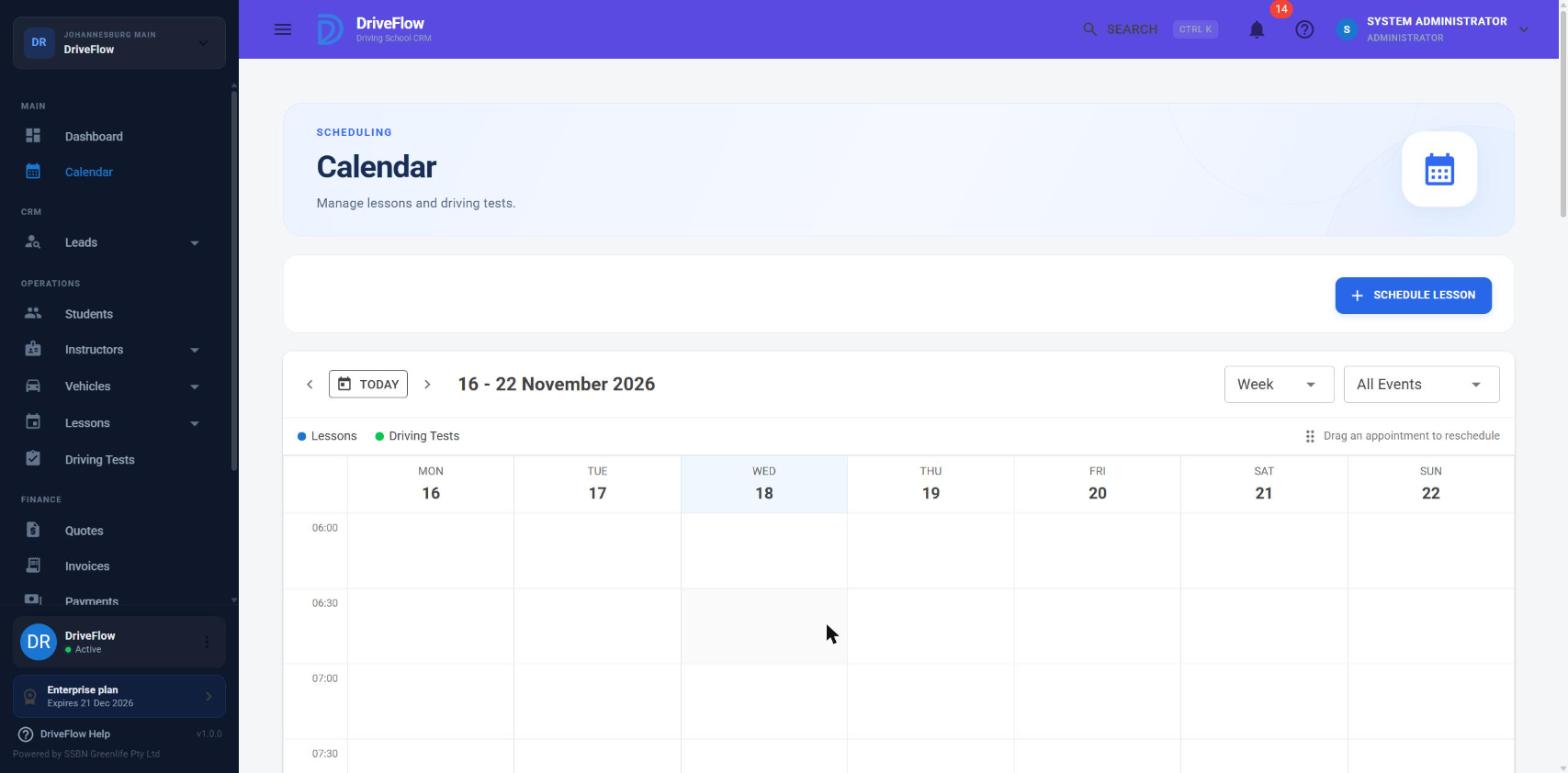
Screenshot to be added
Screen: Calendar page. Should show: Week view with lessons (blue) and a driving test (green), toolbar and legend visible.
Toolbar
| Control | What it does |
|---|---|
< and > |
Go to the previous or next day, week or month, depending on the view. |
| Today | Jump back to today. |
| Period title | Shows the day, week or month on screen. |
| View list: Day, Week, Month | Switches the view. The calendar opens in Week. |
| Event list: All Events, Lessons, Driving Tests | Shows everything, lessons only, or driving tests only. |
| Schedule Lesson (top right) | Opens the Schedule Lesson dialog. |
There are no branch, instructor, vehicle, student or status filters on the main calendar. The server supports those filters, but the page only uses the event type filter.
Legend
| Marker | Meaning |
|---|---|
| Blue dot, Lessons | Lesson tiles are light blue with a blue left edge. |
| Green dot, Driving Tests | Driving test tiles are light green with a green left edge. |
| "Drag an appointment to reschedule" | Reminder that tiles can be dragged. |
The main calendar colours tiles by type, not by status. A cancelled lesson looks the same as a scheduled one, and cancelled lessons and tests stay on the calendar. Open the tile to see the status.
Views
Week view. Seven day columns, Monday to Sunday, with time rows down the side.
Day view. One column per instructor. Every active instructor at your branch gets a column, even with no lessons that day, plus any other instructor who has a lesson that day. Each instructor has their own pastel colour, which stays the same from day to day. Events with no instructor (for example a learner's test) go in an Unassigned column. If there are no instructors to show, a single All events column is used.
Month view. A grid of days with the day's events listed in each cell.
Hours and row size
The main calendar follows your branch's scheduling settings:
- Rows are the branch's Booking slot interval when that interval divides evenly into an hour (5, 10, 15, 20, 30 or 60 minutes). Otherwise rows are 30 minutes.
- The day runs from 06:00 to 21:00. If the branch opens earlier or closes later on any day, the calendar is widened to cover it. It is never made narrower.
- The settings used are those of your own branch, or the main branch if your account is not tied to one. Users without permission to read scheduling settings get 30 minute rows.
What a tile shows
- Start and end time
- Title: Lesson and the lesson number, or Driving Test and the test number
- Student name
- Instructor (person icon)
- Vehicle (car icon)
- For a driving test, the testing centre (pin icon)
Driving tests are always drawn as one hour long.
Opening the details
Click a tile.
- A lesson opens Lesson Details: status, date, start and end time, student, instructor, vehicle, branch, pickup and drop-off location, and notes.
- A driving test opens Driving Test Details.
These are read-only. To edit, cancel, mark attendance or sign off a lesson, use the row menu on the Lessons page or on the student's profile. The main calendar has no action menu on its tiles.
Booking from the calendar
Click an empty slot. The Schedule Lesson dialog opens with that date and time filled in. In Day view the instructor whose column you clicked is filled in and locked ("Instructor selected from calendar.").
Nothing happens if you lack Calendar.Manage and Lessons.Manage.
Moving an appointment by dragging
Drag a tile to another slot and drop it.
Which tiles can be dragged
| Tile | Can be dragged when |
|---|---|
| Lesson | You hold Lessons.Reschedule and the status is not Cancelled or Completed. |
| Driving test | You hold DrivingTests.Edit and the status is not Cancelled or Completed. |
The server is stricter than the calendar for lessons: only Scheduled and Confirmed lessons can actually be moved. Dragging an In Progress or No Show lesson shows the confirmation but then fails with "Only scheduled or confirmed lessons can be rescheduled."
Lessons
- Drop the lesson on the new slot. In Day view you can also drop it in another instructor's column to hand the lesson to that instructor.
- A Reschedule Lesson confirmation appears, headed "Reschedule Lesson?", showing the student, the current time, the new time and, if it changed, the instructor (old and new). It also says "Instructor and vehicle availability will be checked before the lesson is moved."
- Click Reschedule (or Cancel).
- If the lesson is part of a double or triple lesson, you are asked Move the whole lesson block? - "This lesson is part of a double lesson. Move all 2 lessons together, keeping them back to back?" Choose Move all 2, Only this lesson, or Back.
- On success: "Lesson rescheduled successfully." If a rule is broken, the lesson stays where it was and the reason is shown.
Every rule in Availability and conflicts applies to the new time. The student and the instructor are notified. Full details: Lesson rescheduling.
Driving tests
- Drop the test on the new slot. Driving tests only move in time; dropping in another instructor's column does not change the instructor.
- A Reschedule Driving Test confirmation appears with a warning that the new slot will be checked.
- Click Reschedule Test (or Cancel).
- On success: "Driving test rescheduled successfully."
See Scheduling a test for the checks.
Do not drag in Month view
Dropping a tile on another day in Month view moves it to 00:00 of that day. Use Week or Day view to move appointments (see Limitations and notes).
The Lessons page calendar view
On Lessons > Lessons, the List / Calendar buttons switch between the table and a calendar of lessons.
- Views: Week (default) and Day. No Month view.
- Fixed 30 minute rows from 06:00 to 21:00, whatever the branch settings are.
- The Search, Date and Status filters above it apply to the calendar as well.
-
Tiles are coloured by status:
Status Colour group Scheduled, Confirmed, In Progress "scheduled" style Awaiting Student Sign-off, Completed "completed" style Cancelled "cancelled" style No Show "no show" style -
Hovering over a tile shows "Drag to reschedule, click for details" or "Click for details".
- Only Scheduled and Confirmed lessons can be dragged, and only if you hold
Lessons.Reschedule. - Dropping a lesson shows the same Reschedule Lesson confirmation and the same double-lesson question as the main calendar.
- Clicking an empty slot opens Schedule Lesson with the date and time filled in.
Instructor, Student and Vehicle calendars
These are view-and-book calendars for one person or vehicle.
| Calendar | Extra information | Booking |
|---|---|---|
| Instructor Calendar - "This instructor's lessons by week or day. Click a lesson to see its details." | Summary cards including Today's Lessons and completed lessons | Click an empty slot to open Schedule Lesson with the instructor filled in (needs Lessons.Create) |
| Student Calendar - "This student's lessons by week or day. Click a lesson to see its details." | Summary cards for upcoming and completed lessons | Click an empty slot to open Schedule Lesson with the student filled in (needs Lessons.Create) |
| Vehicle Calendar - "Lessons and driving tests scheduled for this vehicle." | Lessons and driving tests | No booking. Click a tile for details. |
All three use fixed 30 minute rows, Week and Day views, and have no drag and drop.
Limitations and notes
- Month view dragging does not work properly. Dropping a tile on another day in Month view asks to move it to midnight (00:00) of that day rather than keeping its time. A lesson is then refused because 00:00 is outside working hours. A driving test has no working-hours check, so it can end up at 00:00. Use Week or Day view to move appointments.
- No status colours on the main calendar. The server sends a colour for each status, but the main calendar page does not use it.
- Cancelled lessons and tests are shown. There is no option to hide them on the main calendar. On the Lessons page calendar you can use the Status filter.
- No resource view by vehicle and no filter by branch, instructor, vehicle or student on the main calendar.
- No free-times view in the web application. A free-times screen exists only in the owner mobile app; see the mobile application guide.
- The Schedule Lesson button needs different permissions on different pages. See Scheduling lessons.
- The status filter on the Lessons page offers only All, Scheduled, Completed, Cancelled and No Show. Confirmed, In Progress and Awaiting Student Sign-off cannot be picked as filters.
Related articles
- Scheduling lessons - booking from the calendar.
- Lesson rescheduling - drag and drop in detail.
- Availability and conflicts - the rules applied to a new time.
- Scheduling a test - moving driving tests.
- Owner features in the mobile app - the free-times screen.
- Student portal - the student's own calendar.