Scheduling settings
Applies to: Owner, Administrator, Manager (change); Receptionist, Instructor, Viewer (view only). Last reviewed: 2026-11-18.
Scheduling settings decide when lessons can be booked at each branch: working hours, lesson length, booking slots, how far ahead and how late lessons may be booked or cancelled, and whether students can book online. Each branch has its own settings.
Who can view and change them
| Action | Permission | Default roles |
|---|---|---|
| Open the page | Scheduling.View |
Owner, Administrator, Manager, Receptionist, Instructor, Viewer |
| Change and save | Scheduling.Manage |
Owner, Administrator, Manager |
Users who can view but not change see: "You can view these settings but not change them." and the buttons are disabled.
Opening the page
Go to Settings, then Scheduling (/settings/scheduling). The page is headed Scheduling - "Configure your branch working hours and booking rules."
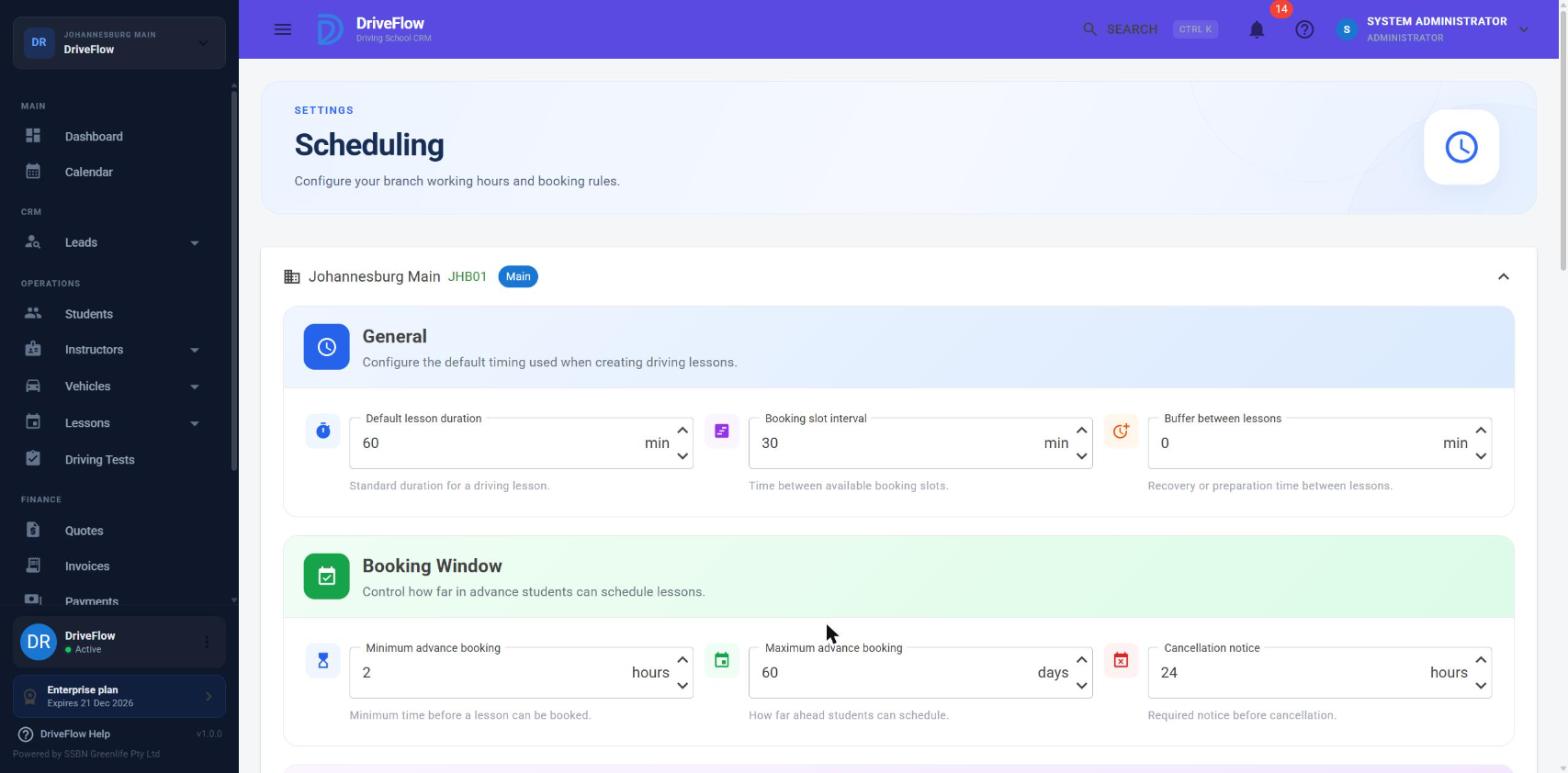
Screenshot to be added
Screen: Settings > Scheduling. Should show: branch panels with one branch expanded showing General, Booking Window, Working Hours and Booking Rules.
The page lists your branches as panels. Each shows the branch name and code, a Main chip for the main branch, and a Disabled chip for an inactive branch. Click a branch to open it; its settings load at that point ("Expand to load the scheduling settings for this branch."). Only one branch is open at a time.
If you have no branches: "No branches have been set up yet."
The settings, section by section
General
"Configure the default timing used when..." lessons are booked.
| Field | Unit | Minimum on screen | What it does |
|---|---|---|---|
| Default lesson duration | minutes | 15 | "Standard duration for a driving lesson." Used when the student's training package has no lesson length of its own. A package's lesson length always wins. |
| Booking slot interval | minutes | 5 | "Time between available booking slots." Lessons can only start on these steps, counted from the branch's opening time. With opening at 08:00 and an interval of 30, lessons start at 08:00, 08:30, 09:00 and so on. The main calendar draws its rows at this interval when it divides evenly into an hour. |
| Buffer between lessons | minutes | 0 | "Recovery or preparation time between lessons." A gap kept free before and after every lesson, for the student, the instructor and the vehicle alike. With 0, lessons can follow each other directly. |
Booking Window
"Control how far in advance students can..." book. These rules apply to staff bookings too.
| Field | Unit | Minimum on screen | What it does |
|---|---|---|---|
| Minimum advance booking | hours | 0 | "Minimum time before a lesson can be booked." A lesson must start at least this long from now. |
| Maximum advance booking | days | 1 | "How far ahead students can schedule." Lessons cannot be booked further ahead than this. |
| Cancellation notice | hours | 0 | "Required notice before cancellation." Students, and staff other than Owner, Administrator and Manager, cannot cancel a lesson closer to its start than this. It also limits when a student may ask to move a lesson. 0 switches the rule off. |
Working Hours
"Set when lessons can be scheduled at this branch."
One row per day of the week. Each row has:
- a switch showing Open or Closed;
- when open, an Opening time and a Closing time (24-hour clock);
- when closed, the text Branch is closed.
A lesson must start at or after opening and finish at or before closing. No lessons can be booked on a closed day.
There is one opening period per day. A lunch break or split hours cannot be entered.
Booking Rules
"Control how lessons can be booked."
| Switch or field | What it does |
|---|---|
| Allow same-day bookings | "Students can book lessons for the current day." When off, nobody (staff included) can book a lesson for today. |
| Allow online bookings | "Students can request lessons from the student portal for you to approve." When off, students at this branch cannot request or change lessons online. Staff can still book. The school's plan must also include Online Booking. |
| Automatically assign instructor | "Automatically select an available instructor." When on, the instructor may be left empty when booking and the system picks the least busy qualified instructor. When off, an instructor must be chosen. |
| Automatically assign vehicle | "Automatically select an available vehicle." When on, the vehicle may be left empty and the system picks one. When off, a vehicle must be chosen. |
| No status changes before the date | "Lessons can only be started, signed off, completed or marked no-show, and driving test results recorded, on or after their date." When on, these actions are refused before the day of the lesson or test. |
| Maximum lessons per student per day (1 to 10) | "Limit the number of lessons a student can schedule on a single day." A double lesson counts as two. |
Saving
- Save Changes saves the open branch. Message: "Scheduling settings saved successfully."
- Cancel puts the fields back to the last saved values.
Note
Changes take effect immediately for new bookings. Lessons that are already booked are not re-checked or moved.
Validation
The server refuses a save with one of these messages.
| Message | Cause |
|---|---|
| "The selected branch does not exist." | The branch is not yours, or is inactive. An inactive branch's settings cannot be saved. |
| "Default lesson duration must be greater than zero." | |
| "Booking slot interval must be greater than zero." | |
| "Buffer time cannot be negative." | |
| "Minimum advance booking cannot be negative." | |
| "Maximum advance booking must be greater than zero." | |
| "Cancellation notice cannot be negative." | |
| "Maximum lessons per student must be greater than zero." | |
| "Working hours must contain all seven days." / "Each day can only appear once." | Should not occur from the page. |
| "Monday must have opening and closing times." | An open day has a time missing. |
| "Monday closing time must be after opening time." |
Other messages: "Unable to load branches: ...", "Unable to load scheduling settings.", "No branch is currently selected.", "Unable to save scheduling settings."
Default values (scheduling initialisation)
Every branch gets a set of scheduling settings automatically, so a new school can book lessons straight away. They are created:
- when a school registers or is onboarded (for its first branch);
- when a new branch is created;
- the first time a branch's settings are opened, if for any reason it has none.
| Setting | Default |
|---|---|
| Default lesson duration | 60 minutes |
| Booking slot interval | 30 minutes |
| Buffer between lessons | 0 minutes |
| Minimum advance booking | 2 hours |
| Maximum advance booking | 60 days |
| Cancellation notice | 24 hours |
| Allow same-day bookings | On |
| Allow online bookings | On |
| Automatically assign instructor | Off |
| Automatically assign vehicle | Off |
| No status changes before the date | On |
| Maximum lessons per student per day | 2 |
| Working hours, Monday to Friday | 08:00 - 17:00 |
| Working hours, Saturday | 08:00 - 13:00 |
| Working hours, Sunday | Closed |
Review the defaults before taking bookings
Review these for each branch before taking bookings. In particular, Allow online bookings is on by default: if the school has the Online Booking add-on, students at a new branch can request lessons immediately.
If a branch somehow has no settings, booking fails with "Scheduling has not been configured for this branch." Opening the branch on this page creates them.
For platform administrators. A Super Admin can create default settings for every active branch that has none, in one go. There is no button for it; this is covered in the internal technical documentation. It does not change branches that already have settings.
How each setting is used
| Setting | Where it takes effect |
|---|---|
| Default lesson duration | Lesson length when the package has none; default in the Schedule Lesson dialog |
| Booking slot interval | Start times offered and accepted; row height on the main calendar |
| Buffer between lessons | Clash checks for student, instructor and vehicle when booking, dragging and requesting online. Not applied by the Edit Lesson dialog. |
| Minimum advance booking | Booking, dragging, online requests |
| Maximum advance booking | Booking, dragging, online requests |
| Cancellation notice | Cancelling lessons; students' change requests |
| Allow same-day bookings | Booking, dragging, online requests |
| Allow online bookings | Student portal and mobile booking and change requests |
| Automatically assign instructor / vehicle | Whether those fields are optional when staff book |
| No status changes before the date | Mark In Progress, Mark No Show, sign-offs, completing; recording a driving test result |
| Maximum lessons per student per day | Booking, dragging, online requests |
| Working hours | Booking, dragging, online requests; visible range of the main calendar |
Instructor working hours and time off
The scheduling engine understands two more things per instructor:
- weekly working hours - if an instructor has their own hours for a day, a lesson must fall inside them; a day marked closed means the instructor is never available that day; an instructor with no hours recorded follows the branch hours;
- time off - a period with a reason (Leave, Sick, Training, Public Holiday or Other) during which the instructor cannot be booked.
No screen to enter instructor hours or time off
There is currently no screen in the web application, and no API, to enter either of these. The database tables exist and the engine reads them, but they can only be filled directly in the database. Until a screen is added, every active instructor is treated as available throughout the branch's working hours, and staff must keep leave in mind themselves (or block the time by other means).
Time zone
Lesson times are stored and compared as the branch's local clock time. "Today" for the booking window and the status-date guard is the branch's own date.
Example
A branch wants one-hour lessons starting on the hour, 15 minutes between lessons, and no lessons booked for the same day.
- Open Settings > Scheduling and open the branch.
- Set Default lesson duration to 60, Booking slot interval to 15 and Buffer between lessons to 15.
- Switch Allow same-day bookings off.
- Click Save Changes.
With an interval of 15 and a buffer of 15, after a 09:00 - 10:00 lesson the instructor's next lesson can start at 10:15. (With an interval of 60 it could only start at 11:00.)
Limitations and notes
- No public holidays or one-off closures. Working hours repeat weekly; a branch cannot be closed for a particular date.
- One opening period per day; no breaks.
- Instructor hours and leave have no screen (see above).
- The booking window applies to staff as well as students. The helper texts mention students, but the rules bind everyone. There is no staff override for minimum notice, maximum days ahead or same-day booking.
- The screen allows values the engine handles awkwardly. A slot interval that does not divide into an hour (for example 25 or 45) is accepted; bookings follow it but the calendar falls back to 30 minute rows. The lesson length allowed when booking is 30 to 240 minutes, although the default duration field accepts values from 15.
- Changing settings does not affect existing lessons. Shortening working hours leaves lessons outside the new hours in place without warning.
- The main calendar uses your own branch's settings (or the main branch's) for its rows and hours, even when it shows lessons from other branches.
Related articles
- Availability and conflicts - how each setting is applied when booking.
- Scheduling lessons - booking a lesson.
- Bookings and online requests - the Allow online bookings switch in practice.
- Lesson cancellation - the cancellation notice in practice.
- Instructor availability - instructor-level availability.