Registering an instructor
Applies to: Owner, Administrator (any role with the Instructors.Create permission). Last reviewed: 2026-11-18.
An instructor profile is the record DriveFlow uses to schedule lessons and driving tests, to work out earnings and to decide which lessons a signed-in instructor may see. This page explains how to add one.
Who can do this
| Action | Permission needed | Roles that have it by default |
|---|---|---|
| Open the Instructors page | Instructors.View |
Owner, Administrator, Manager, Instructor, Receptionist, Finance, Viewer |
| Add an instructor | Instructors.Create |
Owner, Administrator |
Important
The Add Instructor button is only drawn for users with Instructors.Create. Having Instructors.Edit alone is not enough.
Your subscription plan must include Instructor Management, and the plan sets how many instructors you may have (see Plan limit below).
Before you start
You need:
- At least one branch. Every instructor belongs to exactly one branch.
- At least one licence code set up for your school. The form lists the licence codes available to your school; if it shows "No licence codes available." you cannot save, because at least one code is required.
- The instructor's own email address. It becomes their sign-in if you later give them a login, and it must be unique among your school's instructors.
Steps
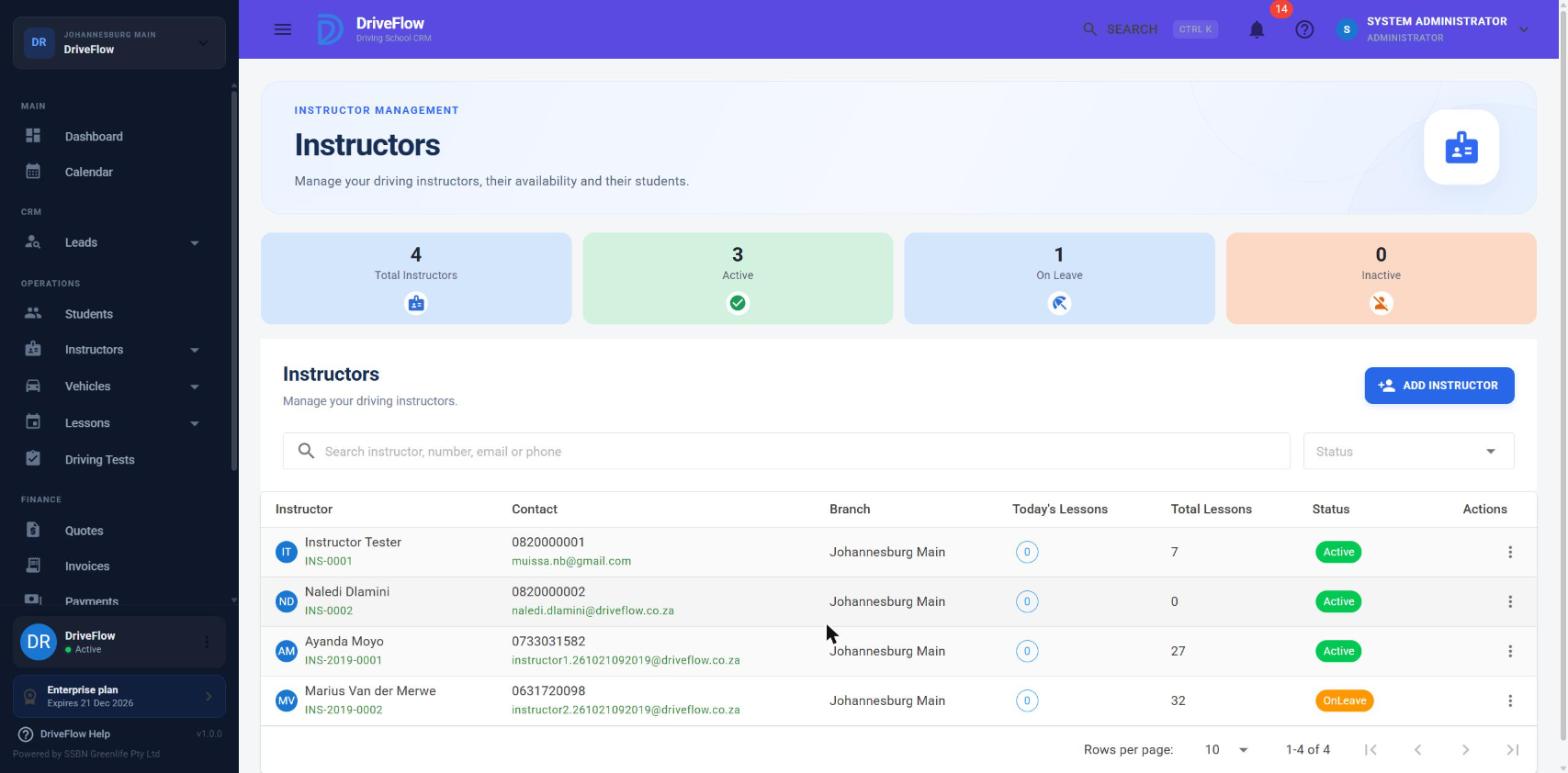
- In the left menu, under OPERATIONS, open Instructors, then click Instructors.
- Click Add Instructor (top right of the Instructors table).
- Fill in the Add Instructor form (fields below).
- Under Licence Codes, click the circle at the end of each licence code this instructor is allowed to teach. A selected code shows a green tick. Click again to remove it.
- Click Save Instructor.
Screenshot to be added
Screen: Add Instructor dialog. Should show: all fields filled in with two licence codes ticked.
Fields
| Field | Required | What it means |
|---|---|---|
| Branch | Yes | The branch the instructor works at. The scheduling engine only offers an instructor for lessons at their own branch. |
| First Name | Yes | Up to 100 characters. |
| Last Name | Yes | Up to 100 characters. |
| Identity Number | Yes | The instructor's ID number. Any non-empty value is accepted when adding, but editing the instructor later requires exactly 13 characters (see the warning below). Enter the full 13-digit number from the start. |
| Employment Date | No (defaults to today) | The date the instructor started. |
| Birth Date | No (defaults to today) | The instructor's date of birth. Change this: the form opens with today's date and will save it if you leave it. |
| Yes | Must be a valid email address and not already used by another instructor at your school. | |
| Phone Number | Yes | The instructor's contact number. |
| Licence Codes | Yes, at least one | The licence codes this instructor may teach. A lesson for a licence code can only be given to an instructor who has that code. |
There is no Status field when adding: a new instructor is always saved as Active.
Birth Date and Identity Number
Change Birth Date from today's date and enter the full 13-digit Identity Number when adding. Otherwise the instructor cannot be edited later until both are corrected (see Limitations and notes).
What happens when you save
- DriveFlow gives the instructor an instructor number, built from the branch code, the letters
INSand the next number in that branch's sequence (for exampleJHB-INS-0004; the exact padding comes from the branch's number sequence). The same value is stored as the Employee Number. - The status is set to Active.
- The message "Instructor created successfully." appears, the dialog closes, and the table and the summary cards refresh.
- No login is created. To let the instructor sign in, follow Instructor user accounts.
flowchart TD
    A[Add Instructor] --> B[Fill in the form, tick at least one licence code]
    B --> C[Save Instructor]
    C --> D{Plan limit checked}
    D -- Limit reached --> E[Error, nothing saved]
    D -- OK --> F[Email unique? Branch found? Licence codes exist?]
    F --> G[Instructor saved as Active with a new INS number]
    G --> H["(optional) Instructors > row menu > Sign-in account"]
Plan limit
Before saving, DriveFlow counts your instructors whose status is not Inactive (Active, On Leave and Suspended all count; deleted instructors do not). If you are already at your plan's limit, nothing is saved and you see:
Your {plan name} plan allows up to {limit} active instructors. Upgrade your plan to add more.
The limits seeded with the product are 2 on the Free Trial, 5 on Starter, 25 on Professional and unlimited on the Enterprise tiers. Your school's actual plan is shown under Settings > Subscription; see Subscriptions and billing.
Tip
To free up a place without upgrading, deactivate an instructor who no longer teaches (see Instructor profiles).
Common errors
| Message | Why | What to do |
|---|---|---|
| Please select a branch. | No branch chosen. | Choose a branch. |
| First name is required. / Last name is required. / Identity number is required. / Email is required. / Phone number is required. | A required field is empty. | Fill it in. |
| At least one licence code must be assigned. | No licence code was ticked. | Tick at least one code. |
| An instructor with this email already exists. | Another instructor at your school (not deleted) has this email. | Use the instructor's own email, or edit the other profile. |
| Branch not found. | The branch was removed, or is not one your account can see. | Reopen the form and choose a branch from the list. |
| Your … plan allows up to … active instructors. Upgrade your plan to add more. | Plan limit reached. | Deactivate an unused instructor or upgrade the plan. |
| Failed to create instructor. | The server rejected the request without a specific message (for example an invalid email format). | Check the email address and try again. |
Example
Thabo Mokoena joins the Sandton branch on 1 December 2026 and will teach Code 08 (manual and automatic cars).
- Open OPERATIONS > Instructors > Instructors > Add Instructor.
- Branch: Sandton. First Name: Thabo. Last Name: Mokoena. Identity Number: his 13-digit ID number.
- Employment Date: 1 December 2026. Birth Date: his real date of birth.
- Email: thabo@exampleschool.co.za. Phone Number: 082 555 0101.
- Tick the Code 08 licence code.
- Click Save Instructor. He appears in the table as Active with the next Sandton instructor number.
Limitations and notes
- Birth Date defaults to today. If you do not change it, today's date is stored. The edit form then refuses to save that instructor until a birth date in the past is entered, because the edit rules require the date of birth to be before today.
- Identity Number length differs between add and edit. Adding accepts any non-empty value; editing requires exactly 13 characters. An instructor added with a shorter number (for example a passport number) cannot be edited until the identity number is changed to 13 characters. This is how the validation rules are written in
CreateInstructorValidatorandUpdateInstructorValidator; there is no separate passport option. - Middle name and alternate phone number exist on the instructor record and the alternate phone is shown on the View dialog, but neither the Add nor the Edit form has a field for them, so they cannot be entered on the web.
- Employee Number cannot be typed in; it is always the same as the generated instructor number.
- No documents. There is no place to upload an instructor's documents (ID copy, instructor certificate, PrDP). The document feature in this product covers students only.
- No vehicle on this form. The vehicle an instructor uses is set from the vehicle's form; see Instructor assignments.
- No pay or contract details. Employment details are limited to branch, employment date and the generated employee number. Earnings shares are set separately; see Instructor earnings.
Related articles
- Instructor profiles - viewing, editing, statuses and deleting.
- Instructor user accounts - giving the instructor a login.
- Instructor availability - availability and working hours.
- Instructor assignments - assigning a vehicle.
- Licence codes - setting up the codes an instructor teaches.