Fleet management
Applies to: Owner, Administrator, Manager, Finance, Viewer (overview and report); Instructor, Receptionist (logging). Enterprise plans and the Free Trial only. Last reviewed: 2026-11-18.
Fleet Management records what each vehicle does and costs: the kilometres driven each day, fuel slips and other expenses with their receipts, fuel consumption, services by kilometre, alerts when something looks wrong, and an estimate of what each vehicle earns.
Basic vehicle records (registering, statuses, expiry reminders) are on every plan and are described in the other pages of this folder. Fleet Management is the add-on layer.
Contents:
- Availability and permissions
- The Fleet page
- Log daily kilometres
- Record fuel and other expenses
- Receipts
- Service by kilometres
- Overview tab and how each figure is calculated
- Alerts
- Exports
- Limitations and notes
Availability and permissions
Plan
The plan feature is Fleet Management (code FLEET). In the seeded plans it is in Enterprise, Enterprise Plus, Enterprise Custom and the Free Trial, not in Starter or Professional. Without it: the menu item is hidden, the page shows "Fleet Management is part of the Enterprise plan" with View plans, and every fleet request is refused by the API. See Subscriptions and billing.
Permissions
The page also needs Vehicles.View.
| Permission | Allows | Default roles |
|---|---|---|
Fleet.View |
See every vehicle's logs, costs, consumption, alerts, the Overview tab and the exports. | Owner, Administrator, Manager, Finance, Viewer |
Fleet.Log |
Record daily kilometres; edit and delete your own logs. | Owner, Administrator, Manager, Instructor, Receptionist |
Fleet.Expenses |
Record fuel slips and expenses with receipts; edit and delete your own. | Owner, Administrator, Manager, Instructor, Finance |
Fleet.Manage |
Edit or delete anyone's logs and expenses; set service schedules. Also counts as Log and Expenses. | Owner, Administrator, Manager |
Instructors see only their own vehicle
A user who is linked to an instructor profile and has neither Fleet.View nor Fleet.Manage only sees, and can only record for, the vehicle assigned to them (its Current Instructor) and any vehicle they own. If they have none: "No vehicle is assigned to you. Ask the office to assign your vehicle." A user who is not an instructor (for example reception) can record for any vehicle. See Instructor assignments.
The Fleet page
Open OPERATIONS > Vehicles > Fleet Management (address /fleet). You can also get there from Vehicles > row menu > Kilometres & costs, which opens it filtered to that vehicle.
Screenshot to be added
Screen: Fleet page. Should show: header buttons, "Daily logs needing attention" box, the period and vehicle filters and the three tabs.
Header buttons
| Button | Needs |
|---|---|
| Log kilometres | Fleet.Log or Fleet.Manage |
| Add fuel slip | Fleet.Expenses or Fleet.Manage |
| Add expense | Fleet.Expenses or Fleet.Manage |
Filters
The filters apply to all three tabs.
- Period: This month (default), Last month, Last 3 months, This year, or Custom range (then From and To appear; dates cannot be in the future). "Last 3 months" runs from the first day of the month two months ago up to today.
- All vehicles, or one vehicle.
- Export report (with
Fleet.View).
Tabs
| Tab | Shown to |
|---|---|
| Overview | Fleet.View only |
| Daily log (n) | Everyone on the page |
| Fuel & expenses (n) | Everyone on the page |
Daily logs needing attention
Above the tabs, a yellow box lists days in the past 7 days on which a vehicle had lessons (not cancelled, not no-show, and already finished) but has no kilometre log. Each line shows the registration, the day, the number of lessons and hours and the assigned instructor, with a Log now button that opens the log form for that vehicle and day. The first five are shown, then "and n more."
Log daily kilometres
One log per vehicle per day: the odometer at the start and at the end of the day.
- Click Log kilometres (or Log now on a missing day).
-
Fill in:
Field Required Notes Vehicle Yes Pre-selected when you have only one vehicle or came from a vehicle. Cannot be changed when editing. Date Yes Today by default; not in the future. Opening odometer (km) Yes Pre-filled with the vehicle's last closing reading (the hint reads "Last closed at 45,210 km on 16 Nov"), or its current mileage if it has no logs yet. Closing odometer (km) Yes Must not be lower than the opening ("Lower than the opening odometer"). Driver No Pre-filled with the vehicle's current instructor. Notes No Up to 1,000 characters. The form shows Distance: n km as you type.
-
Click Save log. Message: "Kilometres logged."
Screenshot to be added
Screen: Log kilometres dialog. Should show: vehicle, date, opening and closing odometer, driver and the calculated distance.
What saving does
- Distance = closing − opening.
- If the closing reading is higher than the vehicle's Current Mileage, the vehicle's mileage is moved up to it. (It is never moved down.)
- Your name is stored as Recorded by.
Rules and messages
| Message | Rule |
|---|---|
| You don't have permission to log kilometres. | Needs Fleet.Log or Fleet.Manage. |
| Vehicle not found. | Not a vehicle you may record for. |
| You can't log kilometres for a day that hasn't happened yet. | No future dates. |
| The opening odometer can't be negative. | |
| The closing odometer can't be lower than the opening odometer. | |
| That's more than 2,000 km in one day. Please check the odometer readings. | Hard limit of 2,000 km per day. |
| There's already a log for registration on date. Edit that one instead. | One log per vehicle per day. |
| Registration closed at n km on date, so the opening odometer can't be lower than that. | The odometer only goes forward: the opening may not be below the previous log's closing. |
| Registration opened at n km on date, so this day can't close higher than that. | When filling in an earlier day: the closing may not be above the next log's opening. |
| Driver not found. | The chosen driver was deleted. |
The Daily log tab
Cards: Kilometres logged (sum of distances), Days logged (number of logs), Vehicles logged (distinct vehicles), Average per day (kilometres ÷ logs).
Table: Date, Vehicle, Opening, Closing, Distance, Lessons (count and hours of lessons booked in the vehicle that day, excluding cancelled and no-show), Driver, Recorded by (a note icon shows the notes), and a menu with Edit and Delete on logs you may change.
A warning icon next to the distance lists what looks wrong (the log is still saved):
| Warning | When |
|---|---|
| "Kilometres don't fit the lessons: 2.5 h of lessons but no kilometres logged." | Lessons that day, distance 0. |
| "Kilometres don't fit the lessons: 320 km logged, about 210 km expected from 2.5 h of lessons." | Distance is more than lesson hours × 60 km + 60 km. |
| "Opened 150 km above the previous closing reading (45,210 km on 16 Nov): those kilometres weren't logged." | A gap since the previous log. |
| "450 km in one day is unusually high. Check the readings." | More than 400 km in a day. |
Editing and deleting. You can change a log you recorded yourself; Fleet.Manage can change anyone's. Otherwise: "You can only change a log you recorded yourself." Deleting asks "Delete the date log for registration (n km)?" with Delete / Keep. Deleting a log does not lower the vehicle's current mileage.
Record fuel and other expenses
- Click Add fuel slip (opens the form on category Fuel) or Add expense (opens it on Service).
-
Fill in:
Field Required Notes Vehicle Yes Date Yes Not in the future. Category Yes Fuel, Service, Repair, Tyres, Licence & insurance, Tolls & parking, Cleaning, Other. Amount paid (R) Yes Total paid, VAT included. Above 0, at most R 1,000,000. Litres Fuel only, required Above 0, at most 500. The hint shows the price per litre. Odometer at the pump / Odometer (km) Required for Fuel and for a full service Pre-filled with the vehicle's current mileage. Filled the tank Fuel only Ticked by default. Untick for a part fill. Consumption is measured between full tanks. A full service (restarts the km countdown) Service only Ticked by default for new service expenses. Untick for work that is not the scheduled service. Supplier No Up to 200 characters. Slip / invoice number No Up to 100 characters. Notes No Up to 1,000 characters. Add receipt No See Receipts. -
Click Save expense. Message: "Expense recorded."
Screenshot to be added
Screen: Add expense dialog on category Fuel. Should show: litres, odometer at the pump, Filled the tank and an attached receipt.
What saving an expense does
- If the odometer entered is higher than the vehicle's Current Mileage, the mileage is moved up.
- A full service sets the vehicle's last service odometer and date and, if a service interval is set, sets Next Service Mileage to service odometer + interval.
Expense rules and messages
| Message | Rule |
|---|---|
| You don't have permission to record vehicle expenses. | Needs Fleet.Expenses or Fleet.Manage. |
| The expense date can't be in the future. | |
| Enter the amount paid. | Amount must be above 0. |
| That amount looks too high. Please check it. | Above R 1,000,000. |
| Enter the litres for a fuel slip. | Fuel needs litres. |
| That's more than 500 litres. Please check the litres. | |
| Enter the odometer at the pump: fuel consumption is worked out from it. | Fuel needs an odometer. |
| Enter the odometer at the service: the next service is counted from it. | A full service needs an odometer. |
| That odometer reading is far above the vehicle's current mileage. Please check it. | More than 62,000 km above the current mileage. |
| You can only change a expense you recorded yourself. | Editing someone else's without Fleet.Manage. |
The Fuel & expenses tab
Cards (for the period and vehicle chosen): Total expenses, Fuel costs, Maintenance (Service + Repair + Tyres), Other expenses (everything else).
When there is fuel: Fuel bought (litres), Average price per litre (fuel cost ÷ litres) and Fuel cost per km (fuel cost in the period ÷ kilometres logged in the period).
Table tools: category chips to show one category, a receipts filter (All receipts, With receipts, Missing receipts (n)), and an export menu for users with Fleet.View. The line above the table shows the total and count of the rows currently shown.
Table: Date, Vehicle, Category (a "service" chip marks a full service), Amount, Litres (with price per litre and "part fill"), Odometer, Supplier, Receipt (View or a Missing chip), Recorded by, and a menu with Edit / Edit / add receipt, Remove receipt and Delete on expenses you may change.
Deleting asks "Delete the category expense of R amount on date?" (Delete / Keep).
Receipts
- A receipt is one file per expense: a photo (JPG, PNG, WEBP or HEIC) or a PDF, up to 10 MB.
- Attach it in the expense form with Add receipt; Replace receipt swaps it. The chosen file can be dropped before saving with the small cross.
- The expense is saved first and the receipt uploaded second. If the upload fails you see "The expense is saved, but the receipt wasn't: …"; the expense exists, so do not enter it again. Fix the file and save once more.
- View in the table downloads the receipt. Remove receipt deletes the file and keeps the expense ("Receipt removed.").
- Use the Missing receipts filter to chase slips that were not attached.
| Message | Why |
|---|---|
| The receipt must be 10 MB or smaller. | File too large. |
| A receipt must be a photo (JPG, PNG, WEBP or HEIC) or a PDF. | Wrong file type. |
| Choose a photo or PDF of the receipt. | Empty upload. |
| The receipt couldn't be opened. / Receipt not found. | The file is missing or the vehicle is outside your access. |
Service by kilometres
Needs Fleet.Manage.
- On the Overview tab, click a vehicle in Vehicle performance and then Service schedule; or click Update service schedule on a maintenance alert.
-
In Service schedule · registration:
Field Notes Service every (km) Between 500 and 100,000. Suggested 15,000. Last service at (km) Not negative, not above the current odometer. Last service date Optional, not in the future. The dialog previews "Next service at n km (in n km)" or "(n km overdue)".
-
Click Save. Message: "Service schedule saved."
Service calculation
- Next service mileage = last service odometer + service interval, when both are set. If they are not both set, the Next Service Mileage typed on the vehicle form is used instead.
- Kilometres left = next service mileage − current mileage.
| Service status | When | Shown as |
|---|---|---|
| Not set | No next service mileage | "No schedule" |
| OK | More than 1,000 km left | "Up to date" (tooltip "n km to go") |
| Due soon | 1 to 1,000 km left | "Service approaching" |
| Overdue | 0 km left or past | "Service overdue" ("n km over") |
| Message | Rule |
|---|---|
| The service interval must be between 500 and 100 000 km. | |
| The last service odometer can't be negative. | |
| The last service (n km) can't be after the current odometer (n km). |
Recording a full service expense later updates the last service and the next service automatically.
Overview tab
Needs Fleet.View. Everything is for the period and vehicle selected in the filters.
Screenshot to be added
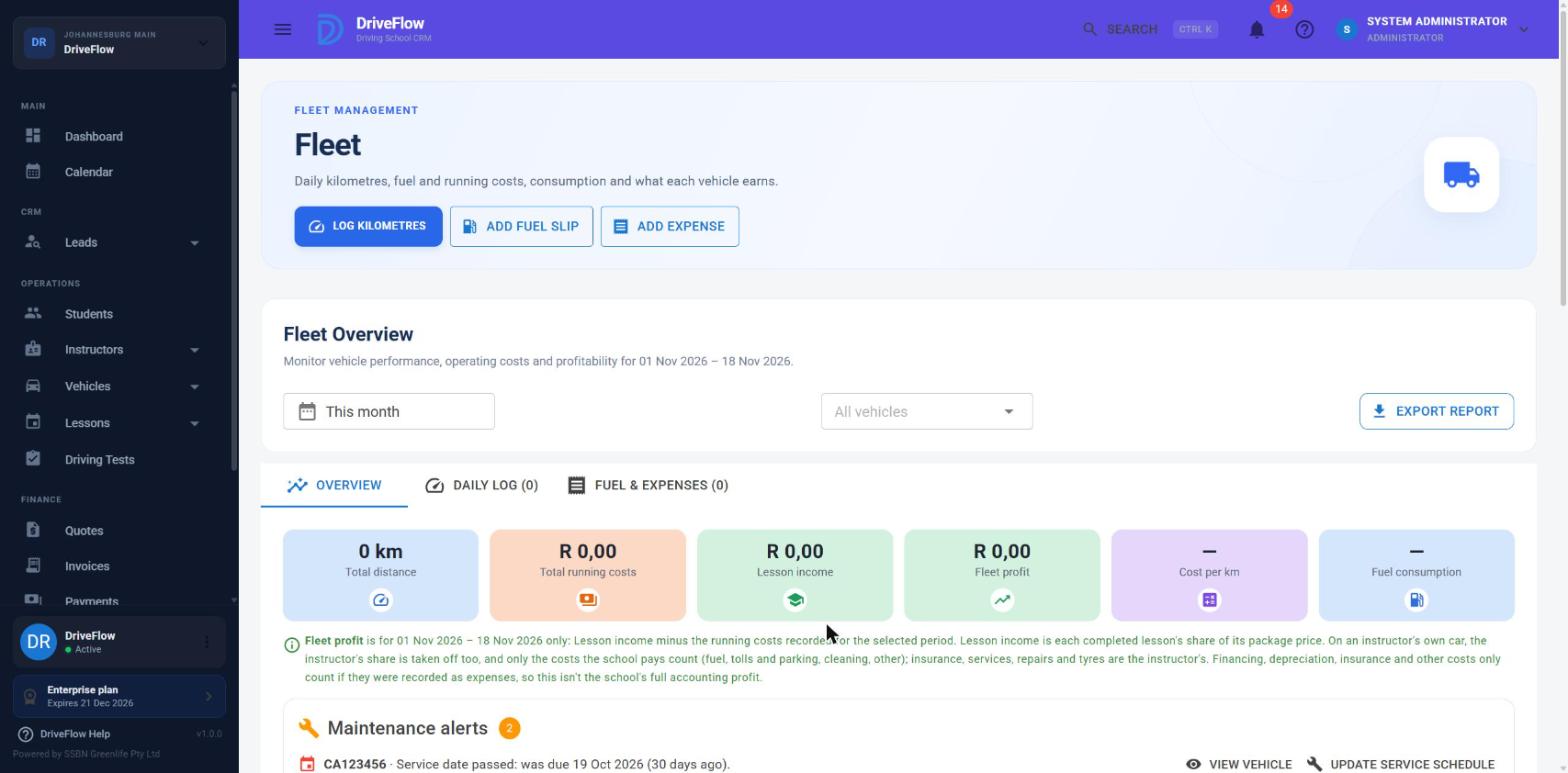
Screen: Fleet Overview tab. Should show: the six KPI cards, Maintenance alerts, the monthly chart and the Vehicle performance table.
The six cards
| Card | Calculation |
|---|---|
| Total distance | Sum of the distances of all kilometre logs in the period. |
| Total running costs | Sum of all expenses in the period (every category). |
| Lesson income | Sum of the lesson price of every completed lesson in these vehicles in the period (see below). |
| Fleet profit | Lesson income − instructor share − (running costs − costs paid by owning instructors). See Profit. |
| Cost per km | Total running costs ÷ total distance, to two decimals. "—" when no kilometres were logged. |
| Fuel consumption | Litres per 100 km, measured full tank to full tank (see below). "—" when it cannot be measured. |
Lesson income
Lessons carry no price of their own, so income is an estimate:
- For each completed lesson in the vehicle in the period, the lesson price is the item marked Lesson price on the lesson's training package; if none is marked, the package price ÷ the package's number of lessons (two decimals). The package is the lesson's course package, or the student's package when the lesson has no course.
- If an instructor earning was recorded for the lesson, the lesson price stored on that earning is used instead, so Fleet and Instructor Earnings agree even if the package price changed later.
- Scheduled lessons count in the Lessons number and hours but add no income. Cancelled lessons and no-shows are left out altogether.
It is not money received: invoices and payments are not looked at.
Fuel consumption (L/100 km)
Consumption is measured from one full tank to the next:
- Fuel slips with an odometer and litres are put in odometer order.
- Measurement starts at the first slip marked Filled the tank.
- The litres of every slip after it, up to and including the next full tank, were burnt over the kilometres between those two full-tank odometer readings. That is one interval: L/100 km = litres ÷ kilometres × 100.
- Part fills in between are added to the litres of their interval. A part fill before the first full tank is ignored.
- For a period, the figure is the distance-weighted average of the intervals ending in the period: total litres ÷ total kilometres × 100. Slips up to a year before the period's end are read so that an interval can start before the period.
Example:
| Date | Odometer | Litres | Full tank? | Result |
|---|---|---|---|---|
| 1 Nov | 50,000 | 38 | Yes | Start of measurement |
| 6 Nov | 50,320 | 15 | No | Added to the next interval |
| 10 Nov | 50,600 | 27 | Yes | Interval: 600 km on 15 + 27 = 42 L → 7.0 L/100 km |
| 18 Nov | 51,180 | 43.5 | Yes | Interval: 580 km on 43.5 L → 7.5 L/100 km |
For November: (42 + 43.5) ÷ (600 + 580) × 100 = 7.25 L/100 km.
Tip
For this to work, drivers must enter the odometer at the pump and untick Filled the tank for part fills.
Profit
Per vehicle:
Profit = lesson income − instructor share − (fuel + other costs − owner-paid costs)
- Instructor share is the sum of the instructor amounts of the earnings recorded for completed lessons in that vehicle (Instructor earnings). It is zero when no earnings were recorded.
- Owner-paid costs apply only to instructor-owned vehicles: expenses in the categories Licence & insurance, Service, Repair and Tyres are treated as paid by the instructor. They are still shown in running costs, but are not taken off the school's profit. Fuel, Tolls & parking, Cleaning and Other are treated as paid by the school.
- For a school-owned vehicle every expense is taken off.
Fleet profit is the same formula over all vehicles shown.
Not accounting profit
The page states this next to every profit figure: it "isn't the school's full accounting profit". Financing, depreciation, insurance and anything else only count if recorded as expenses, and income is estimated from package prices.
Example, instructor-owned car in November: 40 completed lessons at R 450 = R 18,000 income; instructor share at 70% = R 12,600; fuel R 2,400; a service of R 1,800 (paid by the owner). Running costs show R 4,200. Profit = 18,000 − 12,600 − (4,200 − 1,800) = R 3,000.
Maintenance alerts
A box listing, for the vehicles in the filter:
| Line | When |
|---|---|
| "In maintenance: not available for lessons." / "Out of service: not available for lessons." | The vehicle's status is Maintenance or Out of Service. |
| "Service overdue: due at n km, n km over." | Service status Overdue. |
| "Service approaching: due at n km, in n km." | Service status Due soon (within 1,000 km). |
| "Service date passed: was due date (n days ago)." | The vehicle's Next Service Date has passed. |
| "Service date coming up: date (in n days / today)." | Next Service Date is within 30 days. |
Each has View vehicle and, with Fleet.Manage, Update service schedule. With nothing to report: "No vehicles are due or overdue for a service, and none are out of service."
Needs attention
The other alerts (fuel use, missing logs, odometer mismatch) for the vehicles shown; see Alerts.
Charts
- Running costs and income by month: bars for Fuel, Other costs and Lesson income per calendar month in the period (plus Instructor share when there is any).
- Where the money went: a donut of expenses by category.
- Kilometres by month: logged distance per month.
Vehicle performance
One row per vehicle: Vehicle, Km, Fuel (litres), L/100 km, Running costs, Per km, Lessons (count and hours), Income, Instructor share (for instructor-owned vehicles, with "R … costs paid by instructor"), Profit, Service (chip). Sold vehicles appear only if they had kilometres, costs or lessons in the period.
Click a row to open that vehicle's dialog: its figures for the period, the service status and schedule, a Service and repair history (last 12 months) (Service, Repair and Tyres expenses), the latest 10 Kilometre logs and 10 Fuel slips of the period, and buttons Show only this vehicle, Service schedule, Add expense and Log kilometres.
Alerts
Fleet alerts are raised for Active vehicles. They appear in the Overview tab and, for users with Fleet.View on a plan with Fleet Management, in the notification bell as type "Fleet"; clicking one opens the Fleet page for that vehicle.
| Alert | Raised when | Severity |
|---|---|---|
| Registration: high fuel use | The latest full-tank interval used at least 1.25 times the vehicle's own average over its earlier intervals; needs at least 3 earlier intervals; and the interval ended in the last 30 days. Text: "9.4 L/100 km up to 14 Nov, 32% above its usual 7.1. Check for a leak, fuel going missing or a fault." | Warning; Error at 50% or more above |
| Registration: kilometres not logged | On one or more of the last 7 days up to yesterday the vehicle had lessons (not cancelled or no-show) and no log. "No log for Mon 16 Nov, a day with lessons." or "No log for 3 days with lessons: 12 Nov, 13 Nov, 16 Nov." | Warning |
| Registration: kilometres don't match the lessons | A log in the last 7 days has lessons but 0 km, or more km than lesson hours × 60 + 60. | Info |
| Registration: service due soon / overdue | Only for vehicles with a service interval: within 1,000 km of the next service, or past it. "Due at 60,000 km, in 800 km." / "Due at 60,000 km; it's 300 km over." | Warning / Error |
Errors are listed first, then warnings, then information, newest first.
Exports
With Fleet.View:
- Export report (toolbar): the fleet report, one row per vehicle for the period, as Excel, PDF or CSV. Columns: vehicle number, registration, vehicle, distance, days logged, fuel litres, fuel cost, other cost, total cost, cost per km, L/100 km, lessons, lesson hours, lesson income, instructor owned, instructor share, owner-paid cost, profit, current mileage, next service mileage, service status, km left. Title: "Fleet Report - All vehicles (or the registration) - from to to".
- Export on the Fuel & expenses table: every expense in the period and vehicle (date, vehicle, category, amount, litres, price per litre, odometer, supplier, reference, recorded by, notes). The export ignores the category chip and receipt filter on screen.
If an export fails: "Unable to export the report."
Mobile app
Daily kilometre logging is also available in the mobile app for owners and instructors; corrections, deletes, expenses and the overview are web only. See Mobile application.
Limitations and notes
- Profit is an estimate, as described above. Purchase price, finance and depreciation are not included; the vehicle's Purchase Price field is not used.
- Income needs a lesson price. A package with no marked lesson item and zero lessons gives R 0 income for its lessons.
- Deleting a log or expense does not roll back the vehicle's Current Mileage, last service or next service. Correct those by hand (vehicle Edit, or Service schedule).
- The Overview is not limited by branch. Fleet figures cover every vehicle the school has; there is no branch filter on the page.
- No per-lesson odometer. Kilometres are per vehicle per day, not per lesson or per student.
- Driver is informational. It is not checked against the instructors who taught in the vehicle that day.
- One receipt per expense; no multiple attachments.
- A user with only
Fleet.Log(the default Receptionist) still sees the Fuel & expenses tab, but the API does not allow them to list expenses, so the tab cannot load its data. (Read from the permission checks inFleetController; the exact on-screen behaviour was not run.) - Hybrid and electric vehicles are handled like any other: fuel slips in litres only; there is no kWh entry.
- Alerts and warnings use fixed thresholds (1.25×, 3 intervals, 30 days, 7 days, 60 km/h + 60 km, 400 km, 2,000 km, 1,000 km); none can be changed in settings.
- Fleet alerts are raised only for Active vehicles; a vehicle in Maintenance with missing logs is not flagged.
- The message "You can only change a expense you recorded yourself." is the product's own wording.
- The page eyebrow on the basic Vehicles page also reads "FLEET MANAGEMENT"; that page is the basic vehicle list and is available on every plan.
Deleting does not roll back mileage or service figures
Deleting a kilometre log or expense leaves the vehicle's Current Mileage, last service and next service as they were. Correct them by hand on the vehicle form or in the Service schedule.
Related articles
- Vehicle maintenance - expiry dates and service reminders on every plan.
- Instructor earnings - the instructor share used in profit.
- Instructor assignments - which vehicle an instructor may log for.
- Vehicle information - statuses and the Vehicles list.
- Feature access - which plans include Fleet Management.
- Mobile application overview - logging kilometres from the app.