Student Profiles
Applies to: all staff roles with the Students.View permission; individual actions need further permissions as stated. Last reviewed: 2026-11-18.
This page covers the Student Directory (finding students), the Student Profile and each of its tabs, the actions menu, and editing a student.
1. The Student Directory
Where: left menu > OPERATIONS > Students (/students). The menu item is only shown to users with Students.View.
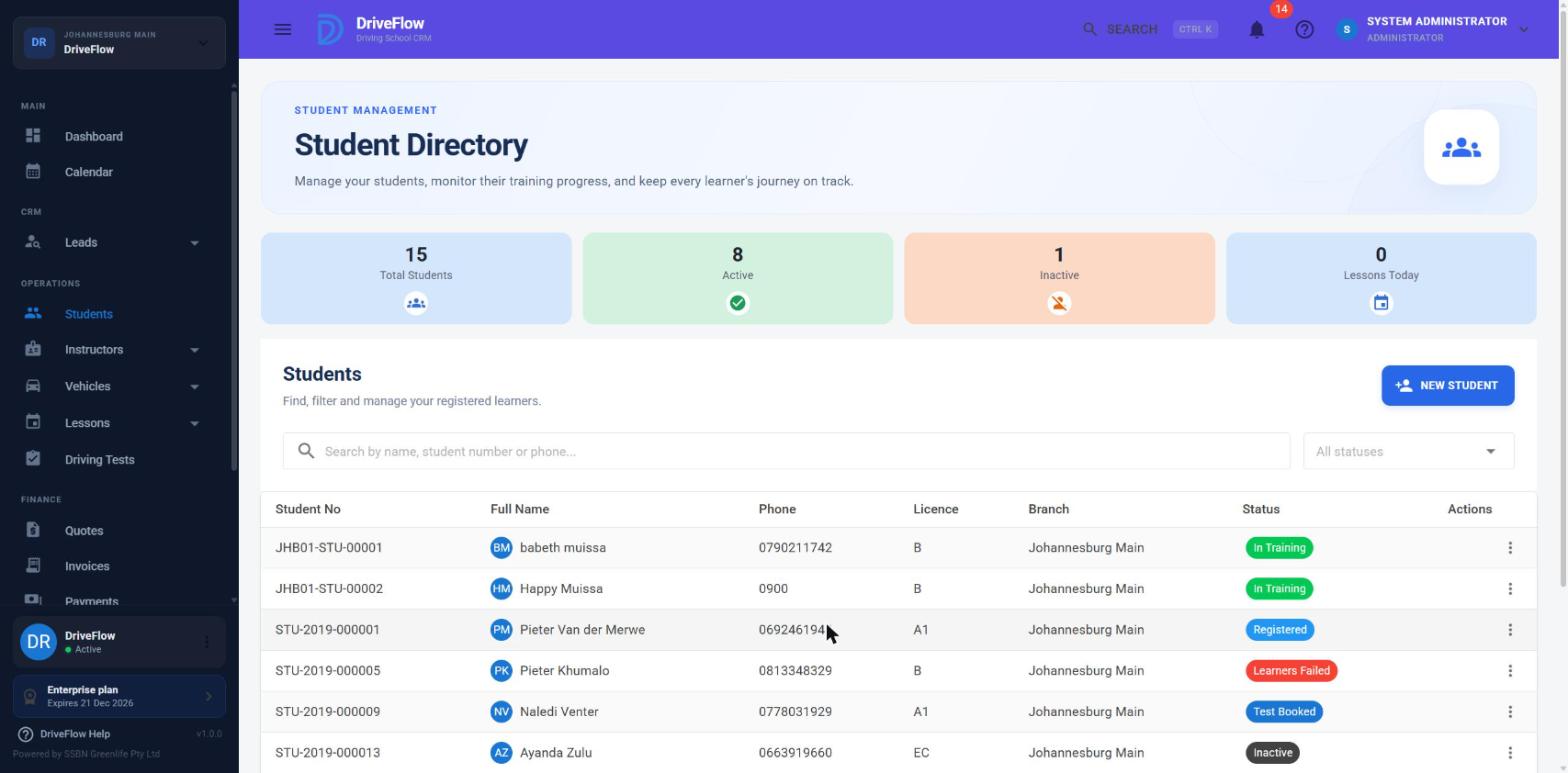
1.1 Summary cards
| Card | What it shows |
|---|---|
| Total Students | All students of the school that are not deleted. |
| Active | Students whose status is anything other than Inactive. The dashboard's "n active" uses a narrower definition under the same word (only Registered, Learners Pending, Learners Passed, In Training, Ready For Test and Test Booked), so the two figures can differ. |
| Inactive | Students whose status is Inactive. |
| Lessons Today | Lessons scheduled for today. |
A card shows "–" if its figure could not be loaded.
1.2 Searching
Type in the search box (placeholder: "Search by name, student number or phone..."). The list refreshes about half a second after you stop typing. Use the X in the box to clear it.
The search matches any part of:
- student number
- first name
- last name
- identity number
- email address
Search does not match phone numbers or full names
The search does not match phone numbers, even though the placeholder says so, and it does not match middle names. Searching for a full name such as "Thandi Mokoena" also returns nothing, because first name and last name are matched separately: search for "Thandi" or "Mokoena".
1.3 Filtering by status
Use the All statuses drop-down next to the search box. Options: All statuses, Registered, On Hold, Learners Pending, Learners Passed, Learners Failed, In Training, Training Completed, Ready For Test, Test Booked, Test Passed, Test Failed, Licensed, Inactive. The meaning of each is in Student status management.
Search and status filter can be combined. There is no branch filter on this page; staff who are tied to one branch only see their own branch's students.
1.4 The table
| Column | Notes |
|---|---|
| Student No | Sortable. The default sort order. |
| Full Name | With the student's initials. Sortable (by first name, then last name). |
| Phone | Not sortable. |
| Licence | The licence code. Not sortable. |
| Branch | Sortable. |
| Status | A coloured chip. Sortable. |
| Actions | The three-dot menu (section 4). |
Click anywhere on a row to open that student's profile. If the list is empty you see "No students found - Register your first student to get started."
The list can be exported (file name "students"). The export contains: Student No, Full Name, Identity No, Phone, Email, Licence, Branch, Training Package and Status.
2. The Student Profile
Where: click a student in the directory, or choose View from the row's actions menu (/students/{id}).
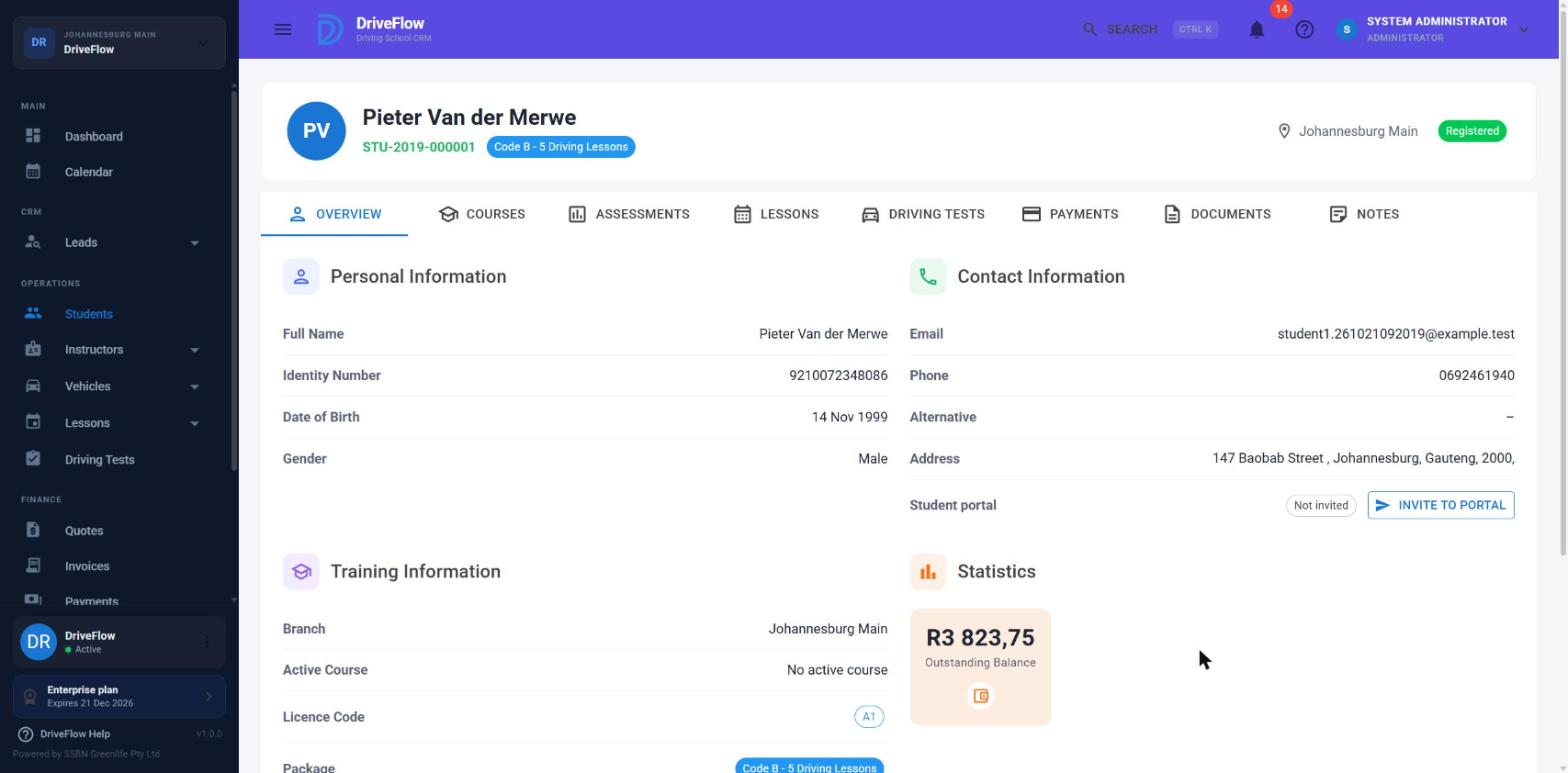
2.1 Header
- The student's initials, first and last name
- Student number
- A chip with the name of their training package
- Branch
- A status chip. It is red for Inactive and green for every other status. The header shows the status name without spaces (for example "InTraining", "LearnersPassed").
2.2 Tabs and who sees them
| Tab | Shown when you have | Covered in |
|---|---|---|
| Overview | Students.View | Section 3.1 |
| Courses | Students.View | Courses |
| Assessments | Students.View | Student training information |
| Lessons | Lessons.View | Section 3.3 and Package allocation |
| Driving Tests | DrivingTests.View | Section 3.4 |
| Payments | Payments.View or Payments.Create | Section 3.5 |
| Documents | Documents.View or Documents.Manage | Student documents |
| Notes | Students.View | Section 3.7 |
Without Students.View you see "You do not have permission to view this student's details." and no tabs.
A link can open a tab directly: adding ?tab=lessons to the profile address opens the Lessons tab (used by the "extra lesson to schedule" reminder).
2.3 Bottom action bar
Below the tabs:
- A back arrow - returns to the Student Directory.
- Calendar - opens the Student Calendar.
- The three-dot actions menu (section 4).
3. The tabs
3.1 Overview
Active Course card (only when the student has an active course): the course name, a status chip, a Lesson Progress bar (completed / total), and three figures - Total Lessons, Completed, Remaining - plus a View Course button that opens the Course Details box. How these figures are worked out is explained in Package allocation.
Personal Information: Full Name, Identity Number, Date of Birth, Gender.
Contact Information: Email, Phone, Alternative, Address, and a Student portal row with a status chip (Not invited, Invited, Active, Sign-in disabled, Not available) and, for users with Students.Edit, an Invite to portal / Resend invite button. See Student portal.
Training Information: Branch, Active Course, Licence Code, Package, Instructor, Course Status, Course Started.
Statistics:
- With an active course: Lessons (total), Completed, Remaining and Balance (the outstanding balance on the active course's invoices).
- Without an active course: a single Outstanding Balance figure for all the student's invoices.
Things to know about the Overview:
- The Instructor row shows the instructor of the student's next booked lesson, not the instructor assigned to the student at registration. If no lesson is booked it shows "–".
- The Address row is built from all address fields joined with commas. Because only the first address line is ever filled in, it shows trailing commas after the address (for example "12 Main Road , , , ,").
- Guardian, emergency contact, learner's licence and PDP details are not shown on the Overview. They can only be seen by opening Edit.
3.2 Courses and Assessments
See Courses and Student training information.
3.3 Lessons
Requires Lessons.View.
Buttons at the top (each needs its own permission):
| Button | Needs | What it does |
|---|---|---|
| Complete Training | Students.Edit | Marks the student's training as completed. Only enabled when at least one lesson is completed, training is not already completed, and the status is before Ready For Test. See Package allocation. |
| Add Extra Lesson | Invoices.Create or Lessons.Manage | Adds one paid or free extra lesson. See Package allocation. |
| Schedule Lesson | Lessons.Create | Opens the Schedule Lesson box (see Scheduling lessons). Hidden once training is completed and no extra lesson is waiting to be booked. |
Below the buttons:
- An information bar when training is completed.
- A warning bar when lessons are booked beyond the package, with a Bill as extra lesson button.
- Four cards: Purchased (or "Purchased (incl. N extra)"), Completed, Remaining, Next Lesson.
- An Extra lessons (N) panel listing each extra lesson: Added, Charge, Invoice, Reason, Added by, and a Remove button for free ones (Lessons.Manage).
- The lesson table: Lesson, Date, Time, Instructor, Vehicle, Status, Actions.
The lesson actions themselves (complete, cancel, reschedule, sign-off, no-show) belong to the lesson management documentation.
3.4 Driving Tests
Requires DrivingTests.View. Lists the student's tests: Test, Date, Time, Test Type, Centre, Instructor, Vehicle, Status, Result. Users with DrivingTests.Create see a button to book a test. Booking and recording results is covered in Booking a driving test and Test results; how test results change the student's status is in Student status management.
3.5 Payments
Shown with Payments.View or Payments.Create.
- Cards: Outstanding, Total Invoiced, Total Paid, Last Payment.
- A button to receive a payment (needs Payments.Create).
- The payments table: Receipt, Date, Invoice, Description, Method, Reference, Amount, Status.
A user who has Payments.Create but not Payments.View (for example a receptionist) only sees the payments they recorded; the third card is then labelled Paid (recorded by you). Everything else about invoices and payments is in the financial management documentation.
3.6 Documents
See Student documents.
3.7 Notes
Free-text notes about the student, newest first. Each note shows the date and time it was added, the text, and "Added by (name)".
To add a note (needs Students.Edit):
- Open the Notes tab and click Add Note (or Add First Note if there are none).
- Type the note in the Note box. It is required; the message is "Please enter a note."
- Click Save Note. You see "Note saved successfully." and the list refreshes.
Notes limitations (important)
- Edit does not edit. The three-dot menu on a note has an Edit item that opens the note text, but saving it adds a new note and leaves the original unchanged. You end up with both.
- Delete does nothing. The Delete item in the same menu is not connected; clicking it has no effect. (The API has a delete-note endpoint, but the web page does not call it.)
- There is no length limit or category on notes.
If there are no notes you see "No notes have been added for this student."
4. The actions menu
The three-dot menu appears on each row of the Student Directory and in the profile's bottom bar. What you see depends on your permissions and on the student's status.
| Menu item | Needs permission | Shown when status is | What it does |
|---|---|---|---|
| View | (none beyond seeing the list) | Any | Opens the profile. |
| Edit | Students.Edit | Not Licensed | Opens Update Student (section 6). |
| License Student | Students.Edit | Test Passed or Learners Passed | See Student status management. |
| Start New Course | Students.Edit | Not Licensed and not Inactive | See Student enrolment. |
| Complete Active Course | Students.Edit | Not Licensed and not Inactive | See Courses. |
| Record Assessment | Students.Edit | Any | See Student training information. |
| Schedule Lesson | Lessons.Create | Any | See Scheduling lessons. |
| Book Driving Test | DrivingTests.Create | Any | See Booking a driving test. |
| Upload Document | Documents.Manage | Any | See Student documents. |
| Record Payment | Payments.Create | Any | See Payments. |
| Deactivate Student | Students.Edit | Not Inactive | See Student status management. |
| Activate Student | Students.Edit | Inactive | Same page. |
| Delete Student | Students.Delete | Any | See Student status management. |
The menu shows some items even when the action will be refused for that student (for example Schedule Lesson for an Inactive student). In those cases the refusal message from the server explains why.
5. Student Calendar
Where: profile > Calendar (/students/{id}/calendar). Page title Student Calendar: "This student's lessons by week or day. Click a lesson to see its details."
It shows three cards (Upcoming, Completed, Lessons Shown) and a calendar of this student's lessons. Users with Lessons.Create can schedule a lesson from here. Lesson details and scheduling rules are in the lesson management documentation.
6. Editing a student
Who: users with Students.Edit.
Where: actions menu > Edit (/students/{id}/edit). The page title is Update Student - "Update the student's personal, contact and guardian information."
Screenshot to be added
Screen: Update Student. Should show: the Personal Information, Contact Information and Guardian Information panels with the "Update Student" button.
6.1 Steps
- Open the student's actions menu and click Edit.
- Change the fields you need in Personal Information and Contact Information. The fields are the same as on registration; see Student registration.
- Click Update Student.
- On success you see "Student updated successfully." and the profile opens.
Cancel and Back to Students both return to the Student Directory without saving.
6.2 What is saved and what is not
This is the most important thing to know about the edit page.
Address and guardian changes are not saved
The edit page lets you change the Physical Address and the Guardian Information, but the update does not save them. The table below lists exactly what is saved.
| Field on the page | Saved? |
|---|---|
| First Name, Middle Name, Last Name | Yes |
| Identity Number | Yes (must not belong to another student) |
| Gender, Date of Birth | Yes |
| Has Learners Licence, Learners Licence Number, Learners Licence Expiry | Yes |
| Has PDP, PDP Number, PDP Expiry | Yes |
| Mobile Number, Alternative Number, Email | Yes (email must not belong to another student) |
| Physical Address | No. The page shows it and lets you change it, but the update does not save the address. |
| Guardian Information (all fields) | No. The page shows the guardian and lets you change it, but the update does not save guardian changes. |
There is no Training Information panel on the edit page. Branch, licence code, training package and assigned instructor cannot be changed on the web. They are sent back unchanged. To give a student a different package, start a new course; see Student enrolment.
6.3 Status change on edit
Editing can reset the status
A general edit does not overwrite the student's status, with one exception: if, when you save, Has Learners Licence is ticked and the Learners Licence Expiry is today or later, the status is set to Learners Passed - whatever it was before. Editing, for example, the phone number of a student who is In Training and holds a valid learner's licence will move them back to Learners Passed. See Student status management.
6.4 Rules and messages
The edit page shows a single message, "Unable to update student.", whenever the save is refused. The actual reason is not displayed. The possible reasons are:
| Reason (server message, not shown on screen) | What to do |
|---|---|
| An inactive student cannot be edited. Reactivate the student first. | Activate the student, then edit. |
| Student has already Licensed | Licensed students cannot be edited (the Edit item is also hidden for them). |
| A student with this email already exists. | Use a different email address. |
| A student with this identity number already exists. | Check the identity number. |
| Student not found. | The student was deleted. |
Unlike registration, the update has no field validation on the server: the 13-character identity number rule, the age rule and the email-format rule are not re-checked when editing. The page still requires First Name, Last Name, Identity Number, Mobile Number and Email to be filled in ("Please complete all required fields.").
7. Limitations and notes
- Search does not cover phone numbers although the placeholder says so (
StudentRepository.GetPagedAsync). - Double confirmation when deleting from the directory. See Student status management.
- History tab is switched off. A
StudentHistorycomponent exists and its tab is commented out inStudentProfile.razor. There is no visible audit history on the profile. - Notes: Edit creates a duplicate and Delete is not wired (
StudentNotes.razor,StudentNoteDialog.razor). - Address and guardian edits are discarded because
UpdateStudentCommandhas no address or guardian fields (UpdateStudentCommand.cs,StudentEdit.razor). - Branch, package, licence code and instructor cannot be edited in the web UI. The server supports changing them (including a branch-move check and a "package change adjustment" invoice), but no screen sends different values. See Package pricing.
- Guardian, emergency contact, medical information, learner's licence and PDP details are not displayed on the profile. Medical information has API endpoints but no screen at all.
- The Overview "Instructor" row is the next lesson's instructor, not the assigned instructor.
- The header status chip is green for every status except Inactive, including Test Failed and Learners Failed. The directory uses distinct colours per status.
Related articles
- Student registration - register a new student.
- Student documents - the Documents tab.
- Student training information - learner's licence, PDP and assessments.
- Guardians and emergency contacts - guardian details on the edit page.
- Student status management - statuses, licensing, deactivating and deleting.
- Student portal - the Student portal row and invitations.