Student Portal
Applies to: Students (portal users); school staff with the Students.View or Students.Edit permission (portal access). Last reviewed: 2026-11-18.
The student portal is the student's own part of the DriveFlow web app. A student signs in with their email address and sees only their own lessons, lesson requests, invoices, payments, ratings and messages. Staff never use the portal; they decide which students get a sign-in.
Students can also use the DriveFlow mobile app with the same sign-in. The mobile app is documented separately (see Student features in the mobile app).
Contents
- What the school needs before students can use the portal
- Giving a student access (staff)
- Signing in (student)
- The portal layout
- Overview
- My lessons
- My calendar
- Lesson actions
- Book a lesson
- Change a lesson
- My requests
- Rate your lessons
- Invoices and online payment
- Messages
- Limitations and notes
1. What the school needs before students can use the portal
| What | Where it is set | Effect when missing |
|---|---|---|
| Student Portal in the subscription plan | Part of the Professional and Enterprise plans and the trial. No add-on is needed. | Staff cannot invite students. A student who already has a sign-in sees "The student portal isn't available right now. Please contact your driving school." on every portal page. |
| Online Booking (to let students request and change lessons) | Professional, Enterprise and the trial. On a paid plan it also needs the paid Online Booking add-on (Settings > Billing). | The Book a lesson menu item and button are hidden, and Ask to change the time is not offered. Students can still see and withdraw requests they already made. |
| Allow online bookings switch for the student's branch | Settings > Scheduling, per branch | Same as above for students of that branch. The booking page shows "Online booking isn't open at your branch. Please contact your driving school to book a lesson." |
| Cancellation notice (hours) for the branch | Settings > Scheduling, field Cancellation notice | 0 means students may cancel or change a lesson any time before it starts. |
| Online payments: the Payments plan feature, online payments switched on and PayFast merchant details saved | Settings > Payments (see Financial management) | Students see their invoices but no Make payment option. |
| A valid email address on the student record | Student profile | The student cannot be invited. The email address is the student's portal username. |
Note
The portal checks these every time a page loads, so a change takes effect the next time the student opens a page.
2. Giving a student access (staff)
Students cannot register themselves. A staff member invites each student, from the student's profile or from Settings > Security.
Who can do it
| Action | Permission needed |
|---|---|
| See a student's portal status | Students.View |
| Invite, resend an invite, activate, deactivate | Students.Edit |
2.1 What an invite does
When you invite a student, DriveFlow:
- Checks that the school's plan includes the Student Portal.
- Checks that the student has an email address containing
@. - Creates a user account for the student:
- username and email = the student's email address;
- first name, last name, phone number, school and branch copied from the student record;
- role Student;
- a random temporary password;
- marked "must change password", so the student has to choose their own password at first sign-in.
- Emails the student. Subject: Your {school name} student portal. The email contains:
- "{school name} has invited you to the student portal, where you can see your lessons, progress and invoices. Use the details below to sign in."
- Username (the email address) and Password (the temporary password);
- a button Open the student portal and the Portal address (when the platform address is configured);
- "You'll be asked to choose your own password the first time you sign in."
The account is linked to the student by email address and school. There is no separate link field: at every sign-in DriveFlow looks for the student record in the same school with the same email address.
2.2 Invite from the student profile
- Open Students and click the student.
- On the Overview tab, find the row Student portal. It shows a status chip and, if you have Students.Edit, a button.
- Click Invite to portal.
- A confirmation box titled Invite to student portal asks: "Create a portal sign-in for {email} and email them a temporary password and the portal link?" Click Send invite (or Cancel).
- While the invite is being sent the button reads Sending.... On success a green message appears: "Portal invite sent to {email}." and the chip changes to Invited.
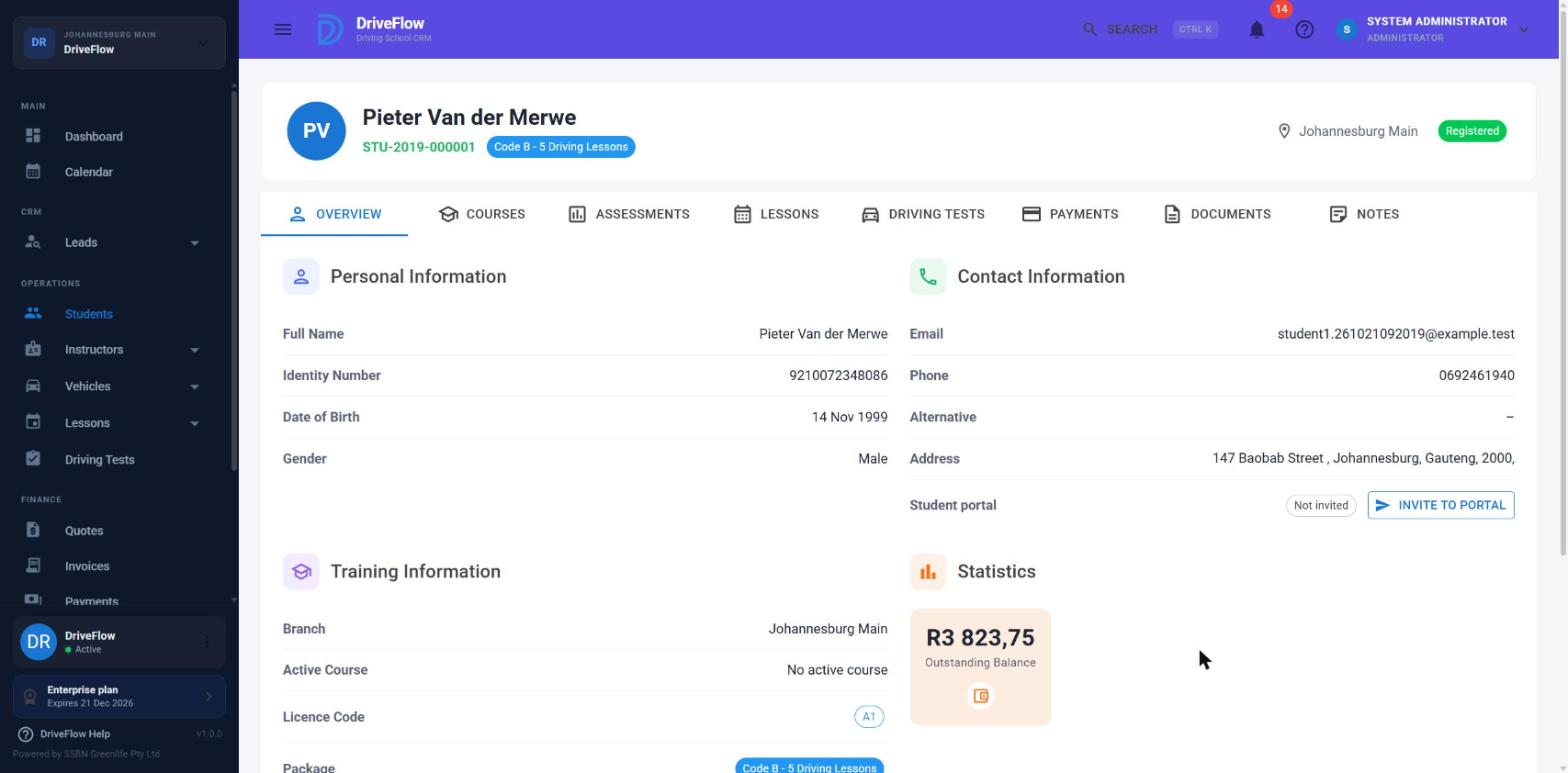
Status chips on the student profile:
| Chip | Meaning |
|---|---|
| Not invited | The student has no portal sign-in. |
| Invited | A sign-in exists but the student has not yet replaced the temporary password. |
| Active | The student has signed in and chosen their own password. |
| Sign-in disabled | The sign-in was deactivated (see 2.5). |
| Not available | The school's plan does not include the Student Portal and the student has no sign-in. |
The button is greyed out, with a tooltip, in two cases:
- No email address: "Add the student's email address first."
- Plan without the portal: "The Student Portal is part of the Professional and Enterprise plans. Upgrade under Settings > Subscription to invite students."
The profile only offers inviting and re-inviting. Activating and deactivating are done in Settings > Security.
2.3 Invite from Settings > Security
- Go to Settings > Security.
- Scroll to the card Student Portal ("Manage student access to the DriveFlow portal."). Without Students.View the card shows "You need permission to view students to manage their portal access."
- The table lists every student of the school (deleted students excluded), ordered by first name, with the columns Student (name, linking to the profile, and student number), Email and Portal status.
- Use the search box (Search student, number or email...) or the All statuses filter to find students.
- Click the three-dot menu at the end of the row and choose Invite to portal.
- Confirm in the box Invite to student portal by clicking Invite.
- A green message "Portal invite sent to {email}." appears and the list reloads.
Screenshot to be added
Screen: Settings > Security. Should show: the "Student Portal" card with the student list, status chips and the open three-dot menu.
Statuses in this list:
| Status | Meaning | Menu items offered |
|---|---|---|
| No email | The student record has no email address. | None (no menu) |
| Not invited | Email present, no sign-in yet. | Invite to portal |
| Invited | Sign-in exists, temporary password not yet replaced. | Resend invitation, Deactivate |
| Active | Student has chosen their own password. | Resend invitation, Deactivate |
| Deactivated | Sign-in switched off. | Resend invitation, Activate |
The three-dot menu only appears for users with Students.Edit.
2.4 Re-inviting
Use Resend invite (student profile) or Resend invitation (Settings > Security) when the student lost the email or forgot the password.
- Confirmation text: "Email {email} a new temporary password and the portal link? Their current password stops working."
- DriveFlow sets a new temporary password, marks the account "must change password" again, and sends the same invite email.
- A re-invite also switches a deactivated sign-in back on.
- The student's status returns to Invited until they choose a new password.
A student who still knows their email address can also use Forgot password? on the sign-in page instead of asking the school.
2.5 Activate and deactivate
In Settings > Security, three-dot menu:
- Deactivate: confirmation box Deactivate portal access: "{student name} will be signed out and can't sign in to the student portal until you activate them again. Their records are kept." Click Deactivate. Result: "Portal access deactivated." The student's open session ends and sign-in is refused. The student record, lessons and invoices are untouched.
- Activate: no confirmation. Result: "Portal access activated." The student can sign in again with the password they had.
Portal access is separate from the student's status
Deactivating portal access is separate from the student's status. Changing a student's status (for example to Inactive) does not switch off their portal sign-in; see Student status management.
2.6 Error messages when inviting
| Message | Cause | What to do |
|---|---|---|
| "Add the student's email address first; it is their portal username." | No email, or no @ in it. |
Edit the student and add an email address. |
| "This email address is already used by another DriveFlow account. Give the student their own email address to invite them." | The address belongs to a staff user, or to a user of another school. | Give the student a different email address. |
| "Student Portal is not included in your {plan} plan. Upgrade your plan to use it." | Plan without the Student Portal. | Upgrade under Settings > Subscription. |
| "Your subscription has ended. Renew it under Settings > Subscription to continue." | Subscription expired. | Renew. |
| "The portal sign-in was created, but the invite email could not be sent. Try Resend invite." | The account was created but the email failed. | Resend the invite. |
| "This student hasn't been invited to the portal yet." | Activate or Deactivate used on a student without a sign-in. | Invite the student first. |
| "You don't have permission to invite students to the portal." / "You don't have permission to change portal access." | Missing Students.Edit. | Ask an owner or administrator. |
| "Student not found." | The student was deleted or belongs to another school. | - |
2.7 Example
Thandi Mokoena registers on Monday with the email thandi.m@example.com. The receptionist opens Thandi's profile, clicks Invite to portal and then Send invite. Thandi receives "Your Sunrise Driving School student portal" with her username and a temporary password. Her chip shows Invited. On Tuesday she signs in, chooses her own password, and her chip changes to Active.
flowchart TD
    A["Staff: Invite to portal"] --> B["Account created (role Student, temporary password)"]
    B --> M[Invite email sent]
    B --> C["Status: Invited"]
    C -->|Student signs in with temporary password| D["'Change Password' page (must choose own password)"]
    D --> E["Status: Active"]
    E --> F[Student lands on the portal Overview]
    E -->|"Staff: Deactivate"| G["Status: Deactivated (signed out, cannot sign in)"]
    G -->|"Staff: Activate"| H["Status: Active again"]
    E -->|"Staff: Resend"| I["New temporary password, status back to Invited"]
3. Signing in (student)
- Open the portal address from the invite email. It is the normal DriveFlow sign-in page; staff and students share it.
- Enter the email address and the password from the email, then sign in.
- First sign-in (temporary password): the Change Password page opens with the notice "You signed in with a temporary password. Choose your own password to continue." Fill in:
- Temporary Password (required): the password from the email;
- New Password (required);
- Confirm New Password (required). If the two do not match: "The new passwords do not match."
- Click Change Password. On success: "Your password has been changed successfully." The only other option on this page is Sign Out; nothing else in the portal opens until the password is changed.
- The student lands on the portal Overview (
/portal). A "Welcome {name}" message appears after a normal sign-in.
Rules:
- A student is always sent to the portal. If a student opens a staff page, they are redirected to the Overview. If a staff member opens a portal page, they are redirected to the staff dashboard.
- Wrong details: "Invalid email or password." A deactivated sign-in gets the same message. Repeated wrong passwords lock the account for a few minutes.
- A session that was idle too long ends with "You were signed out because you weren't active for a while. Please sign in again."; an ended session shows "Your session has ended. Please sign in again."
- Forgotten password: use Forgot password? on the sign-in page, or ask the school to resend the invite.
Screenshot to be added
Screen: Change Password page. Should show: the temporary-password notice with the three password fields.
4. The portal layout
Screenshot to be added
Screen: Student portal. Should show: the whole page showing header, left menu and Overview.
Header
- Menu button (left): opens and closes the left menu.
- School name and logo with the subtitle "Student portal". Clicking it opens the Overview. The trading name is used when the school has one, otherwise the registered name.
- Bell (Messages): see below.
- Help (question mark; on phones it is inside the user menu): Call {school} (when the school has a phone number), Email {school} (when the school has an email address) and Help Centre (opens in a new tab).
- User menu (the student's initial, name and "Student"): shows the student's name, email and school, then Change Password and Logout.
The bell
The bell lists, newest first:
- Payments due: up to 5 unpaid invoices that are overdue or due soon, for example "Invoice INV-00042 is overdue" or "Invoice INV-00042 is due soon", with the balance and due date. "Due soon" uses the same number of days as the school's due-soon reminder emails (Settings > Payments; 3 days when not set). Clicking a reminder opens Invoices and starts the payment for that invoice (or shows its payments when it cannot be paid online). A reminder stays until the invoice is paid.
- Up to 5 of the latest messages from the school. Clicking one opens Messages.
- View all messages.
When there is nothing: "Lesson reminders and updates will show here."
The red number on the bell counts messages and reminders that arrived since the student last opened the bell. This is remembered in the browser, so another browser or device counts separately. The bell refreshes every 2 minutes.
Left menu
| Section | Menu item | Page |
|---|---|---|
| MY LEARNING | Overview | Dashboard |
| MY LEARNING | My lessons | Upcoming lessons and open requests |
| MY LEARNING | My requests | Log of every lesson and change the student asked for |
| MY LEARNING | Book a lesson | Only shown when online booking is available to this student (see section 1) |
| MY LEARNING | Rate your lessons | Ratings for completed lessons |
| MY ACCOUNT | Invoices | Invoices and payments |
| MY ACCOUNT | Messages | Messages the school sent |
The top of the menu shows the student's branch name and the school name. The bottom shows Need help with a lesson? with the school's phone number and email address (when the school has them), a DriveFlow Help link and the version number.
My calendar has no menu item. Open it with View schedule on the Overview or Calendar on My lessons.
If a page fails to load, the portal shows "Something went wrong loading this page. Please try again, or contact your driving school."
5. Overview
Menu: Overview. Browser tab title: "My DriveFlow | Student Dashboard". The page is read-only.
Screenshot to be added
Screen: Portal Overview. Should show: welcome banner, next lesson card, training progress and payments cards.
| Block | What it shows |
|---|---|
| Welcome back, {first name}! | Chips with the student number, licence code ("Code B") and the instructor of the next lesson. Each chip only appears when there is a value. |
| Buttons | My lessons and View schedule (opens My calendar). |
| Your next lesson | The earliest future lesson with status Scheduled or Confirmed: date and time, instructor, vehicle registration and status, with View details (opens My lessons). Otherwise "No upcoming lessons" with View my lessons. |
| My training progress | Overall completion as a percentage, a progress bar, "{n} lessons completed out of {total} total lessons", and the tiles Completed and Remaining. |
| My payments | Total amount paid and Outstanding balance (chip Outstanding or Up to date). |
| My driving test | The next driving test with status Booked and a date after today: date and time, testing centre and status. Otherwise "Your driving test is not scheduled yet". |
How the progress figures are calculated:
- Total lessons = the package lessons plus any extra lessons added. When the student has an active course, the figures are those of that course only; lessons of an earlier course do not count. See Package allocation.
- Completed = lessons with status Completed.
- Remaining = total minus completed (never below 0).
- Completion % = completed divided by total.
The payment totals add up all of the student's invoices.
If the page cannot load: "We couldn't load your details. Please try again." or "We couldn't load your dashboard. Please check your connection and try again.", with a Try again button.
6. My lessons
Menu: My lessons. Page title "My lessons", subtitle "Your upcoming lessons, and lessons you've asked for."
Buttons at the top: My requests, Calendar and, when online booking is available, Book a lesson.
Screenshot to be added
Screen: My lessons. Should show: the "Your requests" cards above the "Booked lessons" table with an open actions menu.
Your requests
Shown only when the student has open or recently answered requests:
- requests still waiting for the school whose time has not passed;
- requests the school declined or cancelled, and requests the student withdrew, for lesson times in the last 30 days.
Each card shows the requested date and time, "With {instructor} · Vehicle {registration}", the school's reason in quotation marks when it declined or cancelled, an Extra lesson · R {price} chip when it is a paid extra lesson, and a status chip:
| Chip | Meaning |
|---|---|
| Waiting for the school | Not yet answered. A Withdraw button is shown. |
| Declined | The school declined it. |
| Cancelled | The school cancelled it, or the student withdrew it. |
A change request starts with "Change of your lesson on {current date} to".
Withdraw: confirmation box Withdraw request: "Withdraw your request for {date}?" or, for a change, "Withdraw your request to move the lesson to {date}? The lesson keeps its current time." Buttons Withdraw and Keep it. Result: "Request withdrawn." Only a request that is still waiting can be withdrawn; otherwise: "Only a request that is still waiting for the school can be withdrawn."
Booked lessons
The table lists:
- every lesson that starts in the future and is not cancelled; and
- any lesson, also in the past, that is waiting for the student's signature.
Columns: Date and time, Instructor, Vehicle (registration number), Status, Actions. 10 lessons per page (10, 25 or 50).
Status wording in the portal:
| Shown | Meaning |
|---|---|
| Scheduled | Booked, not yet confirmed by the student. |
| Confirmed | The student (or the school) confirmed it. |
| In progress | The lesson has started. |
| Awaiting instructor sign-off | The lesson ended; the instructor must sign first. |
| Awaiting your sign-off | The instructor signed; the student must sign to complete it. |
| Completed | Both signed. |
| Missed | Recorded as a no-show. |
| Cancelled | Cancelled. |
Empty list: "No upcoming lessons" with "Book a lesson and your driving school will confirm it." (booking available) or "Your driving school will let you know when your next lesson is scheduled."
The three-dot menu in Actions is described in section 8.
7. My calendar
Reached with View schedule (Overview) or Calendar (My lessons). Page title "My calendar", subtitle "All your lessons by day or week. Click a lesson for its details and what you can do."
- The calendar shows all the student's lessons in the visible period, past and future, including cancelled ones.
- Views: Week (default, Monday to Sunday) and Day. Today jumps back to the current date.
- Lesson list returns to My lessons.
- Clicking a lesson opens a box titled "Lesson {number}" with the date, the start and end time, "With {instructor}", "Vehicle {registration}", "Pickup: {location}" and the status, plus the same Actions menu as in the lesson list and a Close button. After an action the calendar reloads.
- Lessons cannot be dragged to another time and empty slots cannot be clicked to book.
Screenshot to be added
Screen: My calendar. Should show: week view with a lesson clicked and the lesson box open.
8. Lesson actions
The three-dot menu on a lesson (in the list or in the calendar box) offers only what is possible at that moment. The server checks every rule again.
| Menu item | Offered when |
|---|---|
| View details | Always. |
| Confirm I'll be there | Status Scheduled and the lesson has not started. |
| Sign off lesson | Status "Awaiting your sign-off". |
| Ask to change the time | Status Scheduled or Confirmed, the lesson has not started, online booking is available, and no change request for this lesson is already waiting. |
| Add to calendar | The lesson has not started and is not cancelled. |
| Call the school about this lesson | The school has a phone number. |
| Email the school about this lesson | The school has an email address. |
| Cancel lesson | Status Scheduled or Confirmed and the lesson has not started. |
flowchart TD
    S[Scheduled] -->|"Confirm I'll be there"| C[Confirmed]
    SC["Scheduled / Confirmed, not started"] -->|"Cancel lesson, within notice"| X[Cancelled]
    SC -->|Ask to change the time| R["Change request, waits for the school"]
    A[Awaiting your sign-off] -->|Sign off lesson| D[Completed]
View details
A box Lesson details lists Lesson (number), Date, Time (start and end), Instructor, Vehicle, Pickup and Status. Button: Close.
Confirm I'll be there
One click, no confirmation box. Result: "Thanks, your lesson is confirmed." The status becomes Confirmed. The school sees the same status on its side; see Lesson management.
Messages when it is refused: "You've already confirmed this lesson.", "Only a scheduled lesson can be confirmed.", "This lesson has already started."
Cancel lesson
- Choose Cancel lesson.
- The box reads: "Cancel your lesson on {date}? Your driving school and instructor will be told. Lessons can only be cancelled within your school's notice period."
- Enter a Reason (required, up to 500 characters; example text: "e.g. I'm ill / I have an exam that day"). The red Cancel lesson button stays greyed out until a reason is typed. Keep lesson closes the box without cancelling.
- Result: "Your lesson is cancelled. Your school has been told."
What happens:
- The lesson status becomes Cancelled and the reason is saved on the lesson as "Cancelled by the student: {reason}".
- The student and the instructor each get the school's lesson-cancelled notification.
- Only that one lesson is cancelled, also when it is part of a double lesson or a series.
- A cancelled lesson no longer counts against the package, so the lesson becomes available to book again.
Notice period
The branch's Cancellation notice (Settings > Scheduling, in hours) applies to students without exception. If the lesson starts sooner than that, the student gets: "This lesson can only be cancelled at least {hours} hours before it starts." and must contact the school. Owners, administrators and managers can still cancel late from the staff side.
Other messages: "Please tell your driving school why you're cancelling.", "Please keep the reason to 500 characters.", "Only a scheduled or confirmed lesson can be cancelled.", "This lesson has already started.", "Lesson not found."
Example: the branch has a cancellation notice of 24 hours. Thandi has a lesson on Tue 24 Nov 2026, 09:00. On Sunday evening she can cancel it herself. On Monday at 14:00 (19 hours before) the portal answers "This lesson can only be cancelled at least 24 hours before it starts."
Sign off lesson
After a lesson the instructor signs first. The lesson then shows Awaiting your sign-off and stays in the lesson list until the student signs, even though its time has passed.
- Choose Sign off lesson.
- The box shows the date, time, instructor and vehicle, and "Sign below to confirm this lesson took place. This completes the lesson."
- Draw a signature in the Sign here area with a finger, pen or mouse. Clear wipes it. The Sign off button stays greyed out until something is drawn.
- Click Sign off. Result: "Thanks, your lesson is signed off."
What happens:
- The signature and the time of signing are saved with the lesson and the lesson becomes Completed.
- The student receives the lesson-completed notification, which states how many lessons are completed and how many remain.
- If this was the last lesson of the student's package (package plus extra lessons, on the active course) and the student's status is In Training, the status changes to Training Completed. See Student status management.
- The lesson then appears under Rate your lessons.
Messages when refused: "Please sign before submitting.", "Your instructor needs to sign off this lesson first.", "This lesson isn't waiting for your signature."
Screenshot to be added
Screen: Sign off lesson box. Should show: the signature area with a drawn signature and the "Sign off" button.
Add to calendar
Downloads a file named lesson-{date}-{time}.ics that the student's own calendar app (phone, Outlook, Google Calendar) can open. The entry is titled "Driving lesson ({school})", with the instructor and vehicle in the description and the pickup location as the place. If the file cannot be created: "We couldn't create the calendar file. Please try again."
Call or email the school about this lesson
Call opens the phone's dialler with the school's number. Email opens the student's email app with the subject "Lesson {number} on {date}" and the first lines of the message already filled in.
9. Book a lesson
Menu: Book a lesson (also the Book a lesson button on My lessons). Page title "Book a lesson", subtitle "Pick a time that suits you. Your driving school confirms it before it's booked."
Requests, not bookings
A student never books a lesson directly. The student sends a request for a free time; the request holds that time, and it becomes a lesson only when the school approves it under Lesson requests on the staff side (see Lesson management).
Screenshot to be added
Screen: Book a lesson. Should show: week of free times with one time selected and the request panel at the bottom.
Steps
- Open Book a lesson. A notice shows how many lessons can still be booked: "You have {n} lessons left to book in your package."
- Pick a week with the arrow buttons. The page shows 7 days starting today; earlier weeks cannot be opened.
- If the student has an assigned instructor, the switch Only with {instructor} is on. Switch it off to see free times with any instructor. If the assigned instructor cannot take lessons at all (for example they left the branch), times with other instructors are shown automatically.
- Each day lists its free start times as buttons. A day without times shows why: "Fully booked.", "Closed.", "You already have the most lessons allowed on this day." or the school's own rule.
- Click a time. A panel appears at the bottom with the date, time, length in minutes, instructor and vehicle.
- Optionally fill in Anything the school should know? (optional) (up to 500 characters; example text: "e.g. Please pick me up at work").
- Click Request this lesson. The button reads Sending... while it is sent. Cancel clears the selection.
- Result: "Lesson requested. We'll let you know once your driving school confirms it." The student is taken to My lessons, where the request appears under Your requests as Waiting for the school.
No free times in the week: "There are no free times this week with your instructor. Try switching off "Only with {instructor}", or look at next week." or "There are no free times this week. Try next week."
Rules
- The free times come from the same scheduling rules staff bookings use (working hours, closed days, instructor and vehicle availability, booking windows, maximum lessons per day). See Lesson management.
- The student always books for themselves and at their own branch.
- A waiting request holds the instructor, vehicle and time, so nobody else can take it.
- If someone took the time in the meantime: "There is already a pending or confirmed booking for the selected time slot." The list of times reloads.
- Lessons left to book = package lessons + extra lessons, minus every lesson that is not cancelled, minus requests still waiting for the school. With an active course, only that course is counted. A student without a package has no limit and sees no count.
Extra lessons
When the lessons left to book reach 0, the page warns: "You have booked all the lessons in your package. Any lesson you ask for now is an extra lesson at R {price}. Your driving school will send you an invoice when they confirm it."
- The price is the package's lesson price (the package's lesson-price item, otherwise the package price divided by its number of lessons).
- After picking a time the student must tick I understand this is an extra lesson (R {price}) and my driving school will invoice me for it. The request button stays greyed out until it is ticked.
- Result: "Extra lesson requested. Your driving school will confirm it and send you the invoice."
- When the school approves, it decides whether the extra lesson is paid or free and for what amount; a paid one produces an invoice. Nothing is charged at the moment of the request.
- If the request is sent without accepting the charge: "You have booked all the lessons in your package. To ask for an extra lesson, accept the extra lesson charge and send the request again."
What the school can do with a request
| School action | What the student sees |
|---|---|
| Approves | A lesson with status Scheduled appears under Booked lessons; the student gets the lesson-booked notification, with the school's note if it wrote one. In My requests the request shows Approved. A student with status Registered, Learners Pending or Learners Passed moves to In Training. |
| Declines | The request shows Declined with the school's reason; the student gets the request-declined notification. |
| Does nothing before the requested time | The request disappears from My lessons and shows Expired in My requests. |
flowchart TD
    A[Student picks a free time] --> B[Request this lesson]
    B --> C[Request: Waiting for the school<br/>the time is held]
    C -->|Student clicks Withdraw| W[Withdrawn]
    C -->|School approves| D[Lesson created: Scheduled]
    C -->|School declines| E[Declined, with reason]
    C -->|Time passes unanswered| X[Expired]
    D --> F[Student: Confirm I'll be there] --> G[Confirmed]
10. Change a lesson
A student can ask to move a booked lesson to another free time. Open the lesson's menu and choose Ask to change the time. The page is the booking page with the title "Change a lesson" and the subtitle "Pick a new time. Your lesson keeps its current time until your driving school confirms the change."
- A notice shows which lesson is being changed: "Changing your lesson on {date} with {instructor}."
- Pick a week and a free time, as when booking.
- Optionally add a note for the school.
- Click Ask to change to this time.
- Result: "Change requested. Your lesson keeps its current time until your driving school confirms the new one." The request appears in My lessons as "Change of your lesson on {old date} to {new date}".
Rules:
- Only a Scheduled or Confirmed lesson that has not started can be changed. Otherwise: "Only a scheduled or confirmed lesson can be changed." or "This lesson has already started."
- The branch's Cancellation notice applies to changes exactly as it does to cancelling: "This lesson can only be changed at least {hours} hours before it starts. Please contact your driving school."
- One change request per lesson at a time: "You've already asked to change this lesson. Wait for your school, or withdraw that request first." While a change is waiting, Ask to change the time is not offered for that lesson.
- The new time must differ from the current one: "Choose a different time for the lesson."
- Note longer than 500 characters: "Please keep the note to 500 characters."
- A change does not use a lesson from the package and never needs an extra lesson.
- The old time stays booked until the school decides. If the school approves, the lesson moves to the new time, instructor and vehicle, its status goes back to Scheduled (so the student confirms it again), and student and instructor get the lesson-rescheduled notification. If the school declines, nothing changes.
- If the lesson cannot be changed online (not found, already started, or no longer Scheduled or Confirmed), the page shows: "This lesson can't be changed online. Please contact your driving school." with a My lessons button.
11. My requests
Menu: My requests. Page title "My requests", subtitle "Every lesson and change you've asked for, and what your driving school said."
The log lists every lesson and change the student asked for online, newest first (the latest 100). Lessons the school booked itself are not requests and do not appear here.
Screenshot to be added
Screen: My requests. Should show: the status filter chips and a few request cards with different statuses.
Each entry shows:
- "Lesson request" or "Change of a lesson", and when it was asked;
- the requested date and time, and for a change "Instead of {current lesson time}";
- "With {instructor} · Vehicle {registration}";
- the school's message, as School: "{text}" (its note when approving, or its reason when declining or cancelling);
- when it was last acted on, for example "Approved on Thu 19 Nov 2026, 10:12";
- an Extra lesson · R {price} chip where it applies;
- the status chip, and Withdraw while it is still waiting.
Statuses:
| Status | Meaning |
|---|---|
| Waiting for the school | Not answered yet; the requested time is still in the future. Can be withdrawn. |
| Approved | The school accepted it. It is a lesson, or it moved a lesson. |
| Declined | The school declined it. |
| Withdrawn | The student withdrew it before the school answered. |
| Cancelled by the school | The school cancelled the request. |
| Expired | The requested time passed before the school answered. |
The chips above the list ("Approved (3)", "Declined (1)" and so on) filter the list by status; click a chip again to show everything. Only statuses that occur are shown.
Empty: "No requests yet" with "Lessons and changes you ask for online will show here, with your driving school's answer."
This page stays available when online booking is switched off, so earlier requests are never lost from view.
12. Rate your lessons
Menu: Rate your lessons. Subtitle: "Tell your driving school how your lessons went. Your instructor won't see your name, only the school's owner can. A rating can't be changed once sent."
Screenshot to be added
Screen: Rate your lessons. Should show: a lesson with the star rating and comment box open, and the "Your ratings" list below.
Waiting for your rating
Lists the student's Completed lessons from the last 90 days that have no rating yet, newest first, with the date and "With {instructor}".
- Click Rate this lesson.
- Click 1 to 5 stars. The label under the stars reads Poor, Fair, Good, Very good or Excellent ("Tap a star to rate" before choosing). A rating is required; Send rating stays greyed out without it.
- Optionally fill in Comment (optional) (up to 1000 characters; example text: "What went well? What could be better?").
- Click Send rating (or Cancel). Result: "Thanks for your rating."
Empty: "Nothing to rate" with "Once you've completed a lesson you can rate it here."
Your ratings
Every rating the student has given, with the lesson date, instructor, stars and comment. They are read-only.
Rules
- One rating per lesson: "You've already rated this lesson."
- Only completed lessons: "You can rate a lesson once it has been completed."
- Only within 90 days of the lesson: "Lessons can be rated for up to 90 days afterwards."
- "Please choose a rating from 1 to 5 stars." / "Please keep your comment to 1000 characters."
- A rating cannot be edited or deleted, by the student or by staff.
- Staff can read the ratings and each instructor's average. Only a user with the Owner role sees which student gave a rating and for which lesson; for everyone else the student, the lesson and the time of day are removed before the data leaves the server.
13. Invoices and online payment
Menu: Invoices. Page title "Invoices", subtitle "What you've been invoiced and what you've paid."
How invoices are created, and how the school sets up payments, is described in Financial management. This section covers only what the student sees and does.
Screenshot to be added
Screen: Portal Invoices. Should show: the outstanding notice, the invoice table and an open actions menu with "View payments" and "Make payment".
The invoice list
All the student's invoices, newest first. Columns: Invoice (number), Description (the invoice lines, cut to two lines; hover for the full text), Date, Due, Status, Total, Paid, Balance, Actions. 10 per page (10, 25 or 50).
Statuses are shown as the school's invoice status; "PartiallyPaid" reads Partly paid.
When something is owed, a notice at the top reads: "You have R 1 500,00 outstanding, with 1 invoice overdue." followed by either "You can pay an invoice online with Make payment in its actions menu." or "Please contact your driving school to arrange payment." The outstanding amount leaves out cancelled invoices, credit notes and drafts.
Empty: "No invoices yet" with "Invoices from your driving school will appear here."
View payments
Three-dot menu > View payments opens "Payments on invoice {number}" with the Total, Paid and Balance, and a table of Date, Method, Reference, Amount and Status:
- payments the school recorded (method such as Cash, Card or Bank transfer; the reference is the receipt number);
- online payment attempts that did not succeed, shown as "Online (PayFast)" with the status Not finished, Failed or Cancelled, so the student can see that an attempt did not go through.
Payment statuses: Paid, Pending, Not finished, Failed, Cancelled, Refunded. With no payments: "No payments on this invoice yet." When the invoice can be paid online the box also has a Pay now button.
Make payment (online, through PayFast)
Make payment is offered on an invoice only when all of these are true:
- the school's plan includes payments, the school has switched online payments on and has saved its PayFast merchant details;
- the invoice status is Pending, Partly paid or Overdue;
- the balance is at least R 5,00 (PayFast does not accept less).
Steps:
- Three-dot menu > Make payment (or Pay now in the payments box, or click a payment reminder in the bell or the pay link in a reminder email).
- The box "Pay invoice {number}" shows Balance owing.
- If the school allows part payments, the field Amount to pay appears, pre-filled with the full balance. It accepts any amount from R 5,00 up to the balance ("Pay the full balance or part of it (at least R 5,00)."). If the school does not allow part payments, the full balance is paid and there is no field.
- Click Pay R {amount}. The row shows "Opening PayFast..." and the browser goes to PayFast's secure payment page, where the student pays by card, EFT or another method PayFast offers. The money goes directly into the school's own PayFast account.
- PayFast sends the student back to the portal's Payment page, which shows one of:
- Payment received: "Thank you. R {amount} was paid towards invoice {number}." and "Your receipt has been emailed to you."
- Payment not completed: "Nothing was paid. You can try again whenever you're ready." (the student cancelled at PayFast, or the payment failed).
- Confirming your payment…: "We're waiting for PayFast to confirm it. This usually takes a few seconds." The page checks every 3 seconds for about a minute. After that: "PayFast hasn't confirmed this payment yet. That can take a few minutes, for example with EFT. It will show on your invoices once confirmed, and you'll get a receipt by email."
- Back to invoices returns to the list.
Screenshot to be added
Screen: Pay invoice box. Should show: balance owing, the "Amount to pay" field and the "Pay R ..." button.
Rules:
- A payment counts only when PayFast itself confirms it to DriveFlow. Returning to the portal is not proof of payment, so the invoice is updated only after that confirmation.
- A payment that was started but not finished counts against the invoice balance for 60 minutes, so the same invoice cannot be paid twice from two tabs. A second attempt in that time gets: "A payment for this invoice is already in progress. If you didn't finish it, please try again in an hour." Cancelling at PayFast frees the invoice straight away.
- Payments are in South African rand (ZAR).
Messages: "Online payments aren't available at your driving school. Please contact them to pay.", "This invoice doesn't need paying.", "You can pay at most {amount} on this invoice.", "The smallest amount you can pay online is 5.00.", "This balance is too small to pay online. Please contact your driving school.", "Invoice not found.", "We couldn't start the payment. Please try again.", "We couldn't tell which payment this is."
Example: Thandi's package invoice INV-00042 is R 4 500,00 with R 1 500,00 paid. The school allows part payments. She chooses Make payment, changes the amount to R 1 000,00, clicks Pay R 1 000,00, pays by card at PayFast and returns to "Payment received". The invoice now shows Paid R 2 500,00, Balance R 2 000,00 and status Partly paid.
14. Messages
Menu: Messages (or View all messages in the bell). Page title "Messages", subtitle "Reminders and updates your driving school has sent you."
The page lists the latest 50 messages DriveFlow sent to the student by email, SMS or WhatsApp, newest first: lesson confirmations, reminders, cancellations, invoices, receipts and so on. Which messages a school sends is set up by the school; see the notifications documentation.
- Each entry shows the subject ("Message" when there is none), the channel and the date and time sent.
- SMS and WhatsApp messages show their text straight away.
- Emails start collapsed. Click the heading to open one: the text is shown first, and Show email / Hide email shows the email as it was designed.
- Messages that failed to send are left out.
- The page is read-only. A student cannot reply or send a message to the school from here; use Call {school} or Email {school} under Help.
Empty: "No messages yet" with "Lesson reminders and other messages from your driving school will appear here."
Screenshot to be added
Screen: Portal Messages. Should show: a list with one email opened and the "Show email" button.
15. Limitations and notes
These points describe how the portal behaves today. File names are given for the technical team.
Access and sign-in
- The sign-in is linked to the student by email address only. Changing the email address on the student record does not change the portal account. The student then shows Not invited, and the old sign-in no longer finds a student record (the portal pages fail with "Student account not found."). After changing a student's email address, invite the student again on the new address. (
DriveFlow.Infrastructure\Identity\Services\StudentPortalAccessService.cs,DriveFlow.Infrastructure\Services\Authentication\AuthService.cs;UpdateStudentCommandHandler.csupdates only the student record.) - Portal access is independent of the student's status. A student who is Inactive, Licensed or in any other status can still sign in until staff choose Deactivate. Lesson requests of students whose status does not allow lessons are refused when the school tries to approve them, not when the student sends them. (
StudentPortalAccessService.cs,DriveFlow.Application\Features\Lessons\LessonBookingRules.cs,DriveFlow.Application\Features\Bookings\Commands\ApproveBooking.cs) - Activate and Deactivate exist only in Settings > Security. The student profile only has Invite / Resend invite. The two screens also word things differently: the profile says Sign-in disabled and Resend invite, the settings list says Deactivated and Resend invitation. (
DriveFlow.Web\Features\Students\Components\StudentOverview.razor,DriveFlow.Web\Features\Settings\Components\StudentPortalAccounts.razor) - The plan is checked for inviting only. Activate and Deactivate work without the Student Portal in the plan. In the settings list the invite menu is not greyed out on a plan without the portal; the refusal comes as an error message after clicking. (
StudentPortalAccessService.cs) - No bulk invite. Students are invited one at a time.
- Change Password is the staff page. From the portal's user menu the student opens the same Change Password page staff use. After saving or cancelling, the page sends the user to a staff address and the student is then redirected back to the Overview. (
DriveFlow.Web\Features\Security\Pages\ChangePassword.razor,DriveFlow.Web\Components\Layout\MainLayout.razor)
Pages and navigation
- My calendar has no menu item; it is reached only through buttons on other pages. (
DriveFlow.Web\Features\StudentPortal\Layout\PortalSidebar.razor) - The arrow next to the school name in the left menu does nothing. (
PortalSidebar.razor) - "View details" on the Overview's next-lesson card opens the My lessons list, not that lesson. (
DriveFlow.Web\Features\StudentPortal\Pages\PortalDashboard.razor) - The Book a lesson page also answers on the address
/book-lesson, which nothing in the portal links to. (DriveFlow.Web\Features\StudentPortal\Pages\PortalBook.razor) - The instructor chip on the Overview is the instructor of the next lesson, not the instructor assigned to the student. With no upcoming lesson the chip is missing. (
DriveFlow.Infrastructure\Repositories\StudentPortalRepository.cs) - Documents are not available in the portal. The dashboard data carries a document count and a message count, but no page shows them and there is no documents page. (
DriveFlow.Application\Features\StudentPortal\DTOs\StudentDashboardDto.cs,StudentPortalRepository.cs) - No profile page. A student cannot view or edit their personal details in the web portal.
Invoices and payments
- No invoice or receipt download in the web portal. The server can produce the invoice PDF and the receipt PDF for a student (
api/student/invoices/{id}/pdfandapi/student/payments/{paymentId}/receiptinDriveFlow.Api\Controllers\StudentPortalController.cs), but the web portal has no button for them (DriveFlow.Web\Features\StudentPortal\Services\StudentPortalService.csdoes not call them). Students receive these documents by email. - The Overview's outstanding balance and the Invoices page's outstanding amount are calculated differently. The Overview adds up every invoice; the Invoices page leaves out cancelled invoices, credit notes and drafts. The two figures can differ. (
StudentPortalRepository.cs,DriveFlow.Web\Features\StudentPortal\Pages\PortalInvoices.razor) - The invoice list is not filtered by status, so invoices in any status, including Draft and Cancelled, are listed if they exist for the student. (
StudentPortalRepository.cs,GetInvoicesAsync) - PayFast is the only online payment method, in rand, with a minimum of R 5,00. (
DriveFlow.Application\Features\StudentPortal\Queries\StudentPaymentQueries.cs)
Lessons and requests
- The school is not sent a notification when a student sends or withdraws a request. Staff see new requests on the Lesson requests page and in the pop-up that appears in the staff app. (
DriveFlow.Application\Features\Bookings\Commands\CreateBooking.cs,DriveFlow.Application\Features\StudentPortal\Queries\StudentBookingQueries.cs,DriveFlow.Web\Features\Bookings\Components\PendingRequestsWatcher.razor) - A withdrawn request shows as "Cancelled" on My lessons but as "Withdrawn" on My requests. (
DriveFlow.Web\Features\StudentPortal\PortalDisplay.cs) - A student cancels one lesson at a time. The rest of a double lesson or a series is not cancelled with it. (
DriveFlow.Application\Features\StudentPortal\Queries\StudentLessonActions.cs) - "Has the lesson started" is judged slightly differently for cancelling and changing. Cancelling and confirming compare with the server's clock; changing compares with the branch's local time. The notice period itself is always measured in branch time. (
StudentLessonActions.cs,StudentLessonChanges.cs) - The calendar can load at most two months at once ("Please ask for at most two months at a time."); the week and day views stay well inside that. (
StudentLessonActions.cs)
Messages
- Messages have no read or unread state on the server. The red number on the bell is remembered per browser. (
DriveFlow.Web\Features\StudentPortal\Layout\PortalHeader.razor) - Messages are matched on the email address and phone number they were sent to. After the student's email address or phone number changes, messages sent to the old one no longer appear. Push notifications from the mobile app are not listed. (
StudentPortalRepository.cs,MessagesTo) - Only the latest 50 messages are shown, and there is no search.
- The portal is one-way. There is no way to send a message to the school from inside the portal.
Ratings
- Ratings are final. There is no edit or delete, and a lesson older than 90 days can no longer be rated. (
DriveFlow.Application\Features\Instructors\Reviews\InstructorReviewQueries.cs)
Related articles
- Student profiles - the Student portal row on the profile.
- Student status management - statuses and why portal access is separate.
- Package allocation - how lessons left to book are counted.
- Bookings and online requests - how staff handle lesson requests.
- Online payments - setting up PayFast payments for students.
- Student registration - the email address on the student record is the portal username.