Instructor earnings
Applies to: Owner, Administrator, Manager, Finance (all earnings); Instructor (own earnings). Enterprise plans and the Free Trial only. Last reviewed: 2026-11-18.
Instructor Earnings works out, for every lesson an instructor completes, how much of the lesson price goes to the instructor and how much stays with the school, and tracks whether the instructor's part has been paid out.
Note
It does not pay anybody. It records what is owed; you pay the instructor outside DriveFlow and then mark the earnings as paid.
Availability and permissions
Plan
The feature is switched on by the plan feature Instructor Earnings (code INSTRUCTOR_EARNINGS). In the seeded plans it is included in Enterprise, Enterprise Plus, Enterprise Custom and the Free Trial; it is not in Starter or Professional.
Without it the menu items are hidden, the pages show "Instructor Earnings is part of the Enterprise plan" with a View plans button, the API refuses every earnings request, and no earnings are recorded. See Subscriptions and billing.
Recording which vehicles are instructor-owned is not part of this feature; it is available on every plan (see Vehicle assignment).
Permissions
| Permission | Allows | Default roles |
|---|---|---|
InstructorEarnings.View |
See every instructor's earnings and shares. | Owner, Administrator, Manager, Finance |
InstructorEarnings.ViewOwn |
An instructor sees only their own earnings. | Owner, Instructor |
InstructorEarnings.Manage |
Set shares; mark earnings paid or unpaid. | Owner, Administrator, Manager, Finance |
Reports.View + InstructorEarnings.View |
Open the Instructor Earnings Report. | Owner, Administrator, Manager, Finance |
How it works
flowchart TD
    A[Set each instructor's shares<br/>Earnings > Instructor shares] --> C
    B[Mark the lesson price on the package<br/>training package > item > Lesson price] --> C
    C[A lesson is completed<br/>staff completes it, or the student signs it off] --> D{Whose vehicle was it?}
    D -- Instructor's own vehicle --> E[Own-vehicle share]
    D -- Any other vehicle --> F[School-vehicle share]
    E --> G{Share empty?}
    F --> G
    G -- Yes --> X[Nothing recorded]
    G -- No --> H[Lesson price = marked package item,<br/>else package price / number of lessons]
    H --> I{Lesson price is 0?}
    I -- Yes --> X
    I -- No --> J[Earning recorded: lesson price,<br/>instructor amount, school amount - Owed]
    J --> K[You pay the instructor,<br/>then Mark as paid - Paid]
Step 1: Set each instructor's shares
Each instructor has two independent shares:
- Own vehicle: used when the lesson was given in a vehicle registered as Instructor Owned with this instructor as the Vehicle Owner.
- School vehicle: used for a lesson in any other vehicle (a school-owned vehicle, or a vehicle owned by a different instructor).
Each share is either a Percentage of the lesson price or a Fixed amount in rand per lesson. A share left empty means the instructor earns nothing for that kind of lesson.
- Open OPERATIONS > Instructors > Earnings (address
/instructor-earnings). - Click the Instructor shares tab. (Only visible with
InstructorEarnings.View.) Every instructor is listed with the vehicles they own, or "No vehicle of their own". - On the instructor's row, for Own vehicle and/or School vehicle:
- Share: choose Percentage or Fixed amount.
- Percentage (0 to 100) or Amount per lesson (R): enter the value.
- Click Save on that row. The button is enabled only when something changed. You see "Name's share saved."
To remove a share, clear the Share selector (the small cross) and click Save.
Screenshot to be added
Screen: Instructor Earnings page, Instructor shares tab. Should show: one instructor with Own vehicle 70% and School vehicle R 120.00.
Rules:
- A change applies to lessons completed from then on. Earnings already recorded keep the share they were calculated with.
- Values are rounded to two decimals.
- Without
InstructorEarnings.Managethe fields are read-only and there is no Save button.
| Error | Why |
|---|---|
| Choose the own-vehicle share type and enter its value. / Choose the school-vehicle share type and enter its value. | A type was chosen without a value. |
| The own-vehicle share cannot be negative. / The school-vehicle share cannot be negative. | Negative value. |
| The own-vehicle percentage cannot be more than 100%. / The school-vehicle percentage cannot be more than 100%. | Percentage above 100. |
| Instructor not found. | The instructor was deleted. |
Step 2: Set the lesson price on your training packages
Lessons do not carry a price of their own. The price of one lesson comes from the training package of the lesson's course (or, when the lesson has no course, the student's package):
- If one of the package's items is marked Lesson price, the lesson price is that item's unit price.
- Otherwise it is the package price ÷ the package's number of lessons, rounded to two decimals.
- If the package has no lessons (number of lessons is 0) and no marked item, the lesson price is 0 and no earning is recorded.
To mark an item:
- Open the training package (under the school's package settings).
- On the item that represents a lesson, tick Lesson price (tooltip: "Use this item's unit price as the price of one lesson").
Only one item per package can be marked; ticking another one unticks the first. The checkbox is shown only when your plan has Instructor Earnings. Under the items the form shows "Lesson price: R … (the marked item)" or "(package price ÷ number of lessons; tick an item's Lesson price to set it)".
Why it matters
A package of R 6,000 with 10 lessons, a learner's licence class and a test-day car hire gives R 600 per lesson by division. If the lessons themselves are sold at R 450 each, mark the lesson item so shares are worked out on R 450.
Step 3: Lessons are completed
An earning is created automatically at the moment a lesson becomes Completed, whether staff complete it or the student's sign-off completes it. Nothing is recorded for cancelled lessons or no-shows.
Calculation
| Share type | Instructor amount |
|---|---|
| Percentage | lesson price × percentage ÷ 100, rounded to two decimals (halves round up) |
| Fixed amount | the fixed amount, but never more than the lesson price |
School amount = lesson price − instructor amount.
Each lesson can have only one earning. The earning stores the lesson price, the share type and value used, both amounts and the vehicle, so later changes to the package price or the share do not alter it.
Examples
| Lesson price | Vehicle | Share used | Instructor | School |
|---|---|---|---|---|
| R 450.00 | Instructor's own car | Own vehicle 70% | R 315.00 | R 135.00 |
| R 450.00 | School car | School vehicle R 120.00 fixed | R 120.00 | R 330.00 |
| R 100.00 | School car | School vehicle R 120.00 fixed | R 100.00 (capped) | R 0.00 |
| R 450.00 | School car | School vehicle share empty | nothing recorded | |
| R 333.33 (R 1,000 ÷ 3) | Own car | Own vehicle 50% | R 166.67 | R 166.66 |
Step 4: Review earnings and mark them paid
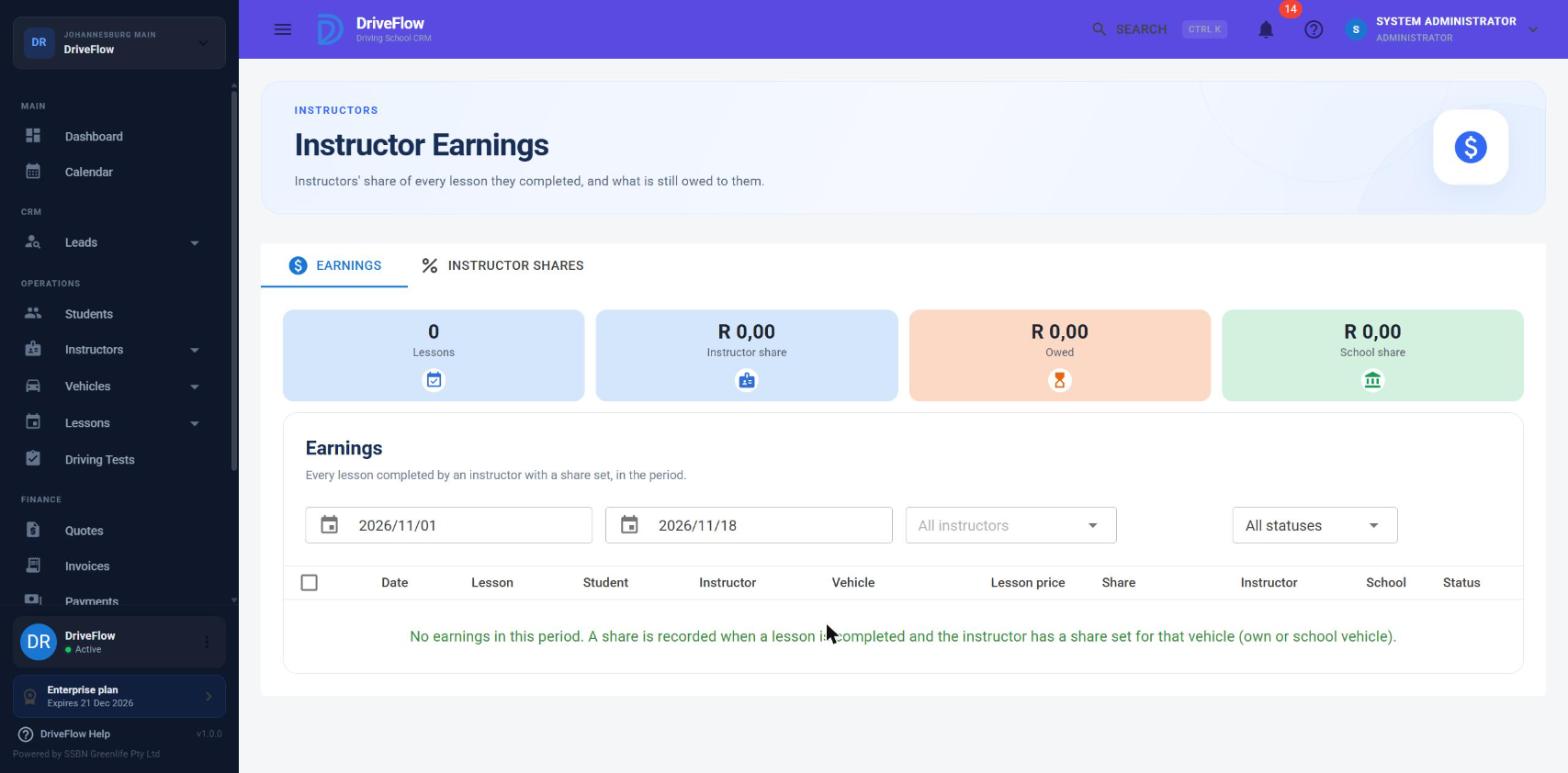
Open OPERATIONS > Instructors > Earnings. The page title is Instructor Earnings (or My Earnings for a user with only InstructorEarnings.ViewOwn).
Filters
- From / To: the period, by the lesson's date (not the date it was completed or paid). Defaults to the first of this month up to today.
- All instructors: one instructor (only with
InstructorEarnings.View). - All statuses / Owed / Paid.
Cards
| Card | Calculation (for the rows shown) |
|---|---|
| Lessons | Number of earnings. |
| Instructor share | Sum of instructor amounts. |
| Owed | Sum of instructor amounts not yet marked paid. |
| School share (managers) | Sum of school amounts. |
| Paid (instructors) | Sum of instructor amounts marked paid. |
Table
Date, Lesson (number), Student, Instructor, Vehicle, Lesson price, Share (for example "70%" or "R 120.00"), Instructor, School, Status ("Owed", or "Paid dd MMM"). An instructor viewing their own earnings does not see the Instructor and School columns.
Screenshot to be added
Screen: Instructor Earnings page, Earnings tab. Should show: filters, cards and the table with two rows selected and the Mark as paid button.
Mark earnings as paid
Important
Marking earnings paid or unpaid needs InstructorEarnings.Manage.
- Filter to the instructor and period you are paying, and set the status filter to Owed.
- Tick the rows you are paying (the header checkbox selects all). The toolbar shows "n selected · R total"; that total is what to pay.
- Pay the instructor by your usual method.
- Click Mark as paid. You see "Marked as paid." and each row shows "Paid" with today's date.
To undo, select the rows and click Mark as unpaid ("Marked as unpaid."). The paid date is cleared.
If nothing matches: "No earnings in this period. A share is recorded when a lesson is completed and the instructor has a share set for that vehicle (own or school vehicle)."
Instructor Earnings Report
Open REPORTING > Reports > Instructor Earnings Report (address /reports/instructor-earnings). Needs Reports.View and InstructorEarnings.View.
- Choose From, To and optionally a Branch, or pick a preset period, then click Generate Report.
- The report shows:
- cards: Lessons (count, and "Worth R …" = total lesson price), Instructor Share (and number of instructors), Owed (and amount paid), School Share;
- Earnings per Instructor: Instructor, Lessons, Lesson Value, Instructor Share, School Share, Owed, Paid; ordered by highest instructor share;
- Earning Details: every earning in the period.
- Export offers PDF (per instructor), Excel (per instructor), PDF (every lesson), Excel (every lesson) and CSV (every lesson).
Messages: "Please select a date range.", "The start date cannot be after the end date.", "Unable to export the instructor earnings report."
Who may use an instructor-owned vehicle
Important
A vehicle registered as Instructor Owned may only be used for lessons taught by its owner. This is enforced when lessons are booked and edited, on every plan.
- Scheduling with the owned vehicle chosen and no instructor chosen: the owner is filled in as the instructor.
- Scheduling with the owned vehicle and a different instructor: refused with "This vehicle belongs to another instructor; only its owner can use it." In the available-times view the day is shown as blocked with the same message.
- Automatic vehicle choice: another instructor's vehicle is never picked. An instructor's own vehicle is picked first, ahead of school vehicles.
- Editing a lesson: changing the instructor or the vehicle so that the vehicle's owner is not the instructor is refused with the same message. A lesson that already breaks the rule (booked before the vehicle was marked as owned) can still have its time, places and notes edited.
If two instructors swap cars for a day, DriveFlow has no way to book that: either settle it between them outside the system, or temporarily change the vehicle's owner on the vehicle form.
The owner can still teach in school vehicles; those lessons use the school-vehicle share.
Earnings and Fleet Management
When your plan also has Fleet Management, the fleet figures for an instructor-owned vehicle take the instructor's share off the lesson income, and treat insurance, services, repairs and tyres on that vehicle as paid by the instructor. See Fleet management.
Limitations and notes
- No recalculation. An earning is created once, at completion. Changing a share, the package price or the vehicle's owner afterwards does not change existing earnings, and there is no button to recalculate or to create earnings for lessons completed before a share was set.
- No manual earnings or adjustments. You cannot add, edit or delete an earning, add a bonus or a deduction, or change an amount.
- A lesson completed and then changed back keeps its earning; there is no code that removes an earning when a lesson stops being Completed. (Not verified against every lesson status path; check with a test lesson before relying on it.)
- No payout record. "Mark as paid" stores only a paid flag and date on each earning; there is no payment reference, payslip, statement or export of a payout batch other than the report exports.
- Recording failures are silent. If an earning cannot be saved, the lesson still completes and the problem is only written to the server log. If an expected earning is missing, check that the feature is on the plan, the right share is set, and the package gives a lesson price above zero.
- Branch filter is only on the report, not on the Earnings page.
- Currency is always shown as "R".
- This page describes the web app. What the mobile app shows about earnings, if anything, is covered in Mobile application.
- An instructor only sees their own earnings when their login is linked to their instructor profile; see Instructor user accounts.
Technical background: unused compensation entities
The domain model also contains unused entities InstructorCompensation and InstructorCompensationRate (per-instructor compensation type with commission percentage and effective dates). They have no screen, no API and are not used by the calculation above.
Related articles
- Instructor user accounts - linking a login so an instructor sees their own earnings.
- Vehicle assignment - recording instructor-owned vehicles.
- Fleet management - vehicle profit figures that use earnings.
- Training packages - where the lesson price item is marked.
- Lesson sign-off - how lessons become Completed.
- Subscription plans - which plans include Instructor Earnings.