User management for the SuperAdmin
Applies to: SuperAdmin. Last reviewed: 2026-11-18.
The SuperAdmin uses the same Users and Roles pages as a school, but sees every school at once. This page explains what the SuperAdmin sees there, what works, and what does not.
How a school manages its own users and roles is documented in the user and role pages for schools. The per-setting reference is in User and role settings.
Users
Menu: Users (/settings/users). The page heading is Users & Access.
What the SuperAdmin sees
Every user account in DriveFlow, of every school, including student portal accounts and the SuperAdmin's own account.
| Column | Meaning |
|---|---|
| User | Initials and full name |
| The sign-in email address | |
| Company | Shown to the SuperAdmin only. The school's trading name, or its registered name. An account with no school shows "Platform (no company)". |
| Branch | The user's branch, or "All branches" |
| Role | One chip per role |
| Status | Active or Disabled |
| (three-dot menu) | Edit, Disable or Enable, Delete |
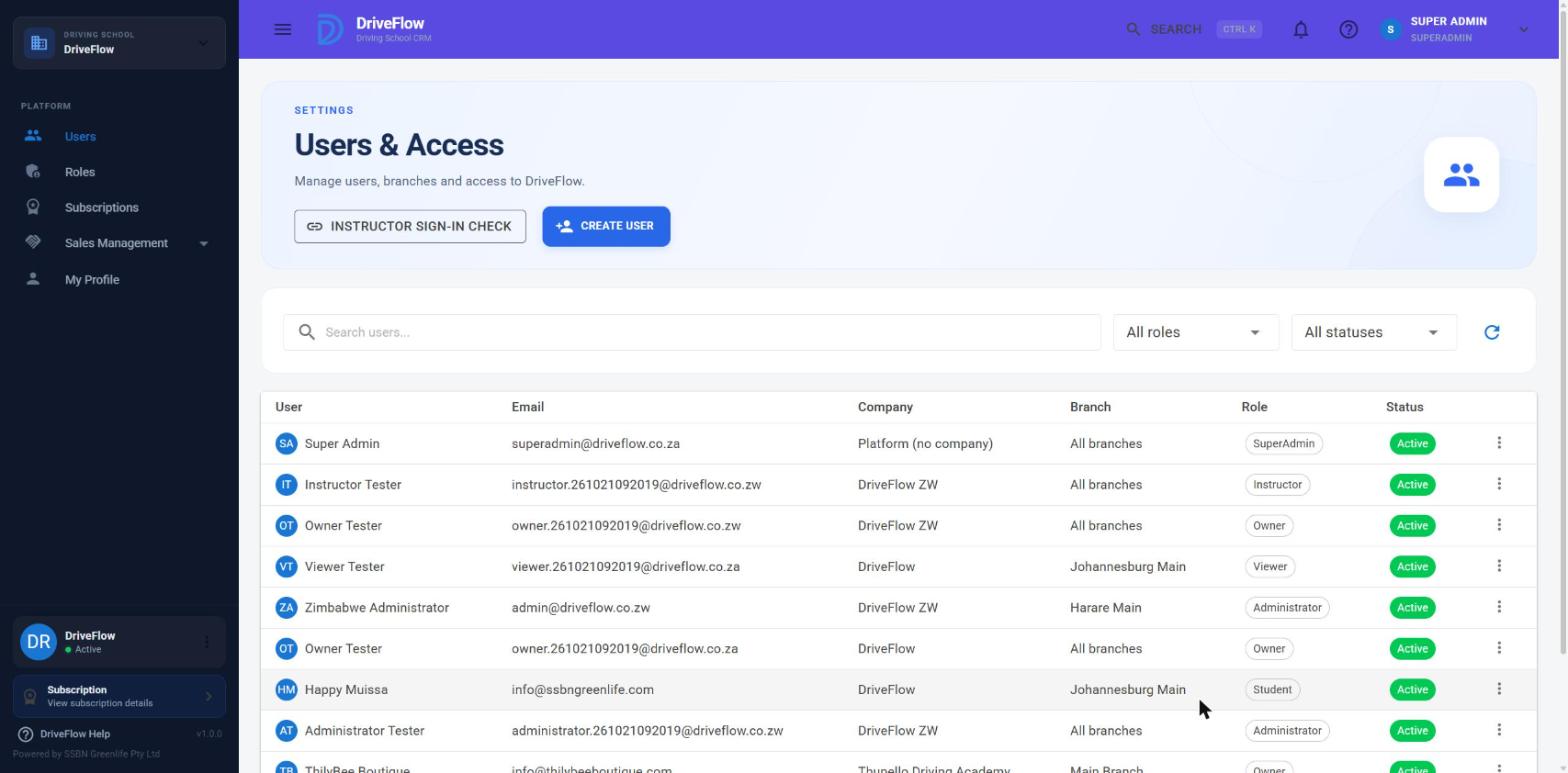
Finding users
- Search users...: matches the name, email address, branch name and company name. Type a school's name to see only its users.
- All roles: filter by one role. For the SuperAdmin the list contains every role name, including the locked roles and every school's custom roles.
- All statuses: Active or Disabled.
- The refresh icon reloads the list.
All users are loaded at once and filtered in the browser. On a platform with many schools the page takes longer to open.
What does not work for the SuperAdmin
Buttons are shown but refused
The Create User button and the Edit, Disable, Enable and Delete menu items are shown to the SuperAdmin, because the SuperAdmin holds every permission. The server refuses all of them.
Each of these actions needs the caller to belong to a school, and the SuperAdmin belongs to none. The server answers "Forbidden" and the page shows a general error such as "Unable to create user." or "Unable to disable user."
| Action | For the SuperAdmin |
|---|---|
| View the list of all users | Works |
| Open the Edit dialog and view a user | The dialog opens and shows the user. The Branch and Role lists are those of no school, so they are incomplete. Saving is refused. |
| Create a user | Refused |
| Change a user's name, email, branch or role | Refused |
| Send a user a new password | Refused |
| Disable or enable a user | Refused |
| Delete a user | Refused |
So the SuperAdmin can look up any user, but changes to a school's users must be made by that school's Owner or by a user of that school with the user permissions. If a school has locked itself out (for example its only Owner left), the account has to be corrected in the database, or the Owner uses Forgot password? on the sign-in page.
Instructor sign-in check
On the Users page click Instructor sign-in check (/settings/users/instructor-links).
An instructor sees their own lessons because their sign-in account is linked to their instructor profile through the email address. This page lists the accounts that hold the Instructor role, or whose email matches an instructor profile, and says whether each one is linked.
For the SuperAdmin the list covers every school and has an extra School column.
| Status | Meaning |
|---|---|
| Linked | The account is linked to its profile |
| Links on next sign-in | A matching profile exists. The link is made when the instructor next signs in. |
| No instructor profile with this email | The account cannot be linked. The instructor would see no lessons. |
| Several profiles share this email | More than one profile matches, so none is chosen |
The banner at the top reads either "{n} account(s) can't be linked and would see no lessons. ..." or "Every instructor account is linked or will link on its next sign-in."
The page is read-only. The fix is made by the school: under Instructors, open the three-dot menu and choose Sign-in account, or give the instructor profile the same email address as the sign-in account. Use this page to tell a school what is wrong.
Roles and permissions
Menu: Roles (/settings/roles). The page heading is Roles & Permissions.
The kinds of role
| Kind | Examples | Who sees it | Who can change its permissions | Can it be deleted |
|---|---|---|---|---|
| Locked built-in role | SuperAdmin, Owner, Student | SuperAdmin only | Nobody | No |
| Built-in role | Administrator, Manager, Instructor, Receptionist, Finance, Viewer | Every school, read-only. SuperAdmin. | SuperAdmin only | No |
| Shared role created by the SuperAdmin | Any name you choose | Every school, read-only. SuperAdmin. | SuperAdmin only | By the SuperAdmin, when no user holds it |
| Custom role of a school | Any name the school chose | That school and the SuperAdmin | That school and the SuperAdmin | By that school or the SuperAdmin, when no user holds it |
The locked roles have fixed permissions: SuperAdmin and Owner have everything, Student has none. They are given out only by their own processes (platform setup, school registration, student portal invitation) and can never be chosen in the user dialog.
What the SuperAdmin sees
One card per role: every built-in role, every shared role, and every custom role of every school.
| On the card | Meaning |
|---|---|
| Name and "{n} users" | For the SuperAdmin the count covers all schools |
| Locked chip | A locked role |
| Built-in chip | A role with no school (built-in or shared) |
| A chip with a school's name | A custom role of that school |
| Permission chips | Up to five permission categories, with one more chip when the role has permissions in further categories |
| Three-dot menu | Manage Permissions or View Permissions, and Delete where allowed |
Built-in roles are listed first, then custom roles, each in alphabetical order.
Changing the permissions of a built-in role
Do this with care
A built-in role is shared, so the change applies to every school at once. Every user who holds the role, in every school, is signed out.
- Open Roles.
- On the role's card open the three-dot menu and click Manage Permissions.
- The dialog "Manage {role} Permissions" opens. Permissions are grouped by category. Tick or untick single permissions, use "Select all {category} permissions" for a group, or the Select all permissions switch for everything.
- Click Save Changes.
The message "{role} permissions updated successfully." appears.
What happens:
| Takes effect | Immediately on the server |
| Existing users | Every user who holds the role, in every school, is signed out and must sign in again. Their sessions carry the old permissions, so they are ended. This happens only if the set of permissions actually changed. |
| Survives a restart | Yes. At start-up the system gives default permissions only to roles and permissions that are new, so your changes are kept. A permission you removed stays removed. |
| New permissions added by a future version | Are granted to the built-in roles by their defaults when that version starts |
| Restart needed | No |
At least one permission must stay selected. Otherwise the dialog shows "Select at least one permission."
Example: every school's Receptionist should be able to delete students (by default only the Owner and Administrator can). Open Receptionist > Manage Permissions, tick the delete permission in the Students group and save. Every receptionist in every school is signed out once and sees the delete action after signing in again.
For a locked role the dialog is read-only and explains why:
- Owner: "The Owner role has full system access. Its permissions cannot be changed."
- Student: "The Student role only gives access to the student portal. It has no staff permissions, and none can be added."
- SuperAdmin: "The SuperAdmin role has full platform access. Its permissions cannot be changed."
Creating a shared role
A role created by the SuperAdmin belongs to no school. Every school sees it, can assign it to its users, and cannot change it.
- Open Roles and click Create Role.
- Enter the Role Name (placeholder "e.g. Operations Manager").
- Tick the permissions.
- Click Create Role.
The message "Role created successfully." appears.
| Message | Cause |
|---|---|
| Role name is required. | The name is empty |
| Select at least one permission. | Nothing is ticked |
| "{name}" is a built-in role name and cannot be used. | The name is one of the nine built-in names |
| A role with this name already exists. | For a shared role the name must not be used by any role, including a custom role of any school |
Deleting a role
- On the role's card open the three-dot menu and click Delete. The item is shown only for roles that may be deleted.
Warning
There is no confirmation box. The role is deleted at once and "Role deleted." appears.
| Message | Cause |
|---|---|
| This role is assigned to users and cannot be deleted. | At least one user holds it |
| Built-in roles cannot be deleted. | One of the nine built-in roles |
| You cannot delete this role. | Not allowed for this user |
Deleting a school's custom role affects only that school. Tell the school first.
Default permissions of the built-in roles
The defaults are set by RolePermissionSeeder when the roles are first created. Summary of the settings-related permissions:
| Permission | Owner | Administrator | Manager | Instructor | Receptionist | Finance | Viewer |
|---|---|---|---|---|---|---|---|
| Scheduling.View | Yes | Yes | Yes | Yes | Yes | No | Yes |
| Scheduling.Manage | Yes | Yes | Yes | No | No | No | No |
| Notifications.View and .Manage | Yes | Yes | No | No | No | No | No |
| Email.View and .Manage | Yes | Yes | No | No | No | No | No |
| Settings.View and .Manage | Yes | Yes | No | No | No | No | No |
| Subscription.View | Yes | Yes | No | No | No | No | No |
| Subscription.Manage | Yes | No | No | No | No | No | No |
| Users.View | Yes | Yes | No | No | No | No | No |
The full list of permissions and defaults is in the user and role documentation for schools. Because the SuperAdmin can change built-in roles, the live system may differ from these defaults. The Roles page always shows the current state.
Limitations and notes
- The SuperAdmin cannot create, change, disable or delete any user through the application. See the table above. The buttons are visible but refused.
- A second SuperAdmin cannot be created through the application.
- A role cannot be renamed.
- A user has one role. The user dialog offers one role only.
- There is no record of who changed a role's permissions or when, beyond the server log. There is no audit log.
- Deleting a role has no confirmation step.
- The Users page shows student portal accounts (role Student) mixed with staff. Filter by role to separate them.
Related articles
- Platform overview - what the SuperAdmin can and cannot do
- User and role settings - every user and role setting
- Roles and permissions - all permissions and defaults
- Instructor user accounts - linking instructor sign-ins
- Security settings - sessions and passwords