Company settings
Applies to: Owner, Administrator (and any custom role with the View Settings permission). Last reviewed: 2026-11-18.
The Settings page is the starting point for everything a school configures. This page explains how to open it, which cards it shows to whom, the Security page, and which things are not school settings at all. Each settings area has its own documentation; this page links to the ones in this section and names the others.
Open Settings
Either:
- click Settings under ADMINISTRATION in the left menu, or
- click your name at the top right and then Settings.
Both appear only if you have View Settings (Settings.View). By default that is the Owner and the Administrator.
Screenshot to be added
Screen: Settings page. Should show: the grid of settings cards as an Owner sees it.
The page title is Settings, with the line "Manage your driving school, users, email, billing and system preferences." Click a card to open that area.
The cards and who sees them
| Card | Description on the card | Shown when you have | Built-in roles (default) | Documented in |
|---|---|---|---|---|
| Organisation | Manage company details, contact information and branches. | View Company | Owner, Administrator | Company profile, Branch management |
| Users & Access | Create users, assign roles and manage access to your organisation. | View Users | Owner, Administrator | User management |
| Roles | Create roles, assign permissions and manage access levels. | View Roles | Owner, Administrator | Roles and permissions |
| Driving School (marked Core) | Configure courses, packages, licence codes and pricing. | View Settings | Owner, Administrator | Training documentation (Training packages, Licence codes) |
| Scheduling | Configure availability, booking rules and working hours. | View Scheduling Settings | Owner, Administrator, Manager, Instructor, Receptionist, Viewer | Lessons / scheduling documentation |
| Payments | Overdue rules and payment reminder emails. | View Settings | Owner, Administrator | Finance documentation |
| Notifications | Control email and system notifications for your organisation. | View Notifications | Owner, Administrator | Notifications documentation |
| Security | Manage authentication, passwords and security settings. | Always shown | Everyone | Below |
| Documents | Configure student documents and document requirements. | View Settings | Owner, Administrator | Student / documents documentation |
| Configure SMTP settings and email communication. | View Email Settings | Owner, Administrator | Email settings documentation | |
| Integrations | Connect external services and platforms to DriveFlow. | View Settings | Owner, Administrator | Integrations documentation |
| Subscription | Manage your DriveFlow subscription and selected plan. | View Subscription | Owner, Administrator | Subscription documentation |
| Billing | Manage DriveFlow billing, invoices and usage information. | View Subscription | Owner, Administrator | Subscription documentation |
| System | Notification log: every email, SMS and WhatsApp message sent. | Manage Settings or View Notifications | Owner, Administrator | System settings documentation (Notification log) |
Notes on the table:
- Viewing a card's page and changing things on it are separate permissions. For example the Email page needs View Email Settings to open and Manage Email Settings to save.
- Manager, Instructor, Receptionist and Viewer have View Scheduling Settings but no Settings menu item, so they do not normally reach the Scheduling card.
- Changing the subscription needs Manage Subscription, which only the Owner has by default.
Security page
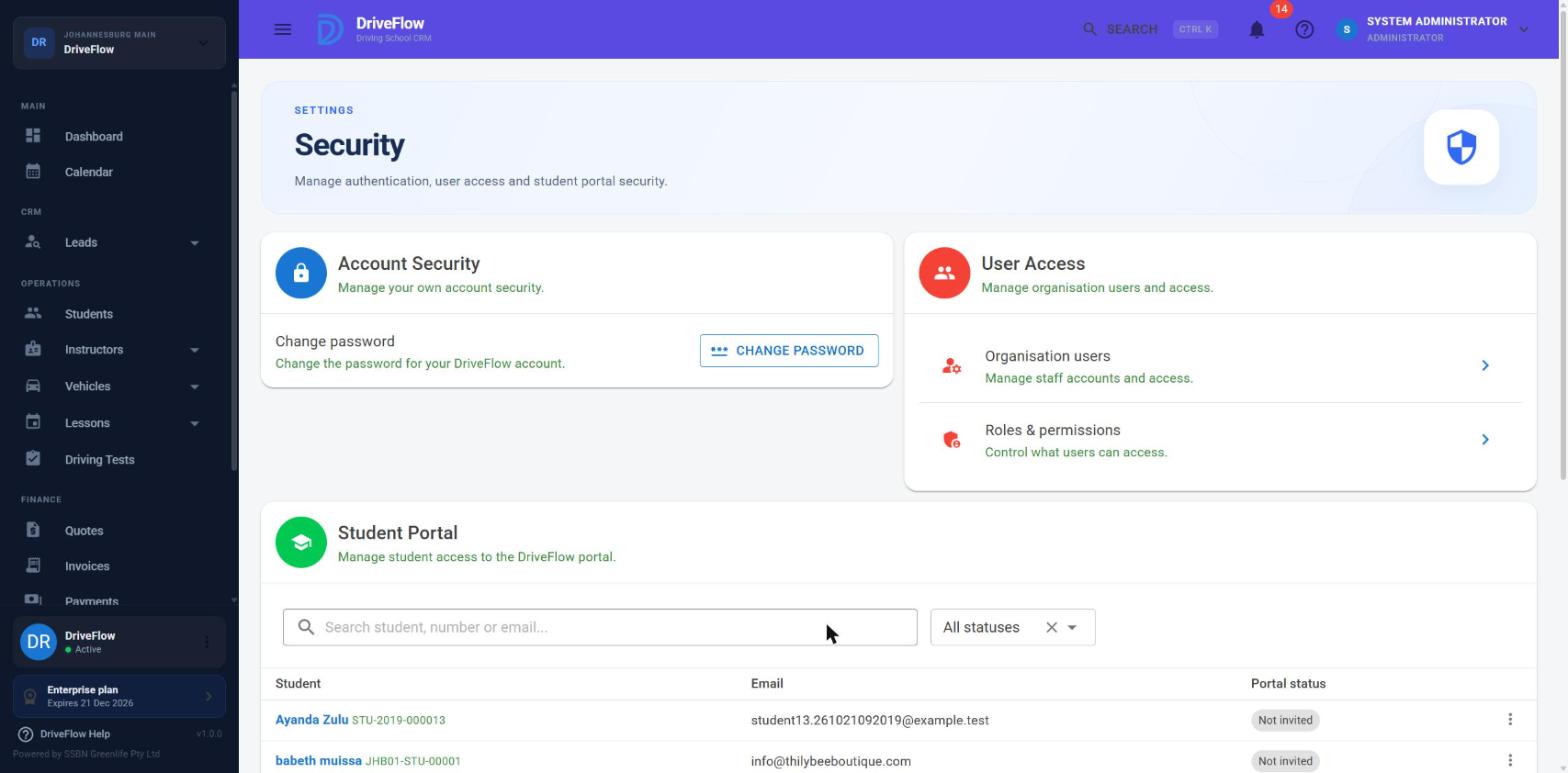
Settings > Security has three cards.
Account Security
Change password: "Change the password for your DriveFlow account." Click Change Password. See Login and authentication.
User Access
Two shortcuts:
- Organisation users ("Manage staff accounts and access.") opens Users & Access.
- Roles & permissions ("Control what users can access.") opens Roles & Permissions.
They are always shown; if you lack the permission, the page you land on says You don't have access to this page.
Student Portal
A list of every student with their portal sign-in status and the actions Invite to portal, Resend invitation, Activate and Deactivate. It needs View Students to see ("You need permission to view students to manage their portal access." otherwise) and Edit Students to use the actions. See User management and Student management.
At the bottom the page states: "Password rules are managed by the DriveFlow authentication system. This page focuses on account access, password management and student portal access."
Things a school cannot configure
These are the same for every school and are set by the platform, not on the Settings page:
| Item | Fixed value or where it is set |
|---|---|
| Password rules | At least 8 characters with upper case, lower case, a number and a symbol. Fixed in code. |
| Account lockout | 5 wrong passwords, 5 minutes. Framework defaults. |
| How long a sign-in lasts | 8 hours, or 30 days with Remember me. Deployment setting. |
| Idle sign-out | 30 minutes without activity (not for Remember me). Deployment setting. |
| Password reset link lifetime | 1 hour. Fixed in code. |
| Email confirmation, two-step verification | Do not exist. |
| The permissions of built-in roles | Only a SuperAdmin can change them. |
| The school's country | Cannot be changed after registration. |
| Trial length | 14 days. Fixed in code. |
What a SuperAdmin sees
A SuperAdmin has no school, so the Settings page shows them only Users & Access, Roles, Security and Subscription (described there as "Activate or upgrade a school's subscription."). See the SuperAdmin documentation.
Limitations and notes
- The Settings page and Settings > Security have no access check of their own. A signed-in staff member without View Settings who types the address can open them; they see only the cards their permissions allow, and Security is always among them. The individual settings pages are protected.
- A component called "SettingsNavigation" exists in the code as an empty placeholder; there is no side navigation between settings pages. Use the browser's back button or the menu to return to Settings.
- A page file named "Smtp" exists alongside the Email page in the settings code; whether it is reachable and how it relates to the Email page is covered by the email settings documentation.
- There is no page that shows all of a school's settings together and no export or import of settings.
Related articles
- Company profile - the Organisation card.
- User management - the Users & Access card.
- Roles and permissions - the Roles card and the permissions behind each card.
- Login and authentication - password and sign-in rules.
- Security settings - the Security page in the system settings reference.