Quotes
Applies to: school staff with Quotes.View (plus Quotes.Create / Quotes.Edit / Quotes.Delete for changes, and Invoices.Create to convert), on a plan that includes Quotes. Last reviewed: 2026-11-18.
A quote is a priced offer to a new customer or an existing student. It never affects a balance. Once the customer accepts, you convert the quote into an invoice, and from then on it is handled like any other invoice (see Invoicing).
Where to find it
Sidebar > FINANCE > Quotes (page address /quotes).
The menu item is shown only when all of these are true:
| Condition | Source |
|---|---|
| The school's plan includes the Payments feature | the whole FINANCE section depends on it |
The user has Invoices.View |
the Quotes link sits inside the invoice block of the menu |
The user has Quotes.View |
|
| The school's plan includes the Quotes feature |
Quotes on lower plans
If the plan does not include Quotes and you open /quotes directly, the page shows "Quotes are part of the Professional plan" with the text "Upgrade to send quotes to new customers and turn them into invoices." and, for users with Subscription.View, a View plans button.
Who can do what
| Action | Permission needed |
|---|---|
| Open the page, view a quote, download its PDF | Quotes.View |
| New Quote | Quotes.Create |
| Edit, Email to Customer, Mark as Sent, Accept, Reject | Quotes.Edit |
| Convert to Invoice | Quotes.Edit and Invoices.Create |
| Open Invoice ... (after conversion) | Invoices.View |
| Delete Draft | Quotes.Delete |
Every quote endpoint also requires the Quotes plan feature; without it the API refuses the call.
The Quotes page
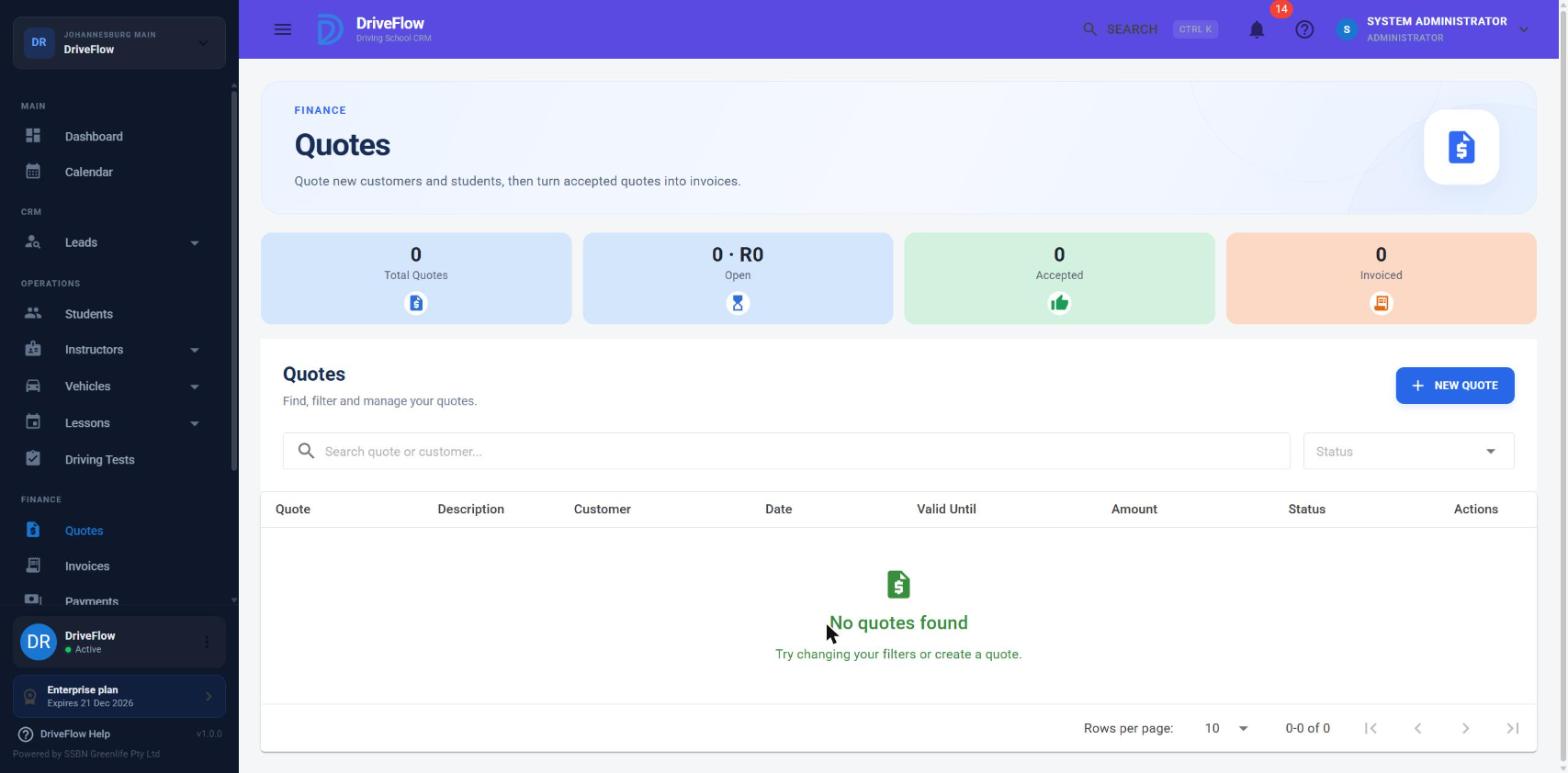
Summary cards
| Card | What it counts |
|---|---|
| Total Quotes | Every quote that has not been deleted. |
| Open | Shown as "count · value". Quotes with status Draft or Sent whose Valid Until date is today or later, and the sum of their totals. |
| Accepted | Quotes with status Accepted (not yet converted). |
| Invoiced | Quotes with status Converted. |
The cards cover all quotes, not only the page of the table you are looking at.
Table columns
| Column | Content |
|---|---|
| Quote | Quote number, for example HQ-QUO-00012. |
| Description | The line descriptions, one per line. |
| Customer | The student's name, or the new customer's name. |
| Date | Quote date. |
| Valid Until | Last day the quote can be accepted. |
| Amount | Quote total. |
| Status | See Statuses. |
| Actions | The three-dot menu. |
Search and filter
- Search quote or customer... matches the quote number, the new customer's name or email, the bill-to company name, or the student's name.
- Status lists Draft, Sent, Accepted, Rejected, Expired and Converted. Choosing Draft or Sent shows only quotes that are still valid; choosing Expired shows Draft and Sent quotes whose Valid Until date has passed.
The page can also be opened pre-filtered from the header search: /quotes?search=<quote number>.
Statuses
| Status | Meaning | How it is reached |
|---|---|---|
| Draft | Being prepared. | Every new quote starts here. |
| Sent | Given to the customer. | Email to Customer on a draft, or Mark as Sent. |
| Accepted | Customer said yes. | Accept on a Draft or Sent quote that has not expired. |
| Rejected | Customer said no, or the deal fell through. | Reject on a Draft, Sent, Accepted or expired quote. |
| Expired | Draft or Sent quote past its Valid Until date. | Automatic. Expired is not stored: the system shows it whenever an open quote's Valid Until date is before today. Editing the quote and moving Valid Until forward makes it Draft/Sent again. |
| Converted | Turned into an invoice. | Convert to Invoice on an Accepted quote. |
flowchart TD
    D[Draft] -->|Email to Customer / Mark as Sent| S[Sent]
    D -->|Accept| A[Accepted]
    S -->|Accept| A
    A -->|Convert to Invoice| C[Converted]
    D -->|Reject| R[Rejected]
    S -->|Reject| R
    A -->|Reject| R
    E -->|Reject| R
    D -->|Valid Until passed| E[shown as Expired]
    S -->|Valid Until passed| E
Create a quote
- Go to FINANCE > Quotes and click New Quote.
- Under Quote for, choose New customer or Existing student.
- New customer: fill in Name (required, up to 200 characters), Email ("Needed to email the quote") and Phone.
- Existing student: pick the student in the student picker.
- Optional: switch on Bill to a company when someone else pays (for example an employer) and fill in Company name (required when the switch is on), VAT number, Registration number and Address.
- Set Quote Date (defaults to today) and Valid Until (defaults to 30 days from today).
-
Under Lines, complete one line per item. Use Add Line for more lines; the bin icon removes a line (the last remaining line cannot be removed).
Field Meaning Training package (optional) Choosing a package fills in the description and the unit price from the package. The line stays linked to that package, which matters when converting (the student can be enrolled). Description Required, up to 250 characters. Qty Whole number, at least 1. Unit Price Rand amount, 0 or more. Discount None, Percentage or Amount. Discount % / Discount R The percentage (0 to 100) or the rand amount. Disabled when Discount is None. -
Optional: enter Notes (up to 1000 characters; the placeholder suggests "Terms, what's included, payment options...") and Tax (a rand amount you type in; see VAT and numbering).
- Check the Subtotal, Discount, Tax and Total panel, then click Create Quote.
After saving, the message "Quote created." appears, the quote gets the next quote number for its branch and has status Draft.
The quote's branch is the student's branch for an existing student. For a new customer it is the signed-in user's branch, or the school's main branch when the user is not tied to a branch.
How the total is worked out
line amount     = Qty x Unit Price
line discount   = Percentage: line amount x % / 100, rounded to 2 decimals (halves round up)
                  Amount:     the amount, rounded to 2 decimals
line total      = line amount - line discount
Subtotal        = sum of line amounts
Discount        = sum of line discounts
Total           = Subtotal - Discount + Tax
Messages you may see when saving
| Message | Cause |
|---|---|
| "Select the student the quote is for." | Existing student chosen but no student picked. |
| "Enter the customer's name." / "Select a student or enter the customer's name." | New customer with no name. |
| "Enter the company's name, or turn off Bill to a company." | Switch is on, company name is empty. |
| "Enter a valid email address for the customer." | The email has no @. |
| "Add at least one line to the quote." | No lines. |
| "Every line needs a description." | A line has an empty description. |
| "Quantity for '...' must be greater than zero." | |
| "Price for '...' cannot be negative." | |
| "The discount on '...' can't be more than 100%." | |
| "The discount on '...' can't be more than the line amount." | |
| "Valid until can't be earlier than the quote date." | |
| "Tax cannot be negative." | |
| "The quote total must be greater than zero." | |
| "Notes may not be longer than 1000 characters." |
View, download and email a quote
Open the three-dot menu on the quote's row.
- View opens Quote Details: who the quote is for, the bill-to company (if any), dates, branch, the linked invoice (after conversion), Sent On / Accepted On / Rejected On and the rejection reason, the items and the notes.
- Download PDF saves
Quote-<number>.pdf. - Email to Customer sends the PDF to the student's email address (existing student) or to the customer's email on the quote. The subject is "Quote
<number>from<school name>". The email shows the quote number, date, valid-until date and total.- If the quote was a Draft it becomes Sent; any other status is left unchanged, so you can resend a copy later.
- A rejected quote cannot be emailed ("A rejected quote can't be sent.").
- The email is recorded in the notification history.
Email errors:
| Message | Fix |
|---|---|
| "This student has no email address. Add one to their profile and try again." | Add the email on the student's profile. |
| "Add the customer's email address to the quote and try again." | Edit the quote and fill in Email. |
| "The quote email could not be sent: ..." | The mail server refused or failed; the reason follows the colon. The status is not changed. |
Edit a quote
Edit is offered for Draft, Sent and expired quotes. All lines are replaced with what you save. An Accepted, Rejected or Converted quote cannot be changed ("A accepted quote can't be changed." and similar).
Tip
To revive an expired quote, edit it and set a later Valid Until date.
Mark as sent, accept, reject
- Mark as Sent (Draft only): use it when you handed over or sent the quote outside DriveFlow. Message: "Quote marked as sent."
- Accept (Draft or Sent): message "Quote
<number>accepted. You can now convert it to an invoice." An expired quote cannot be accepted: "This quote expired on<date>. Extend its valid-until date first." - Reject opens Reject Quote with an optional Reason (optional) field (up to 500 characters; examples in the box: "Chose another school, price too high"). Click Reject Quote. An Accepted quote can still be rejected before it is invoiced. A Converted or already Rejected quote cannot.
Convert an accepted quote to an invoice
- On an Accepted quote, open the three-dot menu and click Convert to Invoice.
- Choose the kind of invoice:
- Student invoice: pick the student under Bill student. If the quote was made for an existing student, that student is pre-selected. If any line is linked to a training package, the tick box Enrol the student in the quoted package(s) (starts a course) appears and is ticked by default.
- Walk-in invoice (no student): available only when the quote was made for a new customer (it needs the customer's name). The invoice is billed to that customer without creating a student record. The dialog says: "It appears on the Invoices page and takes payments like any invoice."
- Set the Due Date (defaults to 7 days from today).
- Click Create Invoice.
What happens:
- A new invoice is created with the quote's lines, discounts and tax. Its notes start with "From quote
<number>." followed by the quote's notes. - If the quote was billed to a company, the invoice is billed to the same company.
- A student invoice uses the student's branch; a walk-in invoice uses the quote's branch.
- With enrolment ticked, each package line creates a course for the student with status Purchased and links the invoice line to that course. The course is started later from the student's profile (see the student management documentation).
- The quote becomes Converted and shows Open Invoice
<number>in its menu. If you billed a student, the quote is now attached to that student. - The invoice is emailed automatically when the school's notification settings allow it (email notifications on and the Invoice Issued notification not switched off). The confirmation reads "Invoice
<number>created and emailed." or just "Invoice<number>created."
Errors:
| Message | Cause |
|---|---|
| "Only accepted quotes can be turned into an invoice." | The quote is not Accepted. |
| "This quote has already been turned into an invoice." | It is already Converted. |
| "This quote has no customer name for a walk-in invoice. Choose a student to bill instead." | Walk-in chosen for a quote that was made for a student. |
Example
Thabo Nkosi phones about Code 10 lessons. Staff create a quote for New customer "Thabo Nkosi" with one line for the package "Code 10 - 10 lessons" at R 4 500.00 and a 10% discount: Subtotal R 4 500.00, Discount R 450.00, Total R 4 050.00. They click Email to Customer; the quote becomes Sent.
Thabo agrees, so staff click Accept. After registering Thabo as a student, they click Convert to Invoice, choose Student invoice, pick Thabo, leave the enrol box ticked and click Create Invoice. Thabo now has an invoice for R 4 050.00 due in 7 days and a purchased course.
Delete a draft
Delete Draft is offered only for Draft quotes ("Only draft quotes can be deleted."). After confirming "Delete draft quote <number>?", the quote disappears from the list. Its number is not reused.
Limitations and notes
Avoid billing a new student twice
Converting a quote does not create the student. For a new customer who should become a student, register the student first (see the student management documentation), then convert and choose that student. Registering a student creates its own first invoice for the package chosen at registration, so check that the student is not billed twice.
- Converting a quote does not create the student (see the warning above).
- There is no customer-facing link to accept a quote online. Acceptance is always recorded by staff.
- Tax is a typed amount. The system does not calculate VAT from a rate.
- Expiry is calculated when the quote is displayed; no job changes the stored status, and no reminder is sent when a quote expires.
- A walk-in invoice can only be created through a quote. The Create Invoice dialog on the Invoices page always requires a student.
- Quotes are scoped by branch: a user whose sign-in is tied to one branch sees only that branch's quotes.
Related articles
- Invoicing: what happens after a quote is converted.
- VAT and numbering: the Tax field and quote numbers.
- Payments: recording payment on the resulting invoice.
- Student registration: register a new customer as a student.