Login and authentication
Applies to: all roles (staff and students). Last reviewed: 2026-11-18.
Staff and students sign in to DriveFlow with an email address and a password. This page covers signing in, staying signed in, being signed out, changing your password, recovering a forgotten password, and your own profile.
Who can do this
Everyone with an active DriveFlow account. The pages for signing in, asking for a reset link and choosing a new password from a link are public. Changing your password and editing your profile need you to be signed in; they need no particular permission.
Sign in
- Open the DriveFlow address in your browser. The sign-in page (Welcome back) opens.
- Enter your Email and Password. Click the eye icon in the password field to show or hide what you typed.
- Tick Remember me if this is your own device and you want to stay signed in (see How long you stay signed in).
- Click SIGN IN.
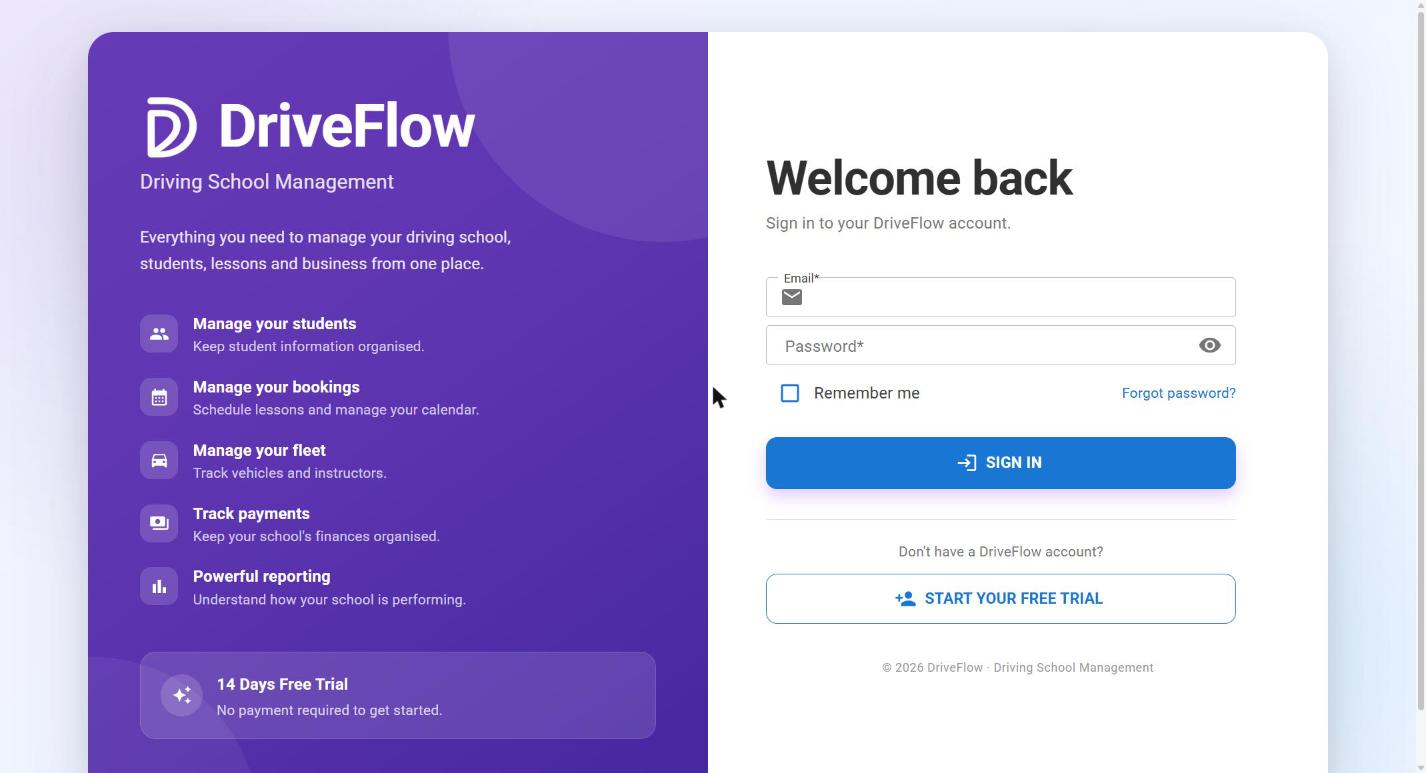
What happens next depends on your account:
| Your situation | Where you go |
|---|---|
| You signed in with a temporary password that was emailed to you | The Change Password page. You must choose your own password before anything else opens. See First sign-in with a temporary password. |
| You are a student | The student portal (/portal). |
| Anyone else | The Dashboard, with the message Welcome followed by your name. |
| Your school's subscription has ended | The subscription page if you may view it, otherwise a page telling you to contact your administrator. Only the subscription pages, My Profile and Change Password stay open. |
Sign-in messages
| Message | Why |
|---|---|
| Please enter your email address. / Please enter your password. | The field is empty. |
| Invalid email or password. | The email is not registered, the password is wrong, or the account has been disabled. The same message is used for all three on purpose. |
| Too many failed sign-in attempts. Please try again in N minutes. | The account is locked after repeated wrong passwords. See below. |
| We could not reach the server. Please try again. / We could not sign you in. Please try again. | A connection or server problem. |
| You were signed out because you weren't active for a while. Please sign in again. | You were signed out for inactivity (shown above the form). |
| Your session has ended. Please sign in again. | Your sign-in ran out or was ended (shown above the form). |
Account lockout
- After 5 wrong passwords in a row the account is locked for 5 minutes. These are the sign-in framework's standard values; the application does not override them (an automated test in the code base confirms the five attempts).
- While locked, even the correct password is refused, and the message says how many minutes are left.
- The lock lifts by itself. Resetting the password through an emailed reset link also lifts it and clears the count of failed attempts.
- There is no screen where a school administrator can unlock an account by hand.
How long you stay signed in
| Without Remember me | With Remember me | |
|---|---|---|
| Sign-in lasts | 8 hours | 30 days |
| Where it is kept | In the browser tab's session storage. Closing the tab or the browser ends it. A new tab asks you to sign in again. | In the browser's local storage. It survives closing the browser and works in every tab. |
| Signed out when idle | Yes, after 30 minutes without activity | No |
The three durations are deployment settings (see System requirements); the figures above are the defaults.
Details that matter in practice:
- Activity means moving the mouse, pressing a key, touching the screen or scrolling. Working in one tab keeps your other tabs of the same sign-in alive.
- The sign-in length is not extended while you work. With a normal sign-in you are signed out 8 hours after signing in even if you are busy. Save your work and sign in again.
- If a laptop sleeps past the idle time, you are signed out when the page is next shown.
The 8-hour limit is not extended
A normal sign-in ends 8 hours after you signed in, even if you are working at that moment. Save your work regularly during long sessions.
Being signed out before the time is up
Your sign-in is ended early, in every browser and on the mobile app, when:
- your password is changed or reset (if you change it yourself on the Change Password page you are given a fresh sign-in automatically and stay signed in);
- an administrator disables your account;
- an administrator changes your role or your branch;
- someone changes the permissions of the role you hold;
- your account is moved to another school.
In each case the next thing you do sends you to the sign-in page with Your session has ended. Please sign in again. Sign in again to get your new role, branch or permissions.
A change of role, branch, role permissions or a disabled account takes effect at once (where the school runs more than one API server, the other servers follow within about a minute); a password changed or reset can take up to about a minute.
Sign out
- Click your name (or avatar) at the top right.
- Click Logout.
You return to the sign-in page.
Shared computers
On a shared computer always sign out, and do not tick Remember me.
First sign-in with a temporary password
New staff, staff whose password an administrator has re-issued, and invited students receive an email with a temporary password.
- Sign in with your email and the temporary password.
- The Change Password page opens with the note You signed in with a temporary password. Choose your own password to continue.
- Enter the Temporary Password, a New Password and Confirm New Password.
- Click Change Password.
- You see Your password has been changed successfully. and continue to the Dashboard (students continue to the portal).
Until you do this, no other page opens. The only other choice is Sign Out.
Change your password
- Click your name at the top right, then Change Password. (You can also get there from My Profile, or Settings > Security > Change Password.)
- Enter your Current Password, a New Password and Confirm New Password.
- Click Change Password.
You stay signed in on this browser. Every other browser or phone where you were signed in is signed out.
Password rules
At least 8 characters, with an upper-case letter, a lower-case letter, a number and a symbol.
| Message | Why |
|---|---|
| The new passwords do not match. | New Password and Confirm New Password differ. |
| A message about the password (wrong current password, too short, missing a digit, upper-case letter or symbol) | Comes from the sign-in framework. |
| Unable to change password. | Any other failure. |
Forgot your password
- On the sign-in page click Forgot password?
- Enter the Email you sign in with and click Send reset link.
- The page confirms: "If an account exists for (your email), we've sent a link to reset its password. The link expires in an hour."
- Open the email and click the link. The page Choose a new password opens, showing the email address it is for.
- Enter New Password and Confirm New Password, then click Reset password.
- The page shows Password reset. Click Sign in and sign in with the new password.
Screenshot to be added
Screen: Forgot password page. Should show: the email field and Send reset link button.
Things to know:
- The confirmation is the same whether or not the email has an account, so nobody can use the page to find out who is registered. No email arriving therefore means one of: the address has no account, the account is disabled, you asked more than 3 times in 15 minutes (further requests are silently ignored), or the mail could not be delivered.
- The link works once and for one hour.
- A successful reset also lifts an account lockout.
- A disabled account cannot be recovered this way. Ask an administrator to enable it.
| Message | Why |
|---|---|
| Please enter your email. / Please enter a valid email. | The email field is empty or not an email address. |
| We could not send the request. Please try again. | The server could not be reached. |
| This reset link is incomplete. Please request a new one. | The link was cut off when copied (page heading: Link not valid). Click Request a new link. |
| This reset link is invalid or has expired. Please request a new one. | The link is older than an hour, was already used, or the account is disabled. |
| The passwords do not match. / The new passwords do not match. | The two password fields differ. |
| We could not reset your password. Please try again. | Any other failure. |
If the person cannot use the reset link
An administrator with the Edit Users permission can email them a new temporary password: Settings > Users & Access > Edit > Send a new password. See User management. For students, use Resend invitation.
My Profile
- Click your name at the top right, then My Profile.
- The page shows your roles, your school and, if you are tied to one, your branch.
- Change First Name, Last Name or Phone Number and click Save Changes. You see Your profile has been saved.
Your Email cannot be changed here ("Your email is your sign-in name. Ask an administrator to change it.").
| Message | Why |
|---|---|
| First name is required. / Last name is required. / First name and last name are required. | A name is empty. |
| Names may not be longer than 100 characters. | |
| The phone number may not be longer than 30 characters. | |
| Your profile could not be loaded. Please try again. | The profile could not be read. |
Workflow summary
flowchart TD
    S[Sign-in page] -->|wrong details| E["'Invalid email or password.'"]
    S -->|5 wrong passwords| L[Locked for 5 minutes]
    S -->|temporary password| C["Change Password (forced)"] --> D[Dashboard / portal]
    S -->|student| P[Student portal]
    S -->|staff| B[Dashboard]
Limitations and notes
- No email confirmation and no two-step verification exist in the code.
- No sign-in with Google, Microsoft or similar; only email and password.
- No "unlock account" button for administrators; wait 5 minutes or reset the password by link.
- No list of your active sessions and no "sign out everywhere" button; changing your password has that effect.
- The password rules, the lockout and the session lengths are the same for every school. A school cannot change them; the Settings > Security page says so ("Password rules are managed by the DriveFlow authentication system").
- The reset email depends on a platform setting that holds the web application's public address. If that setting is missing on the server, no reset email is sent and the page still shows the normal confirmation.
- Which mail server the reset and temporary-password emails are sent through (the school's own SMTP settings or the platform's) was not verified for this page; see the email settings documentation.
- The mobile app uses the same accounts, passwords and lockout rules but its own sign-in screen; see the mobile documentation.
Related articles
- Login problems - what to do when you cannot sign in.
- User management - sending a new password to a user.
- Company settings - the Security page and fixed sign-in rules.
- Student portal - how students sign in.
- Mobile app sign-in - signing in on the mobile app.