Monthly commission reports
Applies to: SuperAdmin only. Last reviewed: 2026-11-18.
The monthly report lists every commission for one calendar month, with totals and a summary per salesperson. Use it to check a month before approving and paying, and to give a salesperson a statement.
Menu: Sales Management > Monthly Reports (/sales/reports)
The page heading is Monthly Reports. The browser tab reads "Monthly Commission Report | DriveFlow".
Which commissions fall in a month
A commission belongs to the month in which the school's payment was received. It does not move when it is approved or paid out.
- A clawback line belongs to the month in which the refund was marked.
Months are counted in UTC
The month runs from 00:00 UTC on the 1st to 00:00 UTC on the 1st of the next month. South African time is two hours ahead of UTC, so a payment received between 00:00 and 02:00 South African time on the 1st falls in the previous month.
Generating the report
- Open Sales Management > Monthly Reports. The report for the current month is generated straight away.
- Set the filters.
- Click Generate report.
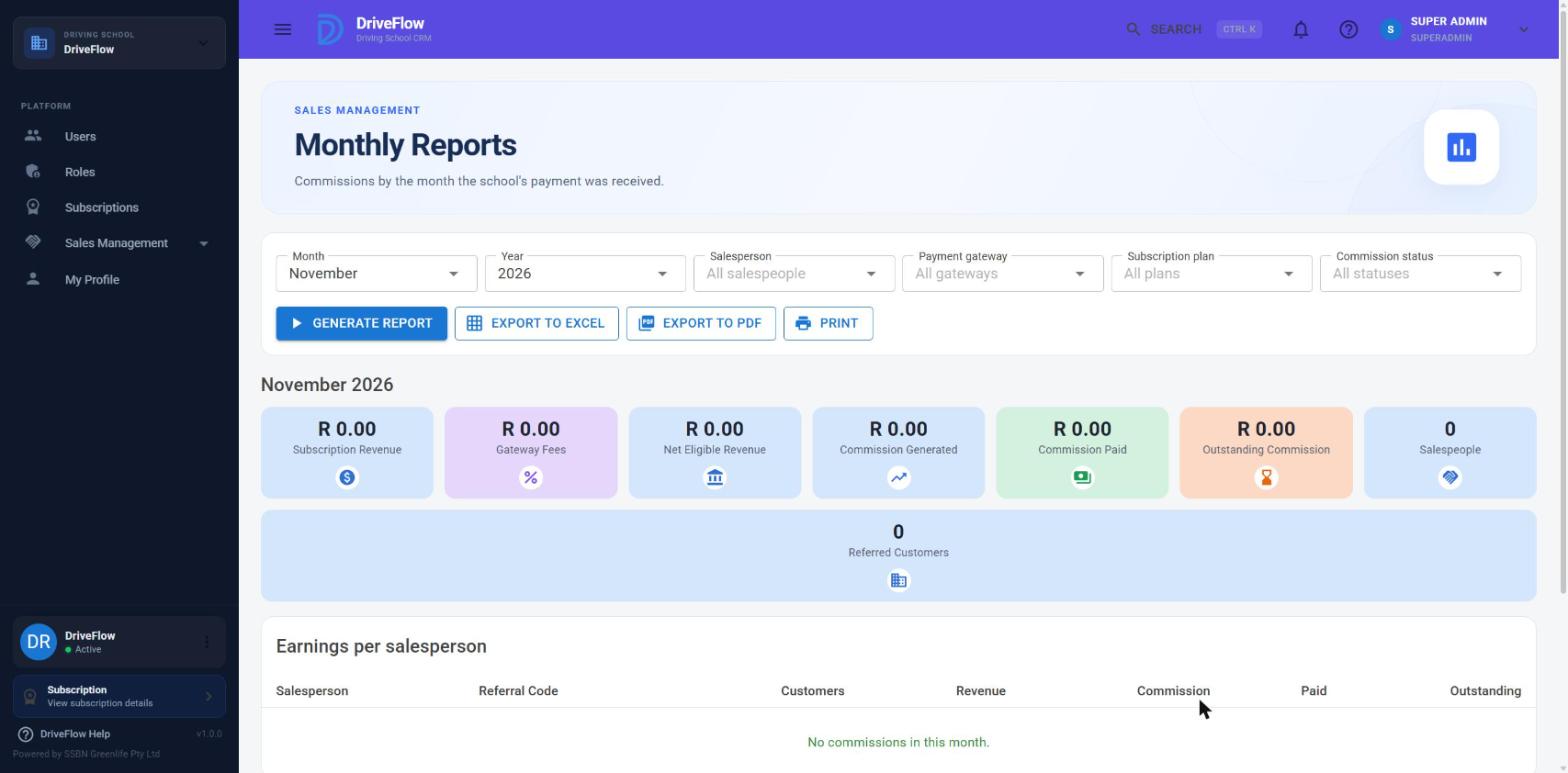
Filters
| Filter | Options | Default |
|---|---|---|
| Month | January to December | The current month |
| Year | The current year and the five years before it | The current year |
| Salesperson | "All salespeople" or one salesperson, shown as "Name (CODE)" | All |
| Payment gateway | "All gateways", PayFast, Paystack, Flutterwave, Stripe, Manual | All |
| Subscription plan | "All plans", each plan name that has earned commission, and Add-on | All |
| Commission status | "All statuses", Pending, Approved, Paid, Reversed | All |
Important
Changing a filter does not refresh the report on screen. Click Generate report again.
The plan list contains only plans that have already earned a commission. "Add-on" selects commissions earned on monthly add-ons.
If the report cannot be loaded the message "Unable to load the report." appears. The server refuses a month outside 1 to 12 or a year outside 2000 to 2100 with "Choose a valid month and year."
Reading the report
The report title is the month and year, for example "November 2026".
Summary cards
| Card | Meaning |
|---|---|
| Subscription Revenue | Total eligible amount of the generated commissions (not Reversed, clawbacks left out) |
| Gateway Fees | Total gateway fees on those commissions |
| Net Eligible Revenue | Subscription revenue less gateway fees |
| Commission Generated | Total commission on those commissions |
| Commission Paid | Total commission of the rows that have a payout. A clawback settled in a payout counts as a negative amount. |
| Outstanding Commission | Total commission of the rows that are Pending or Approved. A clawback that is not settled counts as a negative amount. |
| Salespeople | Number of different salespeople in the report |
| Referred Customers | Number of different schools in the report |
All cards respect the filters. If you filter on status Paid, for example, the Outstanding card shows R 0.00.
Earnings per salesperson
| Column | Meaning |
|---|---|
| Salesperson | Name, linked to the salesperson's detail page |
| Referral Code | The code on the first of that salesperson's rows |
| Customers | Number of different schools |
| Revenue | Eligible amount of the generated commissions |
| Commission | Generated commission |
| Paid | Commission settled by a payout |
| Outstanding | Pending and Approved commission |
Sorted by salesperson name.
Commission transactions
One row per commission, sorted by salesperson name and then payment date.
| Column | Meaning |
|---|---|
| Salesperson | Name |
| Referral Code | The code as it was applied to the school |
| Driving School | School name |
| Plan | The plan name, or "Add-on". Hover over it to see the full description of what was bought. |
| Gateway | PayFast, Paystack, Flutterwave, Stripe or Manual |
| Payment Date | Date the school's payment was received |
| Amount | Eligible amount, without VAT and without setup fees |
| Fee % | The configured gateway percentage that applied. This is shown even when the actual fee was used. |
| Gateway Fee | The fee, with Actual or Estimated underneath |
| Net Revenue | Amount less gateway fee |
| Commission % | The percentage agreed for that school |
| Commission | The commission. Negative on a clawback. |
| Status | Pending, Approved, Paid, Reversed or Clawback |
Twenty rows are shown per page. When there are more, a pager appears with page sizes 10, 20, 50 and 100.
If the month has no commissions, both tables read "No commissions in this month."
A reversed commission stays in the transaction list with its original figures and the status Reversed, but it is left out of the Revenue, Gateway Fees, Net and Commission Generated totals.
Exporting and printing
The three export buttons are enabled once a report is on screen.
| Button | Result |
|---|---|
| Export to Excel | Downloads an .xlsx file |
| Export to PDF | Downloads a .pdf file |
| Opens the PDF in a new browser tab, where you print it from the browser |
The exported document is titled "Sales commission report {Month Year}", for example "Sales commission report November 2026". If the server does not supply a file name, the browser saves it as Sales-Commission-Report-2026-11.xlsx or .pdf.
The export contains the transaction rows only, with these columns:
| Export column | Content |
|---|---|
| Salesperson | Name |
| Referral Code | Code |
| Driving School | School name |
| Subscription Plan | Plan name or "Add-on" |
| Gateway | Gateway name |
| Payment Date | yyyy-MM-dd |
| Subscription Amount | Eligible amount |
| Gateway Fee Percent | Configured percentage |
| Gateway Fee | Fee amount |
| Gateway Fee Type | Actual or Estimated |
| Net Revenue | Net eligible revenue |
| Commission Percent | Agreed percentage |
| Commission Amount | Commission |
| Commission Status | Pending, Approved, Paid, Reversed or Clawback |
Warning
The export uses the filter values as they are on screen when you click the button, not the values of the report shown below. If you changed a filter after generating, click Generate report first so that the screen and the file agree.
Things to know:
- The summary cards and the per-salesperson table are not part of the export.
- In the export a clawback is always labelled "Clawback". On screen a clawback that has been settled in a payout is labelled "Paid".
- If the export fails the message "Unable to export the report." or "Export failed: ..." appears.
Example: checking November 2026 for one salesperson
- Open Sales Management > Monthly Reports.
- Month: November. Year: 2026. Salesperson: Thily Naidoo (DF-THILY-001).
- Click Generate report.
- The cards show Subscription Revenue R 1,498.00, Gateway Fees R 44.94, Net Eligible Revenue R 1,453.06, Commission Generated R 290.62, Commission Paid R 96.81 and Outstanding Commission R 193.81.
- Click Export to PDF and send the file to the salesperson as her statement.
Limitations and notes
- The report covers one calendar month. There is no date-range or year-to-date report. Use the Sales Dashboard for a longer period.
- A CSV export exists in the API (
format=Csv) but there is no button for it on the page. - The exact column headings and layout of the Excel and PDF files are produced by the shared export service and were not checked against a generated file for this guide.
- The report cannot be scheduled or emailed automatically.
- Totals add all rows together without regard to currency. All subscription payments are in ZAR today.
Related articles
- Commission management - how commissions are calculated and approved
- Commission payments - paying salespeople
- Platform reports - all reports for the SuperAdmin
- Sales Management - the Sales Dashboard for longer periods