WhatsApp integration
Applies to: Owner and Administrator; developers and DriveFlow operations for the server set-up. Last reviewed: 2026-11-18.
DriveFlow can send notifications to students and staff on WhatsApp. This page explains how WhatsApp is connected, what a school has to do to use it, and the limits of the current implementation.
Which events send a message, to whom, and the wording, are documented in the notifications documentation.
How it is connected
WhatsApp messages are sent through Meta's WhatsApp Cloud API, using one WhatsApp business number that belongs to DriveFlow and is configured on the server.
- A school does not connect its own WhatsApp number. There is nothing to enter, scan or authorise.
- Messages to your students therefore come from DriveFlow's number, not from your school's number.
- It is one-way: DriveFlow sends. Replies from students are not received or shown in DriveFlow.
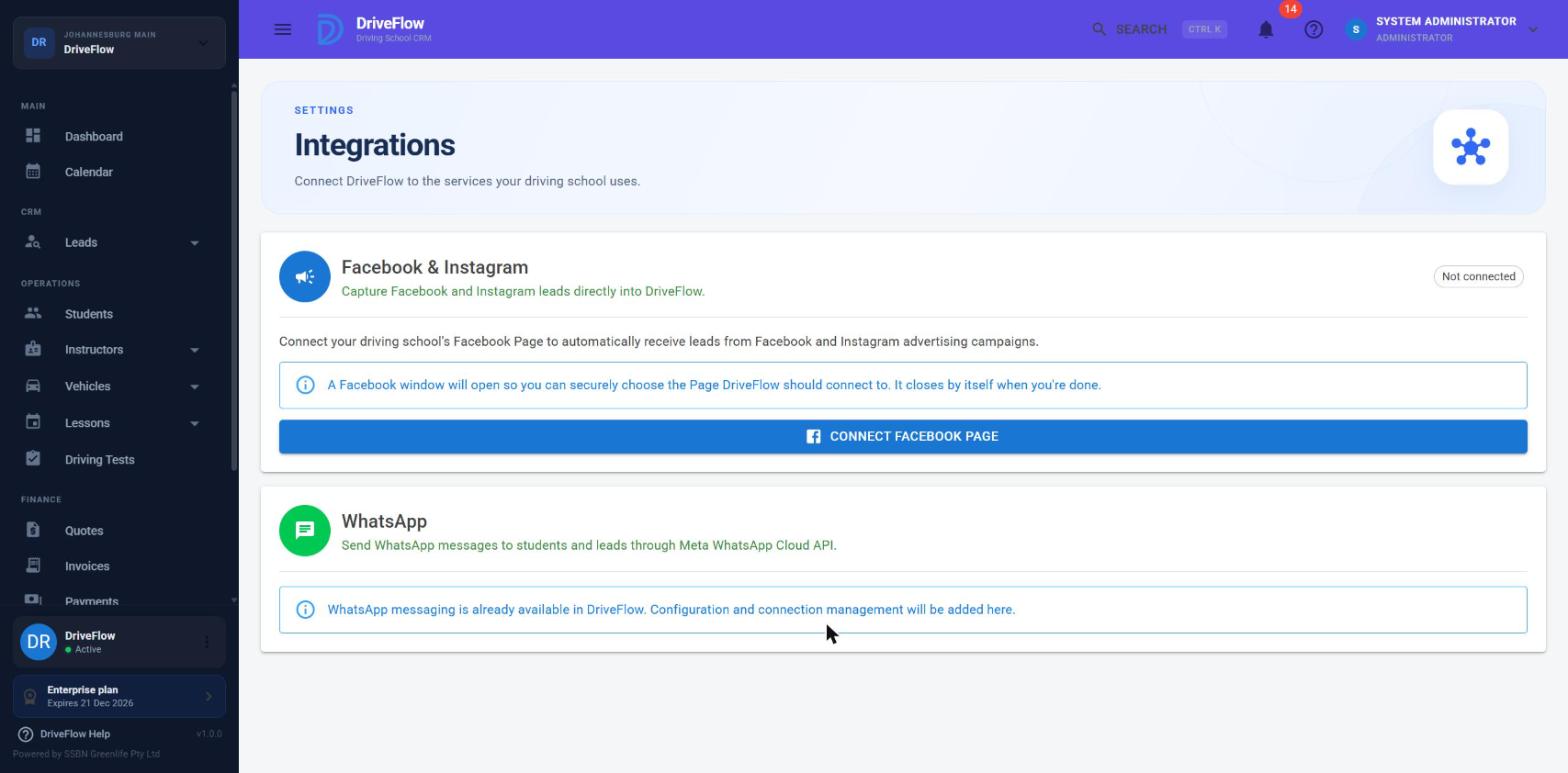
The WhatsApp card under Settings > Integrations is information only. It reads:
WhatsApp messaging is already available in DriveFlow. Configuration and connection management will be added here.
There are no buttons on it.
What a school needs to send on WhatsApp
Four things must all be true. If any one is missing, WhatsApp messages are simply not sent; other channels are unaffected.
| # | Requirement | Where |
|---|---|---|
| 1 | The plan includes WhatsApp: Professional or an Enterprise plan. Not Starter, and not the Free Trial. | Settings > Subscription |
| 2 | The WhatsApp add-on is active (R 1 499 setup once, R 1 499 a month; 30% off with Leads). | Settings > Billing |
| 3 | WhatsApp is switched on for the school. | Settings > Notifications, the WhatsApp channel switch |
| 4 | WhatsApp is ticked for the notification types you want. | Settings > Notifications, the WhatsApp column |
And on DriveFlow's side: the WhatsApp service must be enabled and configured on the server (see below).
What the Notifications page shows
On Settings > Notifications, the WhatsApp card shows a warning when the feature is not available, and the switch cannot be turned on:
- "WhatsApp is a paid add-on. Activate it under Settings > Billing to use it." - the plan includes WhatsApp but the add-on is not active.
- "WhatsApp is not included in your plan. Upgrade under Settings > Subscription to use it." - the plan does not include it.
When it is available but off: "WhatsApp can be enabled when a WhatsApp provider is configured."
Note
If WhatsApp was switched on earlier and the add-on has since lapsed, the switch stays on and can be turned off, but no messages are sent while the add-on is inactive.
Turn WhatsApp on
- Make sure you are on Professional or an Enterprise plan.
- Go to Settings > Billing and activate the WhatsApp add-on (see Add-ons). Consider ticking Add Leads too: 30% off everything.
- Go to Settings > Notifications.
- Turn on the WhatsApp switch.
- In the table of notification types, tick the WhatsApp box for each type that should go out on WhatsApp.
- Save.
The detailed description of the Notifications page is in the notifications documentation.
How a message is sent
When an event raises a notification, the notification engine:
- checks the school's notification settings and the setting for that event,
- drops the WhatsApp channel if the school does not currently have the WhatsApp feature (plan plus add-on),
- takes the recipient's phone number; a recipient without one is skipped for this channel,
- converts the number to international format; a local number beginning with 0 is treated as South African (+27) by default,
- sends the message as plain text through the WhatsApp Cloud API,
- records the attempt in the notification history as Sent, or Failed with the reason.
A failed WhatsApp message never stops the action that caused it (for example booking a lesson) and does not stop the email or SMS for the same event.
Unlike SMS, WhatsApp messages do not use credits; the add-on is a flat monthly fee.
Important limitation: the 24-hour rule
Many WhatsApp notifications can be rejected
DriveFlow sends WhatsApp notifications as free-form text messages, not as approved message templates.
Meta only allows a business to send free-form text to a person within 24 hours of that person's last message to the business number. Outside that window Meta rejects the message (its error code 131047) and requires an approved template.
Because DriveFlow's notifications are business-initiated and students do not normally message DriveFlow's number first, many WhatsApp notifications can be expected to be rejected by Meta with the current implementation. Rejected messages appear as Failed in the notification history with Meta's reason. The code itself documents this restriction; template sending has not been built.
Tip
Do not rely on WhatsApp as the only channel for anything important. Keep email switched on.
The WhatsApp button on follow-ups is something else
On the Leads Follow-ups list there is a green WhatsApp icon next to each lead. That button simply opens WhatsApp (web or the app) on your own computer or phone with the lead's number filled in, so that you can chat from your own WhatsApp. It:
- does not use the WhatsApp add-on,
- does not send anything through DriveFlow,
- is not recorded in DriveFlow.
It is available to everyone who can see follow-ups. See Follow-ups.
Similarly, "WhatsApp" as a lead source or a follow-up type is only a label.
Server settings (DriveFlow operations)
DriveFlow's WhatsApp business number and its connection to Meta are configured on the server by DriveFlow operations. Values are never shown in the application. The individual settings are covered in the internal technical documentation.
If the service is switched on but not fully set up, each send fails with "Meta WhatsApp is enabled but the access token or phone number id is not configured."
Limitations and notes
- No per-school WhatsApp number. All schools share DriveFlow's number.
- No message templates, hence the 24-hour rule above.
- No incoming messages, delivery receipts or read receipts. "Sent" in the history means Meta accepted the request, not that it was delivered or read.
- When the server switch is off, messages are recorded as Sent although nothing was sent. With the switch off the WhatsApp service returns without error and only writes a log line, so the notification history shows Sent. This matters on test systems and on any production system where WhatsApp has not been configured yet.
- No test button on the Integrations page. The Notifications area has its own test and manual send functions; see the notifications documentation.
- Not available on the Free Trial, so it cannot be tried before paying for Professional and the add-on.
- A placeholder WhatsApp service that only writes messages to the log exists in the code but is not the one registered.
- WhatsApp is not used for anything other than notifications: there is no WhatsApp inbox, campaign sending or chat with leads.
Related articles
- WhatsApp notifications: which events send a WhatsApp message.
- Add-ons: activating the WhatsApp add-on.
- Notification settings: channel switches and per-type ticks.
- Meta: Facebook and Instagram: the other Meta integration.
- External services: all outside services DriveFlow uses.