Vehicle information
Applies to: everyone with Vehicles.View (viewing); Owner, Administrator (editing, status changes, deleting). Last reviewed: 2026-11-18.
This page covers the Vehicles list, the Vehicle Details view, editing a vehicle, the four statuses and what each one blocks, and deleting. To add a vehicle see Registering a vehicle.
Who can do what
| Action | Permission | Default roles |
|---|---|---|
| See the list, View, Calendar | Vehicles.View |
Owner, Administrator, Manager, Instructor, Receptionist, Finance, Viewer |
| Edit, Set Out of Service, Activate | Vehicles.Edit |
Owner, Administrator |
| Delete Vehicle | Vehicles.Delete |
Owner, Administrator |
| Kilometres & costs (menu item) | Fleet feature on the plan plus Fleet.View, Fleet.Log or Fleet.Expenses |
See Fleet management |
The Vehicles page
Open OPERATIONS > Vehicles (address /vehicles). With Fleet Management on your plan it is OPERATIONS > Vehicles > Vehicles.
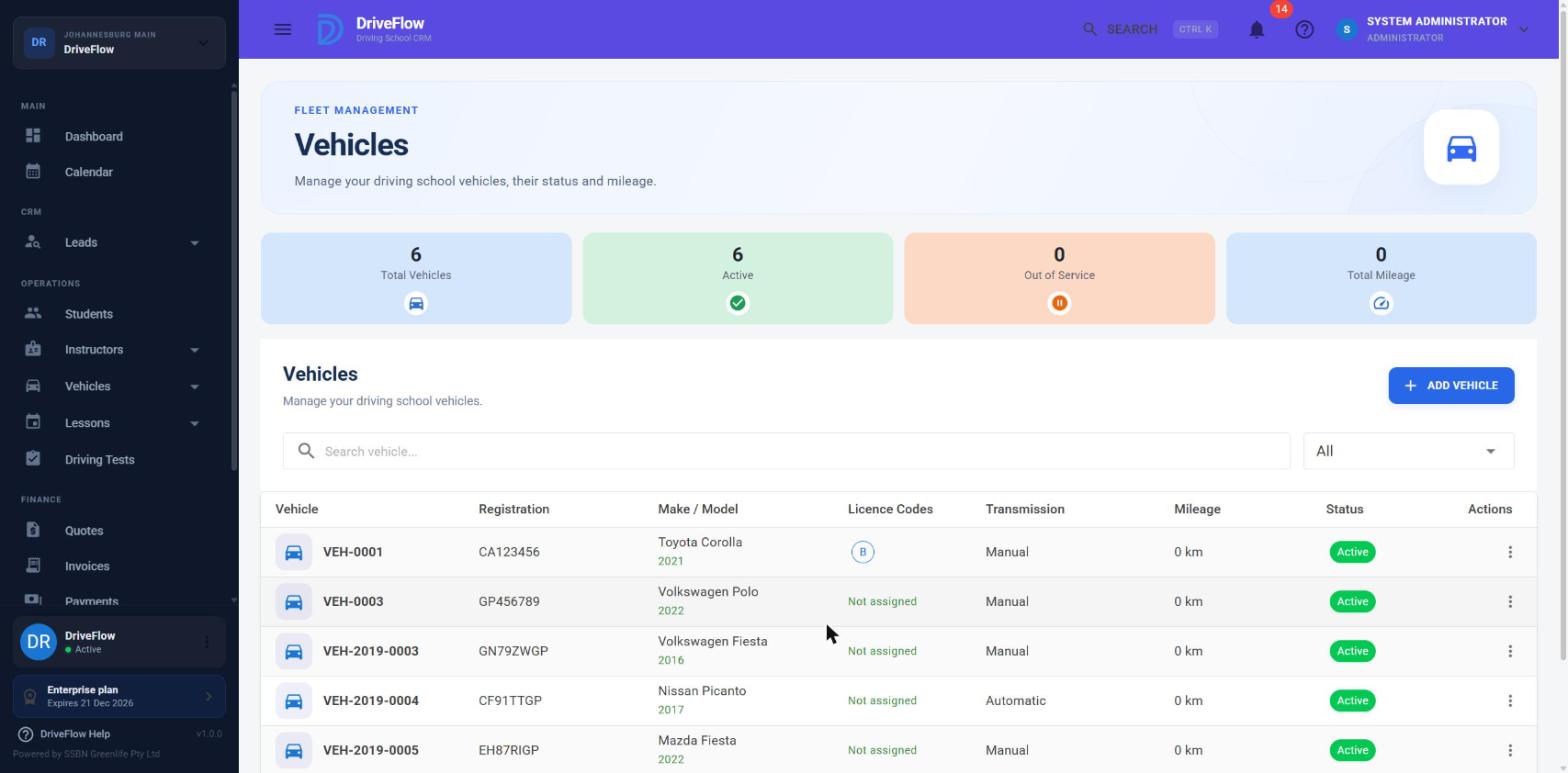
Screenshot to be added
Screen: Vehicles page. Should show: summary cards, toolbar with search and Status filter, the table and an open row menu.
Summary cards
| Card | What it shows |
|---|---|
| Total Vehicles | All vehicles that are not deleted, of every status. |
| Active | Vehicles with status Active. |
| Out of Service | Total minus Active. This is every vehicle that is not Active: Maintenance, Out of Service and Sold together. |
| Total Mileage | Intended as the sum of every vehicle's current mileage. See the note under Limitations and notes. |
Search and filter
- Search vehicle...: matches vehicle number, registration number, make, model or VIN.
- Status: All, Active, Maintenance, Out of Service, Sold.
Table columns
Vehicle (vehicle number, colour), Registration, Make / Model (with year), Licence Codes, Transmission, Mileage, Status, Actions. Sortable by vehicle number, registration, make, transmission, mileage and status. Clicking a row opens Vehicle Details.
Mileage and colour in the list are not filled in
The Mileage column shows "0 km", the colour line is blank and the Total Mileage card shows 0. The real mileage is correct in Vehicle Details, on the Edit form, in the Vehicle Report and in Fleet Management. See Limitations and notes.
Row menu
| Item | Needs | What it does |
|---|---|---|
| View | Vehicles.View |
Opens Vehicle Details. |
| Edit | Vehicles.Edit |
Opens the Edit Vehicle form. |
| Calendar | Vehicles.View |
Opens the vehicle's calendar; see Vehicle availability. |
| Kilometres & costs | Fleet feature and a Fleet permission | Opens Fleet Management filtered to this vehicle. |
| Set Out of Service | Vehicles.Edit; shown when the status is Active |
Sets the status to Out of Service. |
| Activate | Vehicles.Edit; shown for every other status |
Sets the status to Active. |
| Delete Vehicle | Vehicles.Delete |
Deletes the vehicle if it has never been used. |
Vehicle Details
Click a row or choose View. The dialog shows:
- Header: vehicle number, "Make Model · Year" and the status.
- Four tiles: Registration, Mileage, Transmission, Fuel.
-
Utilisation (last 12 months up to now):
Tile Calculation Lessons Lessons booked in this vehicle starting in the last year, excluding Cancelled. Tests Driving tests using this vehicle dated in the last year. Hours Used (Minutes of those lessons + 60 minutes per driving test) ÷ 60, to one decimal. A driving test is counted as one hour. -
Vehicle Health: three cards, Insurance, Roadworthy and Licence Disc, each with the expiry date and Valid, Due soon (expires within 30 days) or Expired; then Next Service Date and Next Service Mileage. See Vehicle maintenance.
- Vehicle Information: Vehicle Number, Registration, Colour, Make, Model, Year, VIN, Engine Number.
- Licence Codes.
- Assignment: Branch (or Home Branch) and Available At ("All branches" or "Home branch only").
- Purchase Information: Purchase Date, Purchase Price.
- Notes, when there are any.
Screenshot to be added
Screen: Vehicle Details dialog. Should show: header, tiles, Utilisation and Vehicle Health sections.
Editing a vehicle
- Open the row menu and click Edit.
- Change the fields. They are the same as on the Add form (field list); here Status does take effect.
- Click Save Changes. You see "Vehicle updated successfully."
Things to know:
- The vehicle number never changes, even if you move the vehicle to another branch.
- The licence code list is replaced by what is ticked when you save.
- Changing the branch re-checks the Current Instructor: they must work at the new branch unless the vehicle is available to all branches.
- Current Mileage can be typed lower than before. Nothing checks it against earlier readings on this form. If you use Fleet Management, let the kilometre logs move the mileage and avoid editing it by hand.
- Changing ownership to School Owned clears the owner.
Errors when editing
| Message | Why |
|---|---|
| Vehicle not found. | Deleted by someone else, or not your school's. |
| A vehicle with this registration number already exists. | Another vehicle has the registration you typed. |
| An instructor-owned vehicle must have an owner. / A school-owned vehicle cannot have an instructor owner. | Ownership and owner do not agree. The form prevents this ("Please select the instructor who owns this vehicle."). |
| At least one Licence Code is required. | All codes were unticked. |
| Vehicle is not active and cannot be assigned. | You chose a new Current Instructor while setting a status other than Active. |
| The instructor works at a different branch from this vehicle. … | Current Instructor's branch does not match. |
| Unable to update vehicle. | Rejected without a specific message, for example Year out of range. |
Statuses
| Status | Use it when | Bookable for new lessons | In vehicle pickers | Plan limit | Bell reminders | Fleet Management |
|---|---|---|---|---|---|---|
| Active | In normal use. | Yes | Yes | Counts | Yes | Listed; alerts raised |
| Maintenance | In the workshop for a while. | No | No | Counts | Yes | Listed, flagged "In maintenance: not available for lessons." |
| Out of Service | Off the road, not expected back soon. | No | No | Counts | Yes | Listed, flagged "Out of service: not available for lessons." |
| Sold | No longer the school's. | No | No | Does not count | No | Hidden from pickers; in the report only if it had activity in the period |
What a non-Active status blocks, as the code works today:
- New lessons. The scheduling engine and the vehicle lists on the Schedule Lesson form only offer Active vehicles. A request naming a non-Active vehicle fails with "The selected vehicle is not suitable for this lesson."
- Editing an existing lesson. Saving any change to a lesson whose vehicle is not Active fails with "Vehicle is not active.", even if you are only changing the time. Change the lesson to an Active vehicle in the same edit.
- Assigning a current instructor. "Vehicle is not active and cannot be assigned."
Booked lessons are not moved for you
A status change does not cancel, move or re-assign lessons or driving tests already booked in the vehicle. See Vehicle availability for the steps to follow. It also does not clear the vehicle's current instructor or owner.
Changing the status
| To set | How |
|---|---|
| Out of Service | Row menu > Set Out of Service > confirm "Are you sure you want to set out of service this vehicle?". Message: "Vehicle set out of service successfully." |
| Active | Row menu > Activate > confirm "Are you sure you want to activate this vehicle?". Message: "Vehicle activated successfully." |
| Maintenance or Sold | Row menu > Edit > Status > Save Changes. |
stateDiagram-v2
    [*] --> Active: Add Vehicle
    Active --> OutOfService: Set Out of Service
    Active --> Maintenance: Edit > Status
    Active --> Sold: Edit > Status
    Maintenance --> Active: Activate
    OutOfService --> Active: Activate
    Sold --> Active: Activate
Deleting a vehicle
- Open the row menu and click Delete Vehicle.
- Confirm: "Are you sure you want to delete this vehicle? This action should only be used when the vehicle has no active records."
- Message: "Vehicle deleted successfully."
A vehicle can be deleted only if it has never been used:
| Message | Meaning |
|---|---|
| This vehicle cannot be deleted because it is linked to one or more lessons. | Any lesson, of any status, uses the vehicle. |
| This vehicle cannot be deleted because it is linked to one or more driving tests. | Any driving test uses the vehicle. |
Tip
For a vehicle that has been used, set the status to Sold instead. It then stops counting towards your plan limit and disappears from pickers, while its history stays intact.
Deleting hides the vehicle (soft delete); there is no undo on screen.
Limitations and notes
- The Mileage and colour shown in the list are not filled in. The API that feeds the Vehicles table (
GetVehiclesQueryHandler) does not copy the vehicle's current mileage or colour into each row, so the Mileage column shows "0 km", the colour line under the vehicle number is blank, and the Total Mileage card shows 0. The real mileage is correct in Vehicle Details, on the Edit form, in the Vehicle Report and in Fleet Management. This is a defect in the list, noted here so the figure is not trusted. - The "Out of Service" card is really "not Active". It includes Maintenance and Sold vehicles.
- Vehicle Details does not show ownership or the current instructor. Open Edit to see them.
- Deleting does not release the instructor who had the vehicle assigned; a deleted (unused) vehicle may leave an instructor pointing at it until another vehicle is assigned to them.
- Status names appear in the table as the internal names (
OutOfService). - Activating a Sold vehicle does not re-check the plan limit; the limit is checked only when a vehicle is added.
- No status history or reason. DriveFlow does not record when or why a status changed.
- "Hours Used" counts booked time, and each driving test as exactly one hour.
- The utilisation data also contains "average hours per day" and mileage-used fields that are not displayed.
Related articles
- Registering a vehicle - adding a vehicle and the form fields.
- Vehicle availability - the vehicle calendar and handling an unavailable vehicle.
- Vehicle maintenance - expiry dates, service reminders and Vehicle Health.
- Vehicle assignment - branches, ownership and current instructor.
- Fleet management - kilometres, costs and profit (Enterprise).