Subscription management
Applies to: Owner (Subscription.Manage); Administrator and others with Subscription.View can look but not change. Last reviewed: 2026-11-18.
This page explains the Subscription page, how to choose and pay for a plan, and every status a subscription can have.
Who can do what
| Action | Permission needed | Roles that have it by default |
|---|---|---|
| Open Settings > Subscription and Settings > Billing | Subscription.View | Owner, Administrator |
| Choose, renew or change a plan; cancel; undo a cancellation; apply a referral code; buy or cancel add-ons; email an invoice | Subscription.Manage | Owner |
A school can change which roles hold these permissions under Settings > Roles. A user without Subscription.Manage sees the buttons greyed out.
SuperAdmin view
A DriveFlow SuperAdmin who opens the same address sees a different screen (managing any school's subscription). That is covered in the SuperAdmin guide.
Opening the page
Any of these opens Settings > Subscription (/settings/subscription):
- Left menu > Settings > Subscription card.
- The plan box at the bottom of the left menu.
- After the subscription has ended: left menu > Renew Subscription.
What the page shows
1. Warning banner (only when there is no running subscription)
A red banner appears when the subscription has ended or the school has none:
- "Your subscription ended on dd MMM yyyy." or "Your school doesn't have an active subscription."
- For users who can manage: "Choose a plan below to continue using DriveFlow. Your data is kept and everything is available again as soon as the payment is confirmed."
- For users who cannot: "Please ask an administrator to renew it."
2. Current plan card
| Item | Meaning |
|---|---|
| Plan name | The plan you are on, for example "Professional". |
| Status chip | Free Trial, Active, Expired, and so on (see the status table below). |
| Cancelled chip (red outline) | Shown as well when you have cancelled but the period has not ended yet. |
| "N day(s) remaining in your trial." | Trial only. |
| Price line | "ZAR 999.00 / month" or "ZAR 9,990.00 / year", from your billing cycle. |
| Date line | "Current period ends dd MMM yyyy", or "Cancelled. Full access until dd MMM yyyy", or "Ended on dd MMM yyyy". |
Buttons on the right of the card:
- Renew Plan name: shown when the plan can be paid for again (see Renewals).
- Cancel Subscription: shown while the subscription is running and not cancelled.
- Undo Cancellation: shown while it is running and cancelled.
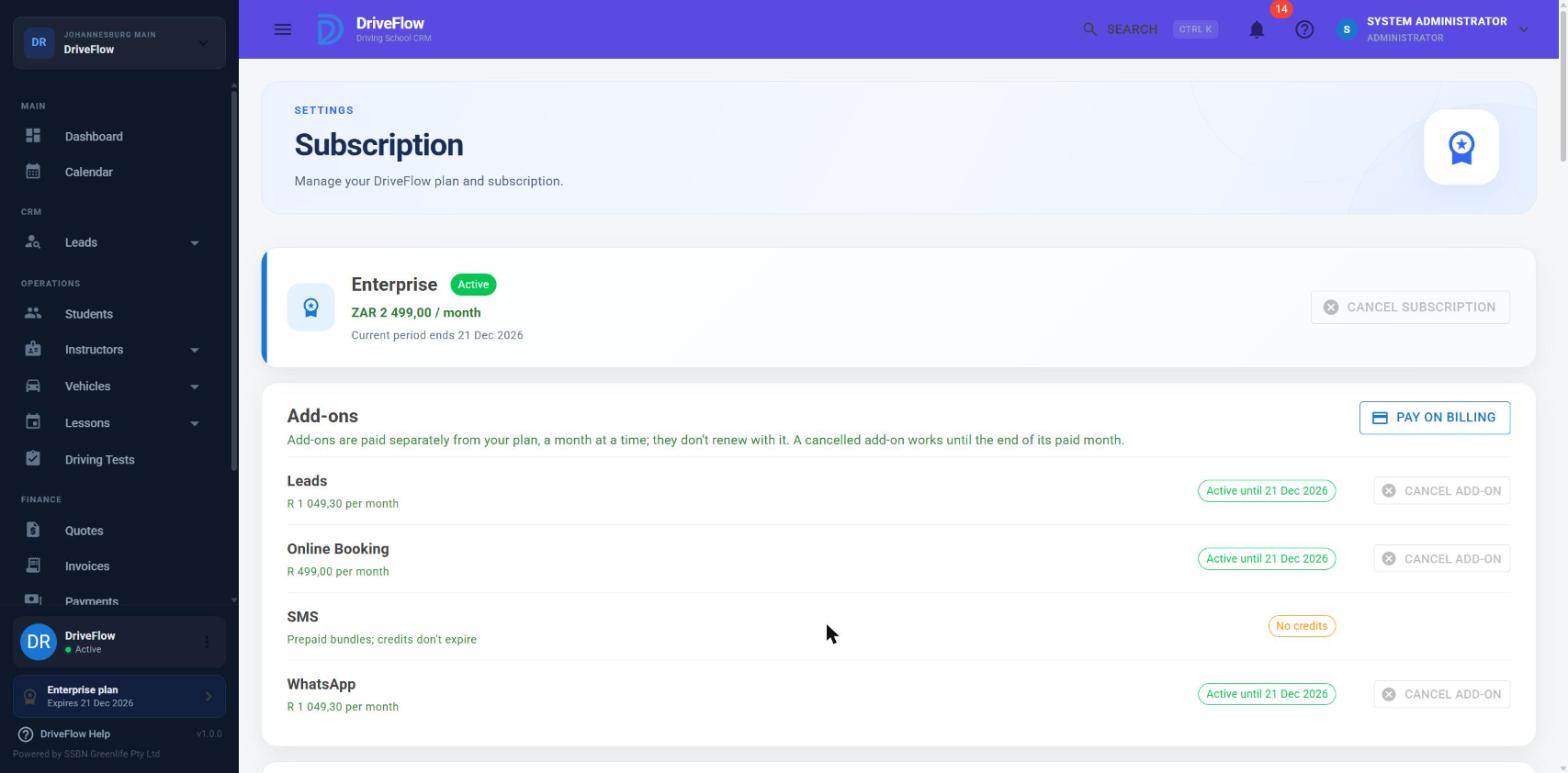
3. Add-ons
A list of each add-on with its price and status chip, and a Pay on Billing button. You can cancel an add-on here, but paying for one is done on Settings > Billing. See Add-ons.
4. Available plans
One card per plan. The button on each card reads:
| Button | When |
|---|---|
| Choose Plan | A paid plan you are not on. |
| Current Plan (disabled) | The plan you are on, when it cannot be renewed yet. |
| Renew Plan | The plan you are on, when it can be renewed. |
| Trial for new schools only (disabled) | The Free Trial card. |
| Contact Sales | Enterprise Custom. Opens your email program with the subject "DriveFlow Enterprise enquiry". |
Choose and pay for a plan
This is the same process for a first payment after the trial, an upgrade, a downgrade and a renewal.
- Go to Settings > Subscription.
- On the plan you want, click Choose Plan (or Renew Plan). The Upgrade Subscription dialog opens. It has this title for every plan change, including downgrades and renewals.
- Choose the billing cycle:
- Monthly — R 999.00
- Annual — R 9,990.00
- Leave or change the Auto-renew subscription switch. Read the note about this switch under Renewals before relying on it.
- Optional, first payment only: type a code in Salesperson / Referral Code and click Apply. See Referral code.
- Click Continue to Payment. The message "Redirecting to payment..." appears and your browser goes to PayFast.
- Pay on PayFast with the method you prefer.
- PayFast sends you back to DriveFlow, to the Subscription payment page. It shows "Confirming your payment..." and checks every 2 seconds, for up to about 30 seconds.
- When DriveFlow has received PayFast's confirmation, the page shows Payment received: "Thank you. Your Professional subscription is active." Click Go to dashboard or View subscription.
If you click cancel on PayFast, you come back to a page that says Payment cancelled: "No payment was taken. You can choose a plan again whenever you're ready."
Slow confirmation
If the confirmation takes longer than about 30 seconds, the page says: "PayFast hasn't confirmed the payment yet. This can take a few minutes; your subscription updates automatically once it does." You can leave the page. Nothing more is needed from you.
sequenceDiagram
    actor Owner
    participant DF as DriveFlow
    participant PF as PayFast
    Owner->>DF: Settings > Subscription, Choose Plan
    DF->>Owner: Upgrade Subscription dialog (cycle, auto-renew, referral code)
    Owner->>DF: Continue to Payment
    DF->>DF: Records a Pending payment with a reference (DF-...)
    DF->>PF: PayFast checkout page
    Owner->>PF: Pays
    par Browser return
        PF->>Owner: Browser returns to the Subscription payment page (waits for confirmation)
    and Server notification
        PF->>DF: PayFast notifies DriveFlow's server (ITN)
        DF->>DF: Checks merchant, signature, PayFast itself, amount
        DF->>DF: Marks payment Successful, activates the plan, creates the paid invoice and emails it
    end
    DF->>Owner: Payment received
What is activated, and how the new period is calculated, is described in Upgrades and downgrades and Renewals. More detail about the PayFast exchange is in PayFast.
Messages you may see when choosing a plan
| Message | Why |
|---|---|
| You are already subscribed to this plan. | Same plan and same billing cycle, and it is not yet within 14 days of ending. |
| The free trial is only available when a school first registers. Please choose a paid plan. | The Free Trial plan was requested. |
| Enterprise Custom is priced by quote. Please contact DriveFlow and we'll set it up for you. | Enterprise Custom was requested. |
| This plan is not available for online payment. | The plan has no price for the chosen cycle. |
| Subscription plan was not found. | The plan is no longer active. |
| PayFast is not configured. | DriveFlow's own PayFast merchant details are missing on the server. Contact DriveFlow. |
| A valid company context is required. | The signed-in user is not linked to a school. |
Subscription statuses
The status values come from the SubscriptionStatus enum.
| Status (stored) | Shown as | Meaning | Does the school have access? |
|---|---|---|---|
| Trial | Free Trial | The 14-day trial is running. | Yes, until the end date |
| Active | Active | A paid period is running. | Yes, until the end date |
| Expired | Expired | The trial or paid period has ended. | No |
| PendingPayment | Payment Pending | A subscription record created for a school that had none, waiting for its first payment. | No |
| Cancelled | Cancelled | Defined, but never set by any code. See the note below. | No |
| Suspended | Suspended | Defined, but never set by any code. See the note below. | No |
How a school moves between statuses
stateDiagram-v2
    [*] --> Trial: school registers (14 days)
    Trial --> Active: payment confirmed
    Trial --> Expired: end date passes
    Active --> Active: renewal or plan change paid
    Active --> Expired: end date passes without a new payment
    Expired --> Active: payment confirmed
    [*] --> PendingPayment: checkout started by a school with no subscription
PendingPayment --> Active: payment confirmed- Trial to Active, Expired to Active, Active to Active: only a confirmed payment does this (PayFast notification), or a DriveFlow SuperAdmin activating the school by hand.
- Trial or Active to Expired: happens by itself when the end date passes. Access stops at that exact moment; an hourly job then updates the stored status to Expired and turns auto-renew off.
- Cancelling does not change the status. A cancelled subscription keeps the status Trial or Active and gets a "cancelled on" date. It then expires at its end date like any other. See Cancellations.
Billing cycles
There are two: Monthly and Yearly (labelled "Annual" in the dialog). A monthly period is one calendar month from its start (for example 10 March to 10 April). A yearly period is one year. The cycle is chosen each time you pay and can be changed at any payment.
Example
Thandi, the Owner of a school on the trial, opens Settings > Subscription, clicks Choose Plan on Starter, keeps Monthly — R 499.00, clicks Continue to Payment and pays by card on PayFast. A few seconds after returning she sees "Payment received". The left menu now shows "Starter plan" and an invoice numbered like DF-2026-000123 is on Settings > Billing and in the school's inbox.
Limitations and notes
- Cancelled and Suspended are never assigned. The application has no code that sets a subscription's status to Cancelled or Suspended, and no screen to suspend a school's subscription. The web page would treat either value as "ended" if it were ever stored. Cancelling uses a separate date field instead.
- PendingPayment is rare. Every registered school gets a trial, so a school normally always has a subscription record. A pending record is only created when a school with none starts a checkout. Pending records are ignored everywhere a "current subscription" is looked up.
- Abandoned checkouts stay Pending. If you start a payment and never finish it, the payment stays in Payment History with the status Pending. Nothing marks it Cancelled or Failed later.
- Only PayFast can be used to pay for a plan. See Payment gateways.
- The dialog shows "Annual — R 0.00" for a plan without an annual price. Choosing it then charges the monthly price for a yearly period according to the server code; none of the seeded purchasable plans is in that position.
Related articles
- Subscription plans: prices, limits and features.
- Upgrades and downgrades: changing plan.
- Renewals: paying for the next period.
- Cancellations: cancelling and undoing.
- Expiry, suspension and reactivation: what happens at the end date.
- Billing invoices: the paid invoice for each payment.