Invoicing
Applies to: school staff with Invoices.View (plus Invoices.Create / Invoices.Edit / Invoices.Delete for changes), on a plan that includes Payments. Last reviewed: 2026-11-18.
An invoice is what the school bills a student (or a walk-in customer). This page covers how invoices come into existence, the Invoices page, creating and editing invoices, statuses, the PDF, emailing and cancelling.
This is school-level billing: the school invoicing its own students. The invoices DriveFlow raises to the school for its subscription are a different thing and are described in Billing invoices.
Where to find it
Sidebar > FINANCE > Invoices (page address /invoices).
The FINANCE section appears only when the school's plan includes the Payments feature. The Invoices link needs Invoices.View.
Who can do what
| Action | Permission needed |
|---|---|
| Open the page, View, Download PDF, Send Email, Send Reminder | Invoices.View |
| Create Invoice | Invoices.Create |
| Edit, Cancel Invoice | Invoices.Edit |
| Delete Draft | Invoices.Delete |
| View Payments | Payments.View |
| Record Payment | Payments.Create or Payments.Edit (the API itself requires Payments.Create) |
All invoice endpoints also require the Payments plan feature.
How invoices are created
Invoices are created in seven ways. Only the first is fully manual.
| # | Trigger | What is created | Due date | Emailed automatically? |
|---|---|---|---|---|
| 1 | Staff click Create Invoice on the Invoices page | Whatever lines staff enter | Chosen by staff (default 15 days from today) | No. Use Send Email from the invoice's menu. |
| 2 | A student is registered | One invoice with one line for the chosen training package at the package price, linked to the student's new course | 15 days after registration | Yes, if the school's settings allow it (see below) |
| 3 | A new course is started for an existing student with a new package | One invoice with one line "<package code> - <package name>" at the package price, linked to the new course |
15 days | No |
| 4 | A student's training package is changed through the student update on the server and the two package prices differ. No web or mobile screen can do this: the Edit Student page has no package field and always sends the current package, so in practice this route only runs on a direct API call | A "Package change adjustment: <old> → <new> (lessons x → y)" invoice for the price difference. A price increase gives a normal Pending invoice; a price decrease gives a negative invoice with status Credit |
15 days | No |
| 5 | A paid extra lesson (lesson top-up) is added to a student | One invoice with the line "Extra driving lesson - <package name>" for the fee entered |
7 days | Yes, if settings allow |
| 6 | An assessment is recorded for a student with an additional invoice amount greater than zero | One invoice with the line "Driving assessment (<type>) - <date>" |
Set by the assessment feature | Yes, if settings allow |
| 7 | An accepted quote is converted | The quote's lines, discounts and tax | Chosen in the convert dialog (default 7 days) | Yes, if settings allow |
Starting a course that was already Purchased (for example through an invoice line or a converted quote) does not create another invoice; it was invoiced when it was purchased.
What \"if settings allow\" means
The school has notifications active, email is enabled, and the Invoice Issued notification has not been switched off (see the notifications documentation). A failed email never undoes the invoice.
Every invoice created by any of these routes starts with status Pending, except the credit in route 4.
The Invoices page
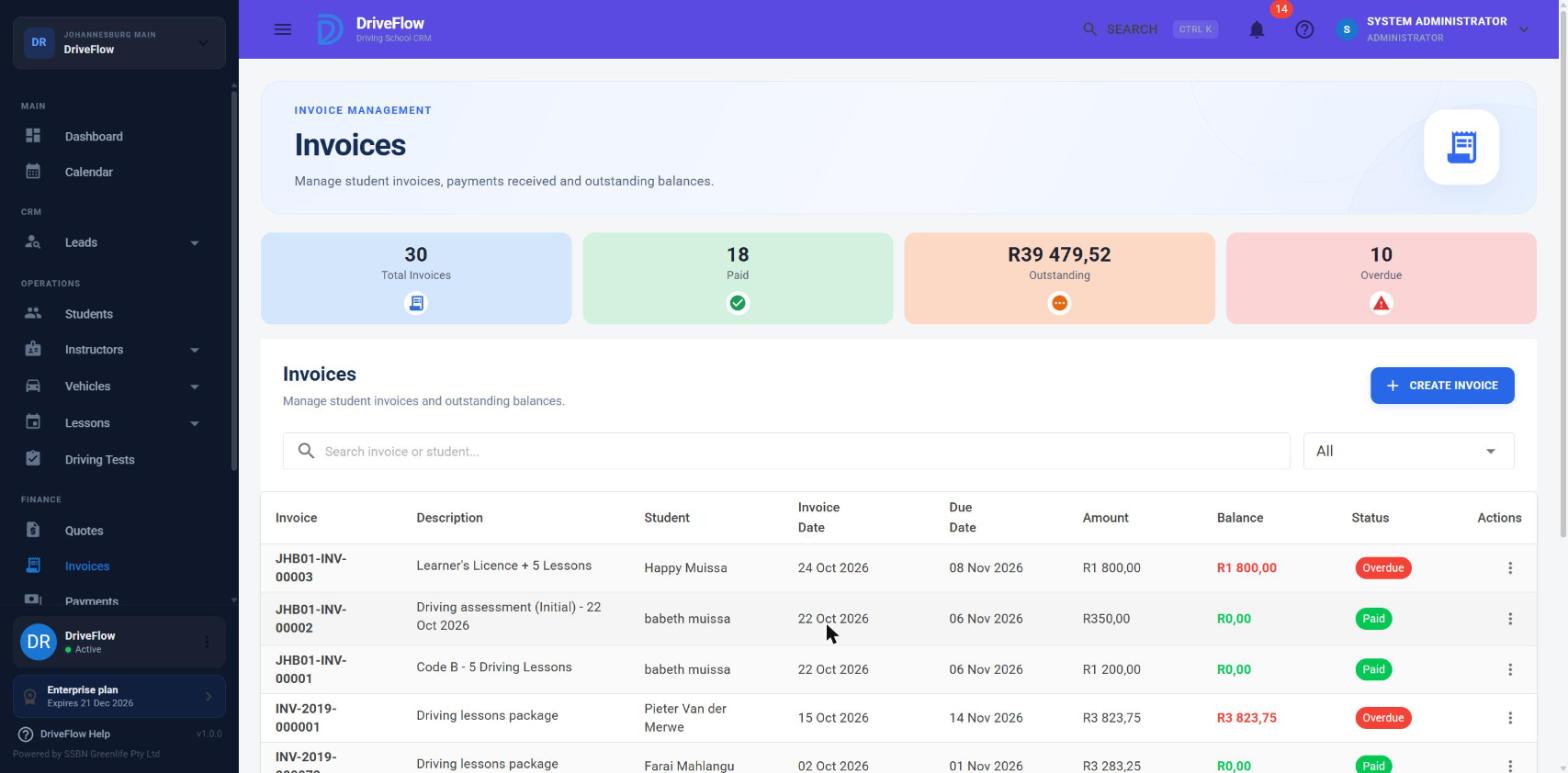
Summary cards
| Card | How it is calculated |
|---|---|
| Total Invoices | Number of invoices of every status. |
| Paid | Number of invoices with status Paid. |
| Outstanding | Sum of the balances of invoices with status Pending, PartiallyPaid or Overdue. |
| Overdue | Number of invoices with status Overdue. |
The cards cover all invoices the user can see, not only the current page of the table. See Outstanding balances for how this figure compares with the dashboard and report figures.
Table columns
| Column | Content |
|---|---|
| Invoice | Invoice number. |
| Description | The line descriptions, one per line, cut to two lines; hover to see everything. |
| Student | The student, or the walk-in customer's name. |
| Invoice Date | |
| Due Date | "-" when there is none. |
| Amount | Invoice total. |
| Balance | Total minus amount paid. Red when more than zero, green otherwise. |
| Status | See Statuses. |
| Actions | The three-dot menu. |
All columns except Description and Actions can be sorted. Invoices without a due date sort last. The default order is newest invoice date first.
Search and filter
- Search invoice or student... matches the invoice number, the student's first name, last name or student number, or the walk-in customer's name.
- Status lists All plus every status.
Notifications and the header search open the page pre-filtered: /invoices?search=<invoice number>.
Statuses
| Status | Meaning | How it is reached |
|---|---|---|
| Draft | Not issued. | No screen or automatic process in the current version creates a Draft invoice (see Limitations and notes). |
| Pending | Issued, nothing paid. | Every new invoice. Also restored when all payments on an invoice are voided or refunded. |
| PartiallyPaid | Some money received, balance remaining. | A payment smaller than the balance. |
| Paid | Amount paid is at least the total. | A payment that settles the balance. |
| Overdue | Unpaid past the due date plus the grace period. | Set by the daily job at 08:00 (see Invoice reminders). Also set when an invoice is edited and its due date is already in the past. |
| Cancelled | Withdrawn. | Cancel Invoice. |
| Credit | A negative adjustment in the student's favour. | Created automatically when a student's package is changed to a cheaper one through the student update (route 4). No screen can change a student's package, so in practice Credit invoices do not arise from the screens. |
flowchart TD
    P[Pending] --> PP[PartiallyPaid]
    PP --> PD[Paid]
    P --> PD
    P -->|daily job| O[Overdue]
    O -->|money comes in| PP2[PartiallyPaid / Paid]
    P -->|only while nothing has been paid| C[Cancelled]
Recording a payment on an Overdue invoice sets it to PartiallyPaid or Paid straight away. If a balance remains and the invoice is still past due, the next daily run marks it Overdue again.
Create an invoice manually
- Go to FINANCE > Invoices and click Create Invoice.
- Under Invoice Details:
- Student (required): type to search and select the student. Message if missing: "Please select a student."
- Bill to company (optional): fill this in when someone else pays ("E.g. an employer paying for the student"). When a company name is entered, VAT Number, Registration Number and Company Address appear.
- Invoice Date (required, defaults to today).
- Due Date (required, defaults to 15 days from today).
-
Under Invoice Items, complete the first line and use Add Item for more.
Field Meaning Training Package (optional) Picking a package fills in the description, sets Qty to 1 and the unit price to the package price. Description Required. "Description is required." Qty Whole number greater than zero. Unit Price Rand amount, 0 or more. Discount None, Percentage or Fixed Amount. Discount % / Discount Amount Shown according to the discount type. Amount The line total, calculated for you. Add as new course from this package Shown when a training package is selected. When ticked, saving also creates a course for the student from that package, with status Purchased, and links this invoice line to it. -
In the totals panel check Subtotal and Discount, enter Tax if it applies (a rand amount; see VAT and numbering) and check Total.
- Optional: Notes ("Optional invoice notes...", up to 1000 characters). Notes print on the PDF.
- Click Create Invoice.
The message "Invoice created successfully." appears and the invoice is listed with status Pending and the next invoice number of the student's branch.
Important
A manually created invoice is not emailed automatically; use Send Email.
How the total is worked out
line amount   = Qty x Unit Price
line discount = Percentage:   line amount x % / 100, rounded to 2 decimals (halves round up)
                Fixed Amount: the amount, rounded to 2 decimals
line total    = line amount - line discount
Subtotal      = sum of line amounts
Discount      = sum of line discounts
Total         = Subtotal - Discount + Tax
Balance       = Total - Amount Paid
Messages you may see when saving
| Message | Cause |
|---|---|
| "Please select a student." | No student chosen. |
| "Invoice date is required." / "Due date is required." | |
| "Due date cannot be before the invoice date." | |
| "Quantity must be greater than zero." | |
| "Unit price cannot be negative." | |
| "Discount cannot be negative." | |
| "Percentage discount cannot exceed 100%." | |
| "Discount for '...' cannot exceed the line amount." | A fixed discount larger than the line. |
| "Invoice total must be greater than zero." | |
| "Student not found." / "Training package not found." | The record was removed while the dialog was open. |
Example
Lerato Dlamini wants two extra motorway lessons that are not part of her package. Staff click Create Invoice, select Lerato, add one item "Motorway lesson" with Qty 2 and Unit Price R 350.00, choose Discount Percentage 10, leave Tax at 0 and click Create Invoice. Subtotal R 700.00, Discount R 70.00, Total R 630.00. The invoice appears as Pending with a balance of R 630.00; staff then choose Send Email from its menu.
Invoice lines and courses
An invoice line can be linked to one of the student's courses. The link is set automatically for the registration invoice, the invoice raised when a course is started, and any line saved with Add as new course from this package (or enrolment during quote conversion).
The link is used to work out what is still owed for a particular course: the outstanding balance of a course is the sum of the balances of Pending, PartiallyPaid and Overdue invoices that have at least one line linked to that course. Lines typed in by hand without a package, extra-lesson invoices and assessment invoices have no course link.
Editing an invoice keeps the existing course link on each line.
View an invoice
Three-dot menu > View opens Invoice Details:
- Invoice: Invoice Date, Due Date, Branch.
- Bill To: the student and student number (or "Walk-in customer"), Email and Phone.
- Bill To Company: Company, VAT Number, Registration Number, Address (only when the invoice is billed to a company).
- Invoice Items: Description, Qty, Unit Price, Discount, Total.
- Totals: Subtotal, Discount, Tax, Total, Amount Paid, Balance.
- Notes.
Download PDF is also available at the bottom of this dialog.
Screenshot to be added
Screen: Invoice Details dialog. Should show: Bill To, Invoice Items and Totals sections.
Download or print the PDF
Three-dot menu > Download PDF. The file is saved as <invoice number>.pdf. There is no separate Print button: open the downloaded PDF and print it from your PDF viewer.
The PDF contains:
- The school's letterhead: logo, trading name (and registered name if different), "Reg. No", "VAT No", address, "Tel", "Office Tel", email, website and the branch. These come from the organisation settings.
- The heading INVOICE, the invoice number, invoice date, due date and status.
- BILL TO: the student and "Student No", or the walk-in customer with email and phone. When billed to a company: the company name, address, "VAT No", "Reg. No" and "Attn:
<person>". - The items table (Description, Qty, Unit Price, Discount, Total).
- Subtotal, Discount, Tax, TOTAL, Amount Paid and Balance.
- Notes, and the school's Terms and Conditions when they are set in organisation settings.
Messages: "Generating invoice PDF...", then "Invoice PDF downloaded successfully." or "Unable to generate invoice PDF."
Email an invoice
Three-dot menu > Send Email (not offered for cancelled invoices).
The email goes to the student's email address, or to the walk-in customer's email on the invoice. Subject: "Invoice <number>". It lists Invoice Number, Invoice Date, Due Date ("On receipt" when there is none), Total, Amount Paid and Balance Due, and has the invoice PDF attached. It is recorded in the notification history.
A manual Send Email is always attempted, even when the automatic Invoice Issued email is switched off in notification settings.
| Message | Meaning |
|---|---|
"Invoice <number> emailed to <name>." |
Sent. |
| "This student has no email address. Add one to their profile and try again." | |
| "This customer has no email address on the invoice." | Walk-in invoice without an email. |
| "A cancelled invoice cannot be emailed." | |
| "The invoice email could not be sent: ..." | Mail server problem; the reason follows the colon. |
Payment reminders are a separate email; see Invoice reminders.
Edit an invoice
Three-dot menu > Edit is offered while the invoice is not Paid and not Cancelled.
You can change the invoice date, due date, bill-to company details, items (add, change, remove; at least one must remain), tax and notes. The student cannot be changed. The dialog shows Amount Paid and Balance for reference.
Rules applied when saving:
| Message | Cause |
|---|---|
| "A cancelled invoice cannot be edited." / "A fully paid invoice cannot be edited." | |
| "Add at least one invoice item." | |
| "Every invoice item needs a description." | |
| "Invoice total cannot be less than the amount already paid." | You reduced the invoice below what the student has already paid. |
| "Due date cannot be before the invoice date." |
After saving ("Invoice updated successfully.") the status is recalculated in this order:
- Paid when the amount paid covers the total;
- otherwise Overdue when the due date is before today;
- otherwise PartiallyPaid when something has been paid;
- otherwise Pending.
This check does not apply the overdue grace period from payment settings.
Cancel an invoice
Three-dot menu > Cancel Invoice > confirm "Are you sure you want to cancel invoice <number>?".
- Only invoices with nothing paid can be cancelled. Otherwise: "Invoices with payments cannot be cancelled. Refund the payments first." Void or refund the payments first (see Refunds and voids).
- The status becomes Cancelled. The invoice stays in the list and keeps its number.
- If the invoice was raised for a paid extra lesson, that extra lesson is removed from the student's package and the message reads "Invoice cancelled. The extra lesson on it was removed from the student's package."
- A cancelled invoice cannot be edited, emailed, paid or un-cancelled.
Cancelling cannot be undone
A cancelled invoice cannot be un-cancelled. Cancelling is the only way to withdraw an issued invoice. There is no credit-note document; see Refunds and voids.
Delete a draft
Delete Draft appears only for invoices with status Draft and needs Invoices.Delete. An issued invoice cannot be deleted: "Only draft invoices can be deleted. Cancel an issued invoice instead."
Limitations and notes
- Draft status is not reachable. Every route creates invoices as Pending (or Credit). The Draft status, the Delete Draft action and the
Invoices.Deletepermission therefore have no practical use at present. - Walk-in invoices (no student) can only be created by converting a quote. The Create Invoice dialog always requires a student.
- Manual invoices are not emailed automatically, and neither are the invoices from starting a course or changing a package.
- The package-change adjustment (route 4) has no screen. No page can change a student's package, so neither the adjustment invoice nor the Credit invoice it can produce is created from the screens (see the package pricing page in the training documentation).
- Credit invoices are not applied to other invoices. A Credit invoice (negative total) is listed with the student's invoices but nothing offsets it against what the student owes. The menu still offers Edit, Record Payment and Cancel Invoice for it; do not record payments against it.
- No recurring invoices, payment plans or instalment schedules.
- No cancellation reason is asked for in the dialog, although the system can store one.
- The Outstanding card adds up invoices 100 at a time and stops after 5 000 invoices per status.
- Invoices are scoped by branch: a user whose sign-in is tied to one branch sees only that branch's invoices.
- In the mobile app, owners have their own invoice screens; see the mobile app documentation.
Related articles
- Quotes: offers that convert into invoices.
- Payments: record payments against invoices.
- Outstanding balances: what is still owed.
- Invoice reminders: overdue status and reminder emails.
- VAT and numbering: tax and invoice numbers.
- Refunds and voids: reversing payments before cancelling.