Invoice reminders and overdue rules
Applies to: owners and administrators with Settings.View / Settings.Manage (rules); staff with Invoices.View (sending a reminder by hand). Last reviewed: 2026-11-18.
DriveFlow marks unpaid invoices as overdue and emails payment reminders according to rules each school sets. A reminder can also be sent by hand at any time.
Where to find the rules
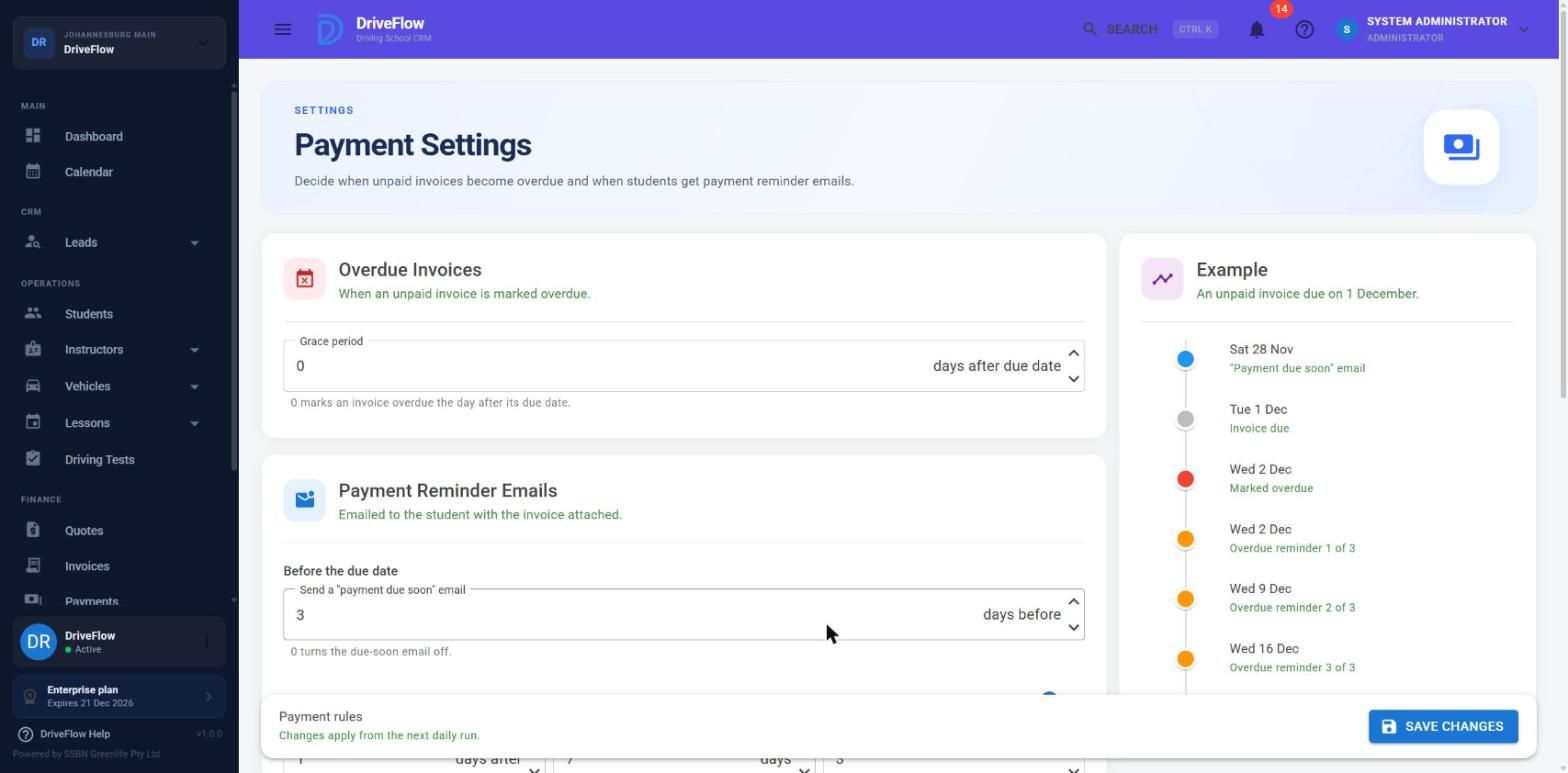
ADMINISTRATION > Settings > Payments (/settings/payments, page title Payment Settings: "Decide when unpaid invoices become overdue and when students get payment reminder emails.").
Permissions
Viewing needs Settings.View. Saving needs Settings.Manage; without it the page shows "You can view these settings but not change them." and all fields are disabled.
This page is not behind the Payments plan feature, but reminders only ever concern school invoices, which are.
The rules
Overdue Invoices
| Field | Range | Default | Meaning |
|---|---|---|---|
| Grace period | 0 to 90 days | 0 | Days after the due date before an unpaid invoice is marked overdue. "0 marks an invoice overdue the day after its due date." |
Payment Reminder Emails
"Emailed to the student with the invoice attached."
| Field | Range | Default | Meaning |
|---|---|---|---|
| Before the due date - Send a "payment due soon" email | 0 to 30 days | 3 | How many days before the due date the due-soon email goes out. "0 turns the due-soon email off." |
| After the due date - On / Off switch | On | Whether overdue invoices get reminder emails at all. | |
| First reminder | 1 to 90 days | 1 | Days after the due date for the first overdue reminder. |
| Repeat every | 0 to 90 days | 7 | Days between further overdue reminders. "0 sends one reminder only." |
| Maximum reminders | 1 to 20 | 3 | The most overdue reminders one invoice will ever get. Disabled when Repeat every is 0. |
The Example panel on the right shows the resulting timeline for "An unpaid invoice due on <date>" and reminds you: "Reminders stop as soon as the invoice is paid or cancelled."
Click Save Changes at the bottom ("Payment rules - Changes apply from the next daily run."). Confirmation: "Payment settings saved."
A school that has never saved this page uses the defaults.
Validation messages
| Message |
|---|
| "The grace period must be between 0 and 90 days." |
| "The due-soon reminder must be between 0 and 30 days before the due date." |
| "The first overdue reminder must be between 1 and 90 days after the due date." |
| "Repeat reminders must be between 0 and 90 days apart." |
| "The maximum number of overdue reminders must be between 1 and 20." |
What the daily run does
Every day at 08:00 UTC (10:00 South African time; the job is registered without a time zone, so Hangfire uses UTC) the system looks at every invoice that has a due date, a balance above zero and status Pending, PartiallyPaid or Overdue.
flowchart TD
    A[For each unpaid invoice with a due date] --> B{"Today >= due date + grace period + 1 day, and not yet Overdue?"}
    B -->|Yes| C[Set status to Overdue]
    B -->|No| D
    C --> D{"Reminder emails switched off for the school, or no email address?"}
    D -->|Yes| E[Stop here for this invoice]
    D -->|No| F{"Due date is today or still ahead?"}
    F -->|Yes| G{"Due-soon days > 0, no due-soon email sent yet, and the due date is within that many days?"}
    G -->|Yes| H["Send 'Payment due soon'"]
    F -->|"No: due date has passed and the invoice is Overdue"| I{"Overdue reminders On, and fewer than the maximum sent?"}
    I -->|Yes| J{"None sent yet and days past due >= First reminder?"}
    J -->|Yes| K[Send overdue reminder]
    J -->|No| L{"At least one sent, Repeat every > 0, and that many days have passed since the last one?"}
    L -->|Yes| K
Points worth knowing:
- One due-soon email per invoice. It is sent once, on the first daily run inside the window.
- Overdue reminders wait for the Overdue status. With a grace period, no overdue reminder is sent during the grace days, even if First reminder is shorter.
- Marking overdue does not depend on email. Invoices are marked Overdue even when reminders are switched off.
- Invoices without a due date are never marked overdue and never reminded.
- Reminders stop when the invoice is Paid or Cancelled, or when the maximum is reached.
Reminders follow notification settings
Notification settings must allow reminders
Automatic reminders are sent only while, under Settings > Notifications:
- notifications are active for the school,
- the email channel is enabled, and
- the Payment Reminder notification is not switched off (and its email option is on).
The Payment Settings page says so: "Reminders are sent daily at 08:00, and only while email notifications and the Payment Reminder notification are switched on in Notification settings. You can also send one at any time from an invoice's menu."
What the student receives
Email
| Due soon | Overdue | |
|---|---|---|
| Subject | "Payment due soon: invoice <number> from <school>" |
"Payment reminder: invoice <number> is overdue" |
| Opening | "This is a friendly reminder that invoice <number> is due on <date>." |
"Our records show that invoice <number> was due on <date> and is now <n> day(s) overdue. Please arrange payment at your earliest convenience." |
Both list Invoice Number, Invoice Date, Due Date, Total, Amount Paid and Balance Due, attach the invoice PDF, and end with "The invoice is attached. If you have already paid, please ignore this email."
When the school has online payments set up and the invoice belongs to a student, the email adds: "You can pay this invoice online, securely, in your student portal: <link>". The link opens the portal's Invoices page with the payment dialog for that invoice.
If the PDF cannot be generated, the reminder is still sent without the attachment.
The email goes to the student's email address, or to the walk-in customer's email on the invoice. Each one is recorded in the notification history with status Sent or Failed.
SMS and WhatsApp
After the email is sent, the same reminder is passed to the notification engine for the Payment Reminder event with the email channel skipped. Whether an SMS or WhatsApp message goes out depends on the school's plan and notification settings (see the notifications documentation). This applies to student invoices only, not walk-in invoices.
In the student portal
The portal's bell lists the student's unpaid invoices that are due soon or overdue; see the student portal documentation.
Send a reminder by hand
- Go to FINANCE > Invoices.
- On an invoice with status Pending, PartiallyPaid or Overdue and a balance above zero, open the three-dot menu and click Send Reminder.
The overdue wording is used when the due date has passed; otherwise the due-soon wording. Confirmation: "Payment reminder for <number> emailed to <name>."
A manual reminder:
- is sent regardless of the notification settings and the maximum;
- counts towards the invoice's reminder count when it is an overdue reminder, and sets the "last reminder" date, so it delays the next automatic one;
- marks the due-soon email as sent when it is a due-soon reminder, so the automatic due-soon email will not follow.
| Message | Cause |
|---|---|
| "Only unpaid invoices can have a payment reminder sent." | Invoice is Paid, Cancelled, Draft or Credit, or has no balance. |
| "This student has no email address. Add one to their profile and try again." | |
| "This customer has no email address on the invoice." | |
| "The reminder could not be sent: ..." | Mail server problem. |
Example
Settings: grace period 2, due-soon 3 days before, overdue reminders On, first reminder 1 day, repeat every 7 days, maximum 3. An invoice is due on Friday 10 July and stays unpaid.
| Date | What happens |
|---|---|
| Tue 7 July, 08:00 | "Payment due soon" email. |
| Mon 13 July, 08:00 | Due date + 2 grace days + 1: invoice marked Overdue. First overdue reminder is sent the same morning (3 days past due is at least the 1 day required). |
| Mon 20 July | Second overdue reminder. |
| Mon 27 July | Third and last overdue reminder. |
If the student pays on 15 July, nothing further is sent.
Limitations and notes
- The run time (08:00) is fixed; schools cannot change it.
- Reminder wording is fixed for email. It cannot be edited per school on this page.
- Reminders are per invoice. A student with three overdue invoices gets three emails.
- A student without an email address gets no email reminder and, because the SMS/WhatsApp step follows a successful email, no text reminder from the daily run either.
- Staff are not emailed about overdue invoices. They see them in the header bell (users with
Invoices.ViewandPayments.View) and on the Invoices page. - Reminders do not add interest or late fees.
Related articles
- Invoicing: invoice statuses and the Send Email action.
- Outstanding balances: overdue figures across the product.
- Online payments: the pay link in reminder emails.
- Payment settings: the settings page reference.
- Notification settings: switching the Payment Reminder notification on or off.