Instructor profiles
Applies to: Owner, Administrator, Manager, Instructor, Receptionist, Finance, Viewer (viewing); Owner, Administrator (editing and deleting). Last reviewed: 2026-11-18.
This page covers the Instructors list, viewing one instructor, editing, the four statuses, activating and deactivating, and deleting. To add an instructor, see Registering an instructor.
Who can do what
| Action | Permission | Default roles |
|---|---|---|
| See the Instructors list, View, Calendar | Instructors.View |
Owner, Administrator, Manager, Instructor, Receptionist, Finance, Viewer |
| Edit, change status, Activate, Deactivate, open Sign-in account | Instructors.Edit |
Owner, Administrator |
| Delete | Instructors.Delete |
Owner, Administrator |
Menu items a user may not use are not drawn. The API checks the same permissions, so a hidden action cannot be reached another way.
The Instructors page
Open OPERATIONS > Instructors > Instructors (address /instructors).
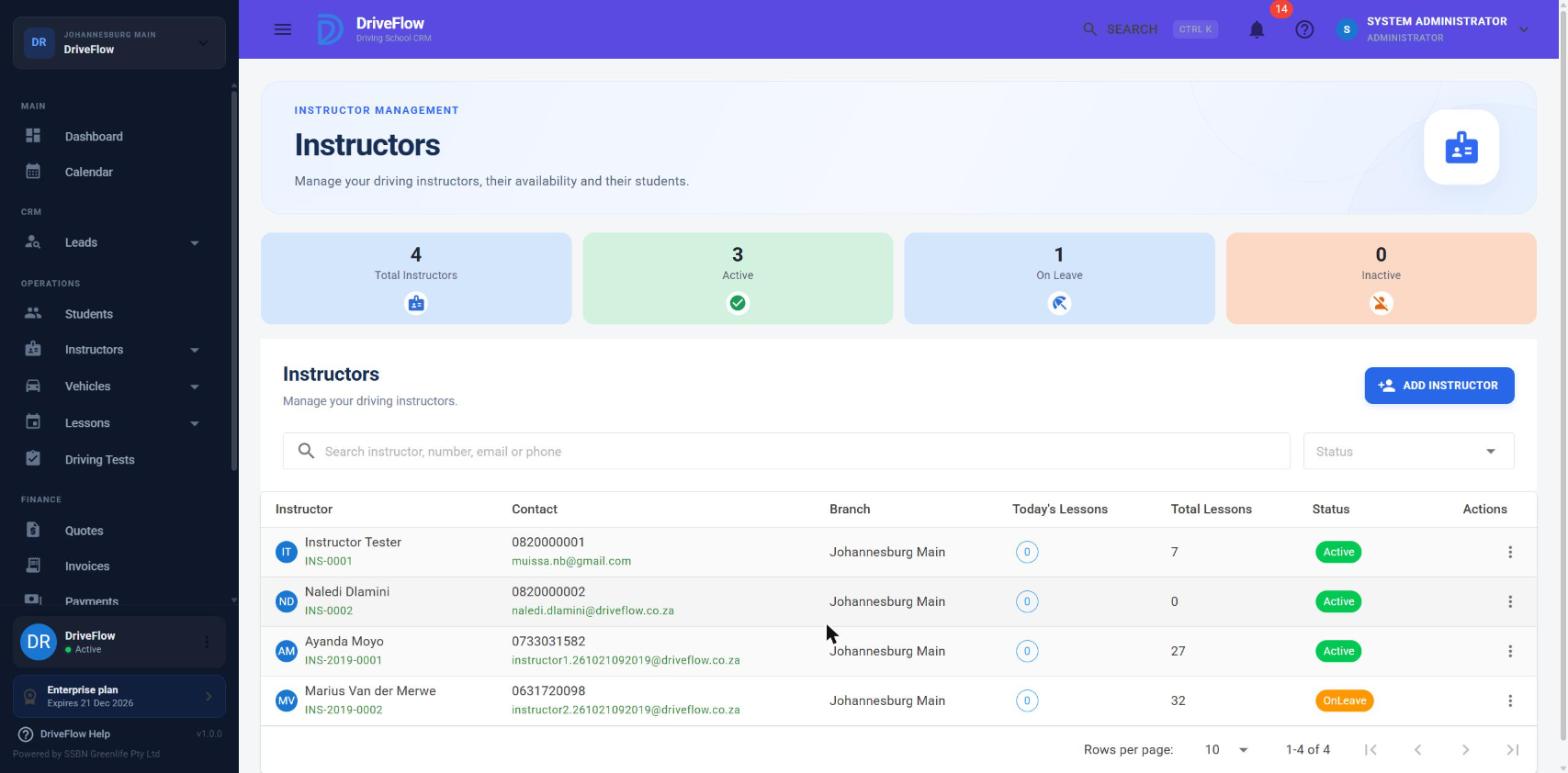
Summary cards
The four cards count all instructors, not only the page shown:
| Card | What it counts |
|---|---|
| Total Instructors | Every instructor that is not deleted. |
| Active | Status Active. |
| On Leave | Status On Leave. |
| Inactive | Status Inactive. |
Suspended instructors are in the total but have no card of their own. If the counts cannot be loaded the cards show "–" and the table still works.
Search and filter
- Search box ("Search instructor, number, email or phone"): finds instructors whose instructor number, employee number, first name, last name, identity number or email contains what you type. Results update half a second after you stop typing.
- Status: All, Active, On Leave, Suspended or Inactive.
Table columns
| Column | Shows |
|---|---|
| Instructor | Name and instructor number. |
| Contact | Phone number and email. |
| Branch | The instructor's branch. |
| Today's Lessons | Lessons starting today for this instructor, not counting cancelled ones. |
| Total Lessons | All lessons ever given to this instructor, not counting cancelled ones (it includes future lessons, completed lessons and no-shows). |
| Status | Active (green), OnLeave (amber), Suspended (red) or Inactive (dark). |
| Actions | The row menu (three dots). |
You can sort by Instructor, Branch and Status. Clicking a row opens the View dialog.
Row menu
| Menu item | Needs | What it does |
|---|---|---|
| View | Instructors.View |
Opens the instructor's details. |
| Calendar | Instructors.View |
Opens the instructor's calendar; see Instructor performance. |
| Edit | Instructors.Edit |
Opens the Edit Instructor form. |
| Sign-in account | Instructors.Edit |
Link, create or unlink the instructor's login; see Instructor user accounts. |
| Activate | Instructors.Edit |
Shown only when the status is Inactive. Sets the status to Active. |
| Deactivate | Instructors.Edit |
Shown for every other status. Sets the status to Inactive. |
| Delete | Instructors.Delete |
Removes the instructor from the lists. |
Viewing an instructor
Click a row, or choose View from the row menu. The dialog shows:
- Header: full name, instructor number and status.
- Contact: Email, Phone, Alternate Phone.
- Employment: Branch, Employee Number, Employment Date.
- Assigned Vehicle: make, model and registration of the vehicle the instructor currently uses, if any.
- Licence Codes: the codes the instructor may teach, or "No licence codes assigned."
Buttons at the bottom: Close, Calendar, and the same row menu as in the table.
Screenshot to be added
Screen: Instructor view dialog. Should show: Contact, Employment, Assigned Vehicle and Licence Codes sections.
The View dialog does not list the instructor's students or lessons. Use the Calendar button, or the pages described in Instructor performance.
Editing an instructor
- On the Instructors page open the row menu and click Edit.
- Change what is needed. The fields are the same as when adding, plus Status.
- Click Save Instructor. You see "Instructor updated successfully."
| Field | Required | Rule when editing |
|---|---|---|
| Branch | Yes | Must be an existing branch. |
| First Name, Last Name | Yes | Up to 100 characters each. |
| Identity Number | Yes | Exactly 13 characters. |
| Employment Date | No | |
| Birth Date | Yes in practice | Must be before today. |
| Yes | Valid email, up to 150 characters. | |
| Phone Number | Yes | Up to 20 characters. |
| Status | Yes | Active, On Leave, Suspended or Inactive. |
| Licence Codes | Yes, at least one | The saved list replaces the previous one. |
Middle name and alternate phone are cleared on save
The Edit form has no fields for them and sends them empty, so saving an edit blanks any middle name or alternate phone number stored on the record.
Editing an instructor who has a login
When the instructor is linked to a sign-in account, the profile and the account are kept the same:
- Changing the first name, last name or email on the profile also changes them on the user account, and the new email becomes the sign-in.
- Changing the email of a linked instructor needs the
Users.Editpermission as well. Without it you see: "This instructor's email is also their DriveFlow sign-in. Changing it needs permission to edit users." - If another DriveFlow account already uses the new email you see: "Another DriveFlow account already uses this email address."
Common errors when editing
| Message | Why |
|---|---|
| Instructor not found. | The instructor was deleted by someone else, or is not in your school. |
| Branch not found. | The chosen branch no longer exists or is outside your access. |
| Licence Code '…' does not exist. | A ticked licence code has since been removed. Reopen the form. |
| A validation message about Identity Number, Date Of Birth, Email or Phone Number | See the rules in the table above. The usual causes are an identity number that is not 13 characters, or a birth date left at the day the instructor was added. |
| Unable to update instructor. | Shown together with the specific message when the save is rejected. |
Statuses
| Status | Meaning | Can be booked for new lessons? | Counts towards the plan limit? |
|---|---|---|---|
| Active | Working normally. | Yes | Yes |
| On Leave | Away for a period. | No | Yes |
| Suspended | Not allowed to teach for now. | No | Yes |
| Inactive | No longer teaching at the school. | No | No |
What the status controls, as the code works today:
- Scheduling. Only Active instructors are offered when a lesson is scheduled, and the scheduling engine only auto-assigns Active instructors. Editing an existing lesson to an instructor who is not Active fails with "Instructor is not active."
- Existing lessons are not touched. Changing a status does not cancel, move or reassign lessons that are already booked. Check the instructor's calendar and move those lessons yourself; see Lesson management.
- Login is not touched. The status does not disable the instructor's sign-in account. To stop someone signing in, deactivate their user account under Settings > Users.
- Plan limit. Only Inactive (and deleted) instructors stop counting.
Changing the status
- Deactivate (row menu): asks "Are you sure you want to deactivate this instructor?", then sets Inactive and shows "Instructor deactivated successfully."
- Activate (row menu, only on Inactive instructors): asks "Are you sure you want to activate this instructor?", then sets Active and shows "Instructor activated successfully."
- On Leave and Suspended can only be set from Edit > Status. To bring such an instructor back, use Edit > Status > Active (the row menu offers only Deactivate for them).
stateDiagram-v2
    [*] --> Active: Add Instructor
    Active --> OnLeave: Edit > Status
    Active --> Suspended: Edit > Status
    Active --> Inactive: Deactivate
    OnLeave --> Active: Edit > Status
    Suspended --> Active: Edit > Status
    OnLeave --> Inactive: Deactivate
    Suspended --> Inactive: Deactivate
    Inactive --> Active: Activate
Deleting an instructor
- Open the row menu and click Delete.
- Confirm the question: "Are you sure you want to delete this instructor? The instructor will no longer appear in the active instructor list."
- You see "Instructor deleted successfully."
What deleting does:
- The instructor is hidden everywhere (a soft delete). Their past lessons, driving tests, earnings and reviews stay in the database and in reports that list lessons.
- There is no undo on screen and no "deleted instructors" list.
Deleting cannot be undone on screen
Prefer Deactivate for someone who has taught lessons; it keeps the profile visible and can be reversed.
Limitations and notes
- Deleting is not blocked by lessons. Unlike vehicles, an instructor with future lessons can be deleted. Those lessons keep the deleted instructor. Check the calendar first.
- Deleting does not remove the login. The linked user account stays active and keeps its role; it simply no longer matches a profile, so an account limited to its own lessons sees none. Deactivate the user under Settings > Users as well.
- Deleting does not release the vehicle. A vehicle the deleted instructor was assigned to, or owned, keeps pointing at them until the vehicle is edited.
- Activation does not re-check the plan limit. The limit is checked when an instructor is added, not when an Inactive instructor is activated.
- Search placeholder mentions phone, but the list search does not look at phone numbers. (The search box in the page header does match instructor phone numbers.)
- Status wording. The table and the View dialog show the internal names
OnLeaveand so on without a space; the filter and the Edit form show "On Leave". - Middle name and alternate phone are cleared on save. The Edit form has no fields for them and sends them empty, so saving an edit blanks any middle name or alternate phone number stored on the record.
- The Edit form reads the branch by matching its name; if two branches share a name the wrong one could be preselected. Check the Branch field before saving in that case.
- An address
/instructors/{id}/editis referenced in the code of the View dialog but no such page exists; editing is always done in the dialog.
Related articles
- Registering an instructor - adding a new instructor.
- Instructor user accounts - linking a login to the profile.
- Instructor availability - how status affects scheduling.
- Instructor performance - the instructor calendar and reviews.
- Instructor assignments - the assigned vehicle shown on the profile.
- Lesson rescheduling - moving lessons when an instructor is away.