Bookings and online requests
Applies to: Owner, Administrator, Manager, Receptionist, Instructor (own requests), Student. Last reviewed: 2026-11-18.
Students can ask for a lesson, or ask to move a lesson, from the student portal or the mobile app. The school then approves or declines. This page explains both sides.
The student portal as a whole is described in the student portal guide.
How it fits together
A student's request is stored as a booking with the status Pending. It is not a lesson yet and does not have its own lesson status. Staff see it under Lessons > Lesson requests.
flowchart TD
    A[Student picks a free time in the portal] --> B["Booking created: Pending<br/>(holds the instructor, vehicle and student for that time)"]
    B -- Staff click Approve --> C["Lesson created (Scheduled);<br/>booking becomes Confirmed"]
    B -- Staff click Decline --> D[Booking becomes Rejected;<br/>student is told why]
    B -- Student withdraws --> E[Booking becomes Cancelled]
    B -- Time passes --> F[Shown to the student as Expired;<br/>can no longer be approved]
A change request is the same thing with one difference: it is linked to an existing lesson. Approving it moves that lesson instead of creating a new one.
Switches that must be on
Online booking only works when all three of these are true.
| Switch | Where | Effect when off |
|---|---|---|
| The Online Booking feature is part of the school's subscription (a paid add-on) | Settings > Billing | The Lesson requests menu item is hidden. Students see "Online booking isn't available at your driving school. Please contact them to book a lesson." |
| The Student Portal feature | Subscription | Students cannot use the portal at all. |
| Allow online bookings for the student's branch | Settings > Scheduling, Booking Rules | Students at that branch see "Online booking isn't open at your branch. Please contact your driving school to book a lesson." Other branches are not affected. |
Staff can always book lessons themselves, whatever these switches say.
Booking statuses
| Status in the database | Shown to staff as | Shown to the student as | Meaning |
|---|---|---|---|
| Pending | Waiting | Waiting (or Expired once its time has passed) | Sent, not yet answered. |
| Confirmed | Approved | Approved | Approved; a lesson exists. |
| Rejected | Declined | Declined | Declined by the school. |
| Cancelled | Cancelled | Withdrawn (if the student withdrew it), Approved (if it was replaced by an approved change request), otherwise Cancelled | No longer active. |
| Completed | Completed | Approved | Defined but never set by the application. |
| Expired | Expired | Expired | Defined but never set by the application. A pending request whose time has passed is displayed as expired; its stored status stays Pending. |
Allowed changes:
| From | To | How |
|---|---|---|
| Pending | Confirmed | Staff approve |
| Pending | Rejected | Staff decline |
| Pending | Cancelled | Student withdraws |
| Confirmed | Cancelled | An approved change request replaces it, or a staff API call cancels the booking (no screen for this) |
stateDiagram-v2
    [*] --> Pending: Student requests
    Pending --> Confirmed: Staff approve
    Pending --> Rejected: Staff decline
    Pending --> Cancelled: Student withdraws
    Confirmed --> Cancelled: Replaced by approved change request, or staff API call
For students: asking for a lesson
Students use Book a lesson in the portal menu. The menu item is only shown when online booking is available to them.
Screenshot to be added
Screen: Student portal, Book a lesson. Should show: a week of days with time buttons and the request panel at the bottom.
- Open Book a lesson. The page heading reads "Pick a time that suits you. Your driving school confirms it before it's booked."
- A notice shows how many lessons are left, for example "You have 4 lessons left to book in your package."
- The page shows one week at a time, a card per day with a button for each free start time. Use the arrows to move a week forward or back. You cannot go back before today.
- If the student has their own instructor, a switch Only with {instructor name} limits the times to that instructor. Switching it off offers any free instructor. If the student's own instructor can no longer teach them (left the branch, deactivated, or not approved for the licence code), times with any free instructor are offered automatically.
- Click a time. A panel appears with the day, time, lesson length, instructor and vehicle.
- Optionally type a note under Anything the school should know? (optional) - up to 500 characters.
- Click Request this lesson.
The student sees "Lesson requested. We'll let you know once your driving school confirms it."
The times offered are exactly those the scheduling engine accepts for that student: working hours, slot interval, booking window, minimum notice, daily limit, buffer, and a qualified instructor and suitable vehicle that are free. Students always get the standard lesson length; they cannot choose a longer or shorter lesson. Days with no times show a short reason such as "Closed." or "You already have the most lessons allowed on this day."
If no times are free that week: "There are no free times this week with your instructor. Try switching off "Only with ..." , or look at next week."
When the package is used up
When every lesson in the student's package is already booked or requested, the page warns:
"You have booked all the lessons in your package. Any lesson you ask for now is an extra lesson at R 350.00. Your driving school will send you an invoice when they confirm it."
The student must tick "I understand this is an extra lesson (R 350.00) and my driving school will invoice me for it." before Request this lesson becomes active. The price shown is the lesson price from the package. The success message is "Extra lesson requested. Your driving school will confirm it and send you the invoice."
Requests that are still waiting count against the package, so a student cannot request more lessons than they have left by sending several requests at once.
Following up
- My lessons lists upcoming lessons and the requests that are waiting.
- My requests lists every lesson and change the student has asked for, with the school's answer. It can be filtered by Waiting, Approved, Declined, Withdrawn, Cancelled and Expired.
- A waiting request can be withdrawn. The student is asked "Withdraw your request for {date and time}?" Once a request is approved it is a lesson, and is cancelled like any other lesson.
For students: asking to move a lesson
- In My lessons (or My calendar), open the lesson's menu and choose Ask to change the time.
- The booking page opens as Change a lesson, with a banner "Changing your lesson on {date} with {instructor}." and the heading "Pick a new time. Your lesson keeps its current time until your driving school confirms the change."
- Pick a new time and click Ask to change to this time.
Message: "Change requested. Your lesson keeps its current time until your driving school confirms the new one."
Rules for a change request:
| Rule | Message when broken |
|---|---|
| Only a Scheduled or Confirmed lesson can be changed. | "Only a scheduled or confirmed lesson can be changed." |
| The lesson must not have started. | "This lesson has already started." |
| The branch's cancellation notice applies, exactly as for cancelling. | "This lesson can only be changed at least 24 hours before it starts. Please contact your driving school." |
| Only one change request per lesson can be waiting. | "You've already asked to change this lesson. Wait for your school, or withdraw that request first." |
| The new time must be different. | "Choose a different time for the lesson." |
| Note at most 500 characters. | "Please keep the note to 500 characters." |
| Online booking must be open at the branch. | The branch message above. |
The lesson's own current slot does not count as a clash, so a student can move a lesson by, say, half an hour. A change request does not use up a lesson from the package.
Ask to change the time is hidden when online booking is closed or when a change is already waiting for that lesson. If the lesson cannot be changed online the page shows "This lesson can't be changed online. Please contact your driving school."
For staff: the Lesson requests page
Go to Lessons > Lesson requests. You need the Lessons.View permission and the Online Booking feature.
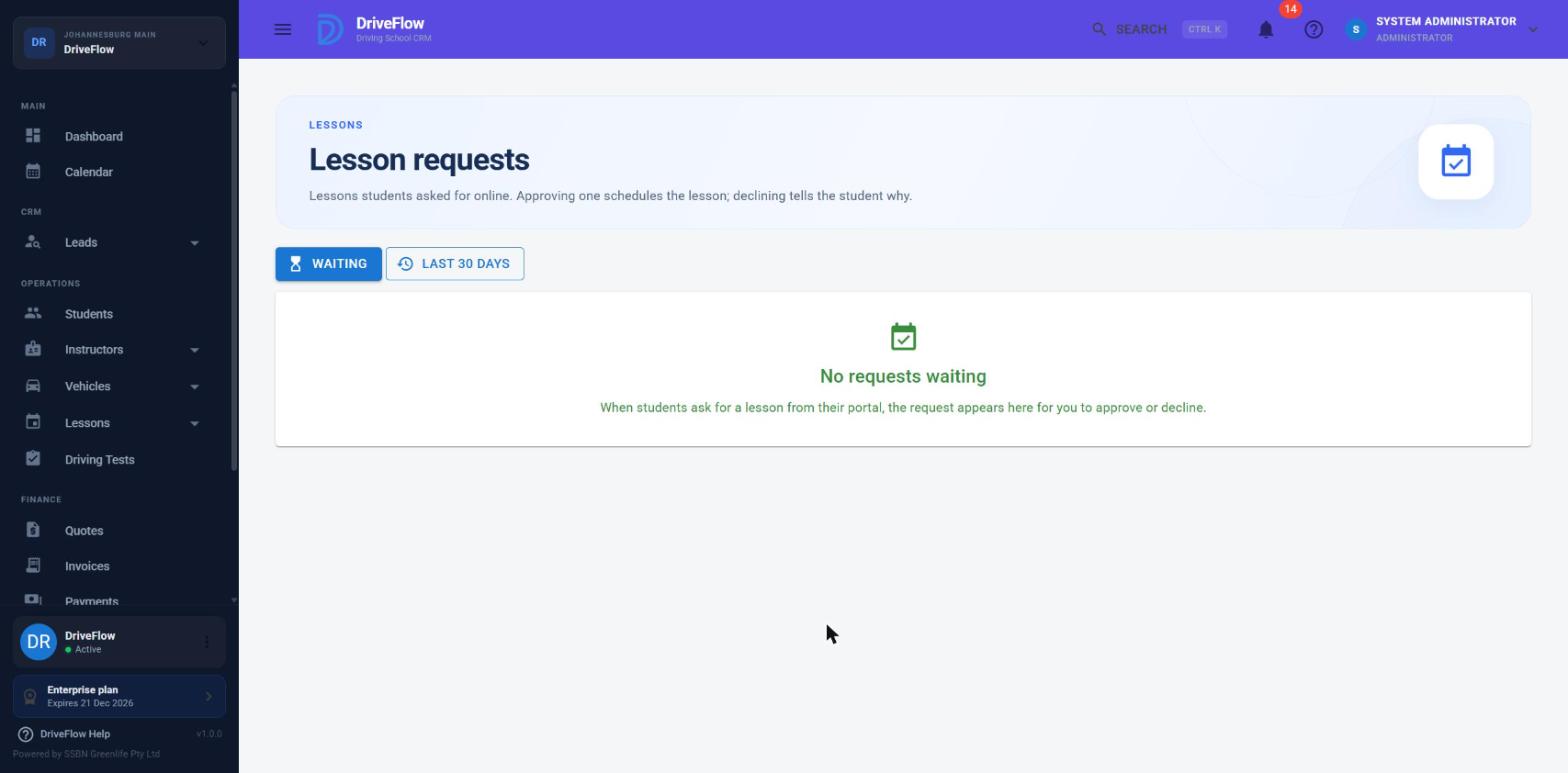
Screenshot to be added
Screen: Lesson requests page. Should show: the Waiting list with Approve and Decline buttons, including a "Change of lesson" chip and a "No lessons left" chip.
The page is headed Lesson requests - "Lessons students asked for online. Approving one schedules the lesson; declining tells the student why."
Two lists
| Button | Shows |
|---|---|
| Waiting (n) | Requests that are still pending and whose time has not passed, earliest first. The number is the count waiting. |
| Last 30 days | Every request with a requested time in the last 30 days or later, newest first, whatever its status. |
New requests appear in the list without refreshing the page.
Columns
| Column | Content |
|---|---|
| Requested time | Date and start-end time. A chip Change of lesson on {old date and time} marks a change request. |
| Student | Name, linked to the student's profile. For a waiting request, either "3 lessons left in package", or a chip Extra lesson requested (the student asked for it as an extra) or No lessons left (the package ran out after they asked). |
| Instructor | The instructor the request is for. |
| Vehicle | Registration number. |
| Notes | The student's note, and under it the school's note once answered ("School: ..."). |
| Status | Waiting, Approved, Declined, or the raw status. |
| (actions) | Approve and Decline for a waiting request in the future; View lessons for a request that became a lesson. |
Instructors who only manage their own lessons see only requests for themselves.
Approving a request
Needs Lessons.Create.
- Click Approve. The Approve request dialog says "{Student} asked for a lesson on {day} at {time}. Approving it schedules the lesson and tells them."
- Optionally type a Note to the student (optional), up to 500 characters. "Sent with the lesson confirmation."
- Click Approve.
What happens:
- A lesson is created with status Scheduled, at the requested time, with the requested instructor and vehicle. It is linked to the student's active course.
- The booking becomes Approved and is linked to the lesson.
- The student's note and your note (as "School: ...") are copied into the lesson notes.
- A student who was Registered, Learners Pending or Learners Passed becomes In Training.
- The student gets a "lesson booked" notification including your note; the instructor gets a "lesson assigned" notification. See Notifications.
- You see "Lesson scheduled for {Student}."
Approving an extra lesson
When the student has no package lesson left for the request, the dialog shows a warning - either "{Student} had booked every lesson in their package and asked for this as an extra lesson." or "{Student} has no lessons left in their package for this, so it is an extra lesson." - and you must choose how it is billed:
| Choice | Needs | Effect |
|---|---|---|
| Paid - raise an invoice and email it | Invoices.Create and the Payments feature |
Enter the Lesson fee (pre-filled with the package's lesson price; must be more than 0). An extra lesson is added to the student, an invoice is raised and emailed. Message: "Lesson scheduled for {Student}; the extra lesson invoice was sent." |
| Free (complimentary) | Lessons.Manage |
The note becomes Note to the student (required for a free lesson) and is recorded as the reason. Message: "Lesson scheduled for {Student} as a free extra lesson." |
If you lack Lessons.Manage the free option is disabled with "Only managers can give free lessons."
Extra lessons and their invoices are covered in the package and finance guides.
Approving a change request
Approving a request marked Change of lesson does not create a lesson. Instead:
- The existing lesson takes the requested time, instructor and vehicle.
- Its status goes back to Scheduled, even if the student had confirmed it.
- A line is added to the lesson notes: "Moved from Tue 24 Nov 2026 10:00 at the student's request."
- The original request the lesson came from, if any, is marked Cancelled with the note "Replaced by the student's change request."
- The student and instructor get "lesson rescheduled" notifications.
Declining a request
Needs Lessons.Edit.
- Click Decline. The Decline request dialog says "{Student} asked for a lesson on {day} at {time}. They'll see your reason in their portal."
- Type a Reason (up to 500 characters). It is not mandatory, but the student sees it.
- Click Decline.
The booking becomes Declined, the reason is added to its notes as "Rejected: ...", the time is released, and the student gets a "lesson request declined" notification. You see "Request declined." For a change request, the lesson simply stays where it was.
Messages you may see when approving
| Message | Cause |
|---|---|
| "Only pending bookings can be approved. Current status: Confirmed." | Someone else already answered it. |
| "The instructor is no longer available for this time slot." / "The vehicle is no longer available for this time slot." | A lesson was booked over it in the meantime. |
| "This student has no lessons left in their package. Approve the request as a paid or free extra lesson." | An extra lesson is needed and no billing choice was sent. |
| "The lesson this request would change no longer exists." | The lesson of a change request was removed. |
| "The lesson can no longer be moved (it is Cancelled). Decline the request instead." | The lesson of a change request is no longer Scheduled or Confirmed. |
| "The student already has a lesson at that time." | Change request clashes with another of the student's lessons. |
| "The note may not be longer than 500 characters." | Note too long. |
| Student status or learner's licence messages | See Availability and conflicts. |
| "We couldn't load the lesson requests. Online Booking is a paid add-on: activate it under Settings > Billing." | The feature is not active. |
Requests that are never answered
There is no automatic expiry job. A pending request whose time has passed:
- disappears from the Waiting list;
- no longer shows Approve / Decline;
- is shown to the student as Expired;
- stops holding the instructor and vehicle only because its time has passed.
Answer requests promptly
Until its time passes, a waiting request blocks that instructor, vehicle and student for that time.
Other student actions on lessons
From My lessons or My calendar, a student can also:
| Action | When | Detail |
|---|---|---|
| Confirm I'll be there | Scheduled lesson that has not started | Sets the lesson to Confirmed. "Thanks, your lesson is confirmed." |
| Sign off lesson | After the instructor has signed | See Lesson sign-off. |
| Cancel lesson | Scheduled or Confirmed lesson that has not started | See Lesson cancellation. |
| Add to calendar | Upcoming lesson | Downloads a calendar file for the student's phone or computer. |
| Call / Email the school about this lesson | When the school has a phone number or email | Opens the phone or email app. |
| Rate your lessons | Completed lesson | One rating of 1 to 5 stars per lesson, with an optional comment. See Lesson history. |
Limitations and notes
- No staff screen to create, cancel or reschedule a booking. The API has endpoints for staff to create a pending booking, cancel a booking and reschedule a booking, but no page in the web application calls them. Staff book lessons directly instead.
- Deposit fields are unused. A booking has "requires deposit", "deposit amount" and "deposit paid" fields and approval checks them, but nothing in the application ever sets them.
- Statuses Completed and Expired are never stored. Expiry is only a display rule.
- Booking source. The stored source is "Student Portal" for any student request (including from the mobile app) and "Reception" otherwise. The Website and Mobile App source values are never used.
- Lessons created by approval have no pickup or drop-off location; add them by editing the lesson. Their lesson type is saved as Road.
- View lessons on an answered request opens the general Lessons page, not the specific lesson.
- An approval re-checks instructor and vehicle clashes but not the buffer or working hours; these were checked when the student sent the request.
Related articles
- Scheduling lessons - staff booking lessons directly.
- Availability and conflicts - the rules behind the offered times.
- Lesson rescheduling - other ways to move a lesson.
- Lesson cancellation - cancelling an approved lesson.
- Scheduling settings - the Allow online bookings switch.
- Student portal - the portal as a whole.