Company profile
Applies to: Owner, Administrator (and any custom role with the View Company or Edit Company permission). Last reviewed: 2026-11-18.
The company profile holds the school's name, contact details, address, registration and VAT numbers, logo, and the terms and conditions printed on quotes and invoices. It is on the Organisation page, which also lists the school's branches.
Who can do this
| Action | Permission | Built-in roles that have it by default |
|---|---|---|
| Open the Organisation page | View Company (Company.View) |
Owner, Administrator |
| Edit details, upload or remove the logo | Edit Company (Company.Edit) |
Owner, Administrator |
Without View Company the page shows You don't have access to this page. Without Edit Company the page is read-only: the Edit Organisation, Update Organisation Details, Upload Logo and Remove Logo buttons are not shown.
Open the profile
- In the left menu click Settings.
- Click the Organisation card.
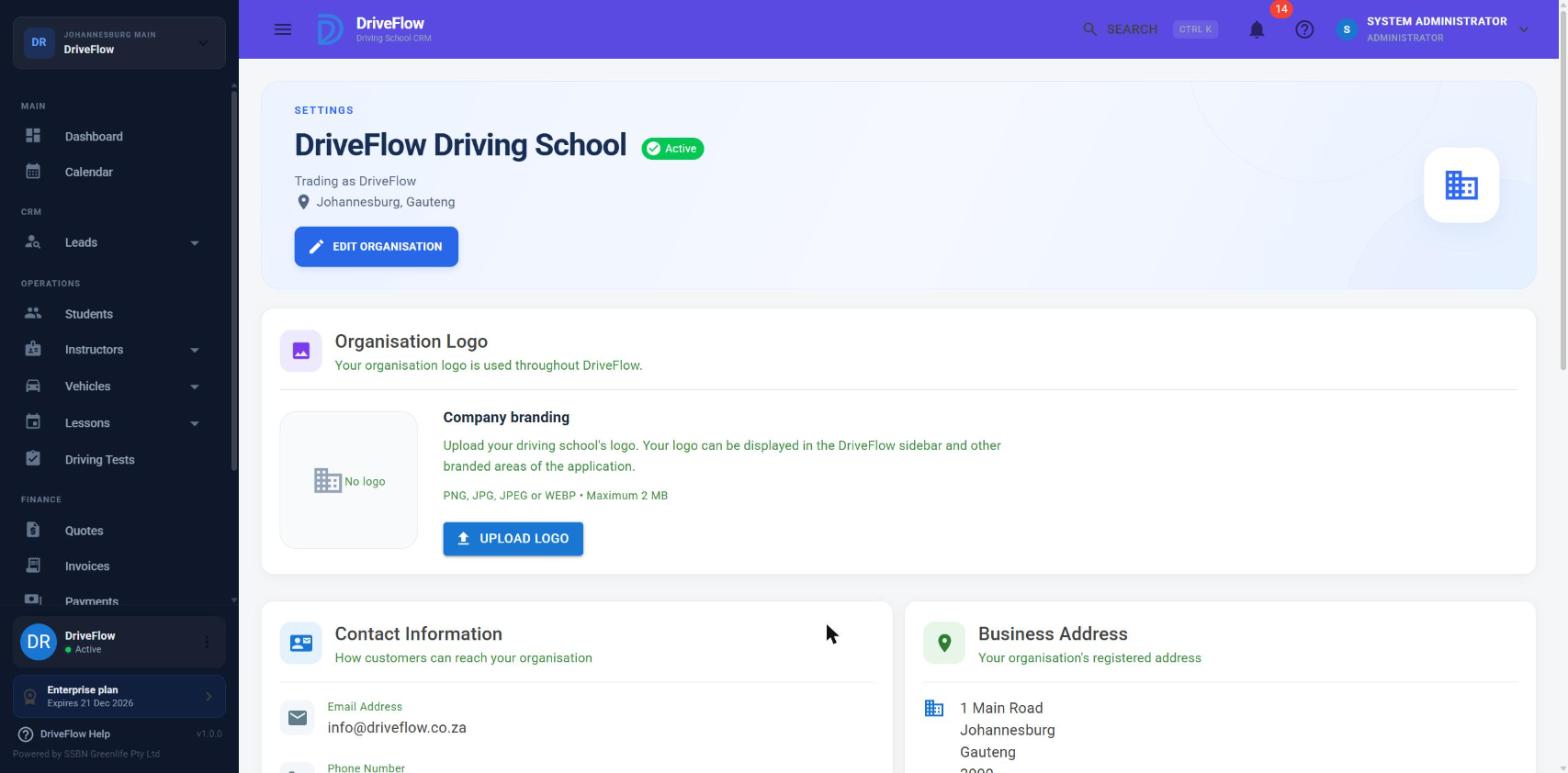
The page shows:
| Card | Content |
|---|---|
| Banner | The organisation name, an Active or Inactive chip, "Trading as ..." and the city and province. |
| Organisation Logo | The current logo or "No logo". |
| Contact Information | Email Address, Phone Number, Office Phone Number, Website ("Not provided" when empty). |
| Business Address | The address and country. |
| Company Details | Registration Number, VAT Number, Country, Organisation Status. |
| Organisation Profile | A percentage bar showing how many profile fields are filled in. |
| Terms and Conditions | The text added to every quote and invoice, or "Not provided". |
| Branches | See Branch management. |
Edit the school's details
- On the Organisation page click Edit Organisation (in the banner) or Update Organisation Details (in the Organisation Profile card).
-
Change the fields:
Section Field Required Notes Business Information Organisation Name Yes The registered name. Trading Name No If you clear it, the Organisation Name is saved as the trading name. The trading name is what the menu and header show. Registration Number No VAT Number No Contact Information Email Address Yes The school's contact email. Phone Number No Office Phone Number No At most 50 characters. Website No Business Address Address Line 1 Yes Address Line 2 No City Yes Province Yes Postal Code Yes Country - Shown but greyed out. It cannot be changed here. Terms and Conditions Terms and Conditions No Up to 4000 characters; a counter shows how many you have used. "When filled in, these are added to every quote and invoice." -
Click Save Changes. To leave without saving click Cancel or the X at the top right.
- You see Organisation updated successfully. and the page returns to the read-only view. The name in the menu and header updates.
Tip
The Terms and Conditions you enter here are added to every quote and invoice, so use them for payment and cancellation terms.
Example
The school gets a VAT number. The owner opens Settings > Organisation, clicks Edit Organisation, types the number into VAT Number, adds "Payment is due before the first lesson. Lessons cancelled with less than 24 hours' notice are charged." under Terms and Conditions, and clicks Save Changes. New quotes and invoices now carry the VAT number and the terms.
Upload or change the logo
- On the Organisation page, in the Organisation Logo card, click Upload Logo (or Change Logo if there is one).
- Click the file box and choose an image. Allowed: PNG, JPG, JPEG or WEBP, at most 2 MB.
- A preview with the file name and size appears. Click Upload Logo.
- You see Organisation logo updated successfully. The new logo replaces the old one, which is deleted.
The logo appears at the top and bottom of the left menu and in other branded areas.
Remove the logo
- In the Organisation Logo card click Remove Logo.
- Confirm Are you sure you want to remove the organisation logo?
- You see Organisation logo removed. The menu shows the school's initials again.
Messages you may see
| Message | Why |
|---|---|
| Organisation name is required. / Email is required. | A required field is empty. |
| The selected country is invalid. | The school's country is no longer active on the platform. Contact DriveFlow. |
| Unable to update organisation. / Failed to update organisation: ... | The save failed. |
| We could not load your organisation. / Failed to load organisation: ... | The profile could not be read. |
| The logo must be smaller than 2 MB. | The chosen file is too large. |
| Please upload a PNG, JPG, JPEG or WEBP image. | Wrong file type. |
| Could not read the selected file: ... | The browser could not read the file. |
| Only PNG, JPG, WEBP or SVG images are allowed. | The server refused the file type. |
| Unable to upload organisation logo. / Failed to upload logo: ... | The upload failed. |
| Unable to remove organisation logo. / Failed to remove logo: ... | The removal failed. |
Limitations and notes
- The country cannot be changed from the application.
- The organisation status (Active/Inactive) is display only. There is no button for a school to deactivate or close itself.
- The organisation email is not checked for uniqueness when edited (it is at registration).
- The Organisation Profile percentage counts 11 fields: name, trading name, registration number, VAT number, email, phone, address line 1, city, province, postal code and country. The logo, office phone, website and terms do not count.
- The server accepts SVG logos and requests up to 5 MB, but the upload dialog only offers PNG, JPG, JPEG and WEBP up to 2 MB, so those are the practical limits.
- The profile page asks for the branch list as well. A custom role with View Company but without View Branches sees an error ("Failed to load branches: ...") in the Branches card.
- A SuperAdmin has no organisation; the Organisation card is not shown to them.
Related articles
- Branch management - the Branches card on the same page.
- Company settings - all Settings cards.
- VAT and numbering - how VAT and document numbers appear on invoices.
- Quotes - where the terms and conditions are printed.
- Country and currency - the school's country.