Meta: Facebook and Instagram lead ads
Applies to: Owner and Administrator (Settings.Manage) to connect; anyone with Settings.View to see the status; developers and DriveFlow operations for the server set-up. Last reviewed: 2026-11-18.
DriveFlow can receive the leads from your Facebook and Instagram lead ads (the adverts with a built-in form) and put them straight into your Leads list. This page explains how to connect your Facebook Page, what happens when a lead arrives, and how the connection works underneath.
What you need
| Requirement | Detail |
|---|---|
| Plan | One that includes Leads: Professional or an Enterprise plan with the Leads add-on active, or the Free Trial. |
| Permission | Settings.View to open the Integrations page. Settings.Manage to connect or disconnect (by default the Owner and Administrator). |
| A Facebook account that is an admin of your driving school's Facebook Page. Instagram lead ads arrive through the Facebook Page that the Instagram account is linked to. | |
| Lead ads | Lead ads with an instant form, set up in Meta's Ads Manager. DriveFlow does not create adverts or forms. |
If the plan does not allow it, the Integrations page shows one of:
- "Facebook and Instagram leads are part of the Leads add-on. Activate it under Settings > Billing, then connect your Page here."
- "Facebook and Instagram leads are part of Leads, on the Professional plan."
If you can view but not manage: "Ask an administrator to connect your school's Facebook Page."
Connect your Facebook Page
- In the left menu click Settings, then the Integrations card.
- In the Facebook & Instagram card, read the note: "A Facebook window will open so you can securely choose the Page DriveFlow should connect to. It closes by itself when you're done."
- Click Connect Facebook Page. A Facebook window opens and the button changes to "Finish connecting in the Facebook window...".
- In the Facebook window, sign in if asked, choose your driving school's Page and accept the permissions requested.
- The window shows Facebook connected - "Page name is connected. New leads from your Facebook and Instagram ads will appear in DriveFlow." - and closes by itself after a moment.
- Back in DriveFlow the card shows the chip Connected, "Facebook Page: your page name", and a confirmation "Facebook Page "name" connected."
Pop-up blockers
If your browser blocks pop-ups you see "Pop-ups are blocked, so Facebook will open in this tab." and the same steps happen in the current tab, ending with a Back to DriveFlow link.
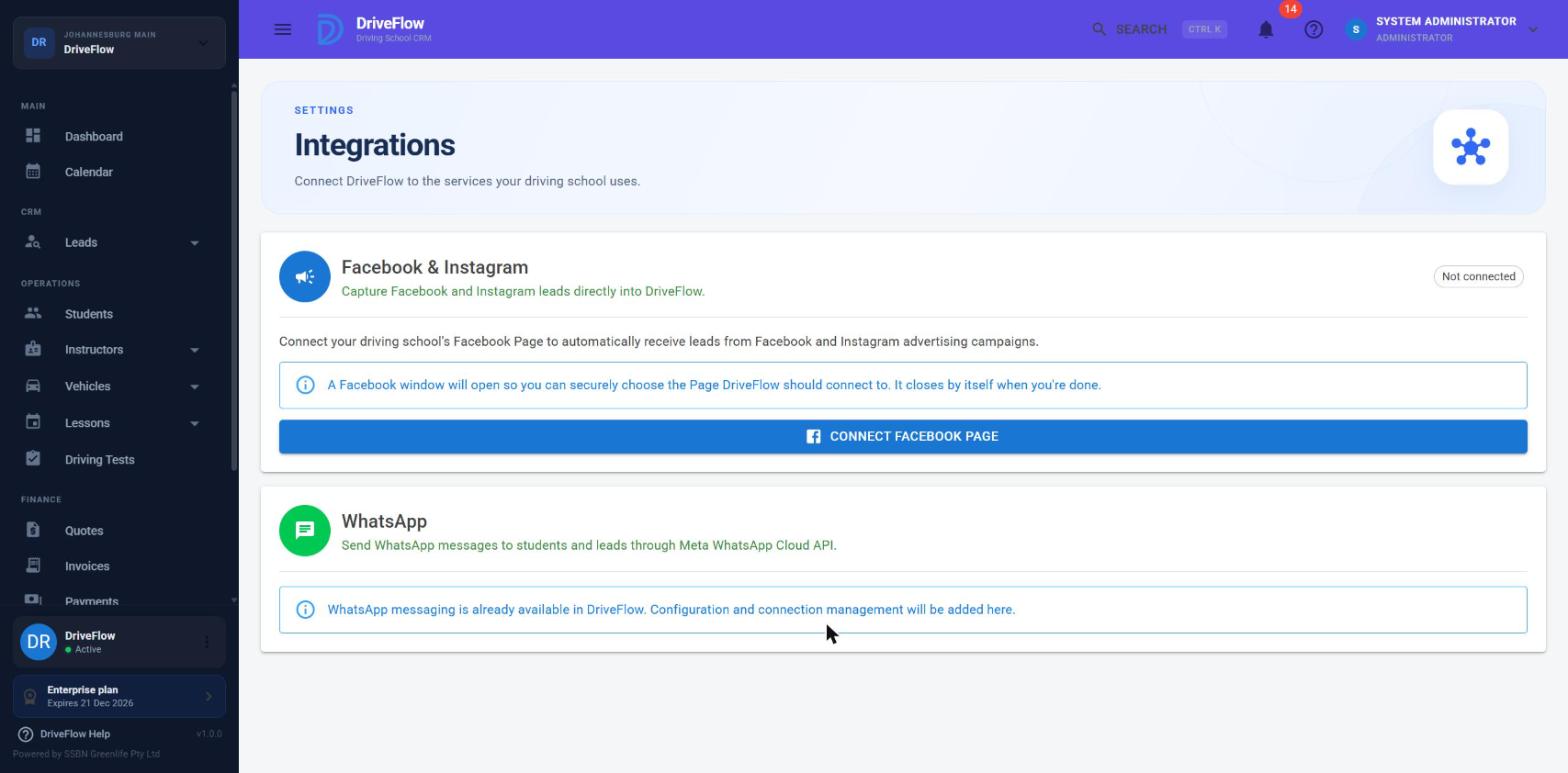
Screenshot to be added
Screen: Settings > Integrations. Should show: the Facebook & Instagram card in the "Connected" state showing the Page name and last lead received.
Rules
One Page per school, one school per Page
- One Page per school. If you grant access to several Pages, DriveFlow connects the first one Facebook returns. To be sure the right one is connected, select only your school's Page in the Facebook window. Connecting again replaces the Page.
- One school per Page. A Page that is already connected to another DriveFlow school cannot be connected: "The Facebook Page "name" is already connected to another DriveFlow account. Disconnect it there first, or contact support."
- The connection is for the whole school, not per branch.
Messages in the Facebook window
| Message | Meaning |
|---|---|
| Facebook wasn't connected. You can close this window and try again. | You cancelled, or Facebook reported an error. |
| This connection link has expired. Close this window and click Connect again. | The link was older than 30 minutes or was not valid. |
| No Facebook Page was shared with DriveFlow. Click Connect again and choose your school's Page. | No Page was selected in the Facebook window. |
| Facebook was authorised, but the Page couldn't be connected. Please try again in a moment. | Something failed after authorisation, for example subscribing the Page to lead notifications. |
Check that it works
The connected card tells you the state of the connection:
| Shown | Meaning |
|---|---|
| "No leads received yet. Send a test lead with Meta's Lead Ads Testing Tool to check the connection." | Connected, nothing received so far. |
| "Last lead received dd MMM yyyy HH:mm." (green tick) | The most recent lead was imported. |
| Red box: "The last lead from Facebook wasn't saved (date time): reason" | The most recent attempt failed. The reason comes from Meta where possible, for example a missing permission: "Meta wouldn't return the lead: …". |
To test:
- Use Meta's Lead Ads Testing Tool to send a test lead for your Page and form.
- Look at Leads > All Leads. The lead should appear within a few seconds.
- Check that the card shows "Last lead received".
Disconnect
- Go to Settings > Integrations.
- Click Disconnect.
- Confirm "Stop receiving leads from "Page name"? Leads already in DriveFlow are kept." with Disconnect.
You see "Facebook connection disconnected." DriveFlow asks Meta to stop sending that Page's leads, removes the stored access token and marks the connection inactive. If Meta cannot be reached, the disconnect still goes ahead on DriveFlow's side.
What happens when a lead arrives
flowchart TD
    A[Someone submits your lead form on Facebook or Instagram] --> B["Meta calls DriveFlow's webhook (with a signature)"]
    B --> C[DriveFlow checks the signature]
    C --> D["Each lead is written to an inbox table (Page ID + Meta lead ID), once"]
    D --> E[An import job is queued; DriveFlow answers Meta immediately]
    E --> F{Import job: find the school that connected that Page}
    F -->|none| G[The event is marked Ignored]
    F -->|found| H[Fetch the lead's answers from Meta with the Page's token]
    H --> I["Create the Lead (status New, source Facebook or Instagram)"]
    I --> J["Create a 'Call' follow-up due in 30 minutes"]
    G --> K["The connection's 'last lead received' (or 'last error') is updated"]
    J --> K
What the resulting lead looks like, and how the form's answers are mapped to fields, is described in Meta lead capture.
Reliability built in:
- Nothing is lost to a slow Meta call. The webhook only records the event and answers; the import runs separately and is retried up to 5 times if it fails.
- A lead is only saved once, even if Meta sends the same notification several times or twice at once.
- A sweep every 15 minutes re-queues any recorded lead that is still waiting more than 10 minutes after it arrived (for example after a server restart).
- Leads for a Page nobody has connected are ignored.
Technical reference
Connection (OAuth) steps
How the connection is made
- DriveFlow creates a time-limited, signed state value for your school that expires 30 minutes ahead, and opens the Facebook dialog with it.
- Facebook returns the browser to DriveFlow with a code and the state. An invalid, altered or expired state is refused.
- DriveFlow exchanges the code for an access token, then tries to exchange it for a long-lived one (if that fails, the original token is used).
- It asks Meta which Pages were granted and takes the first with an ID, a name and a Page token.
- It subscribes DriveFlow's app to that Page's
leadgennotifications. Without this step no leads would arrive. - It saves the Page ID, name and Page access token against the school. The token is stored securely.
The final step in the Facebook window returns a small web page, not data: it tells the DriveFlow window the outcome and closes itself.
Security checks and server set-up
Lead notifications from Meta are checked before anything is imported, and only changes with the field leadgen are processed; anything else is ignored. The endpoints, webhook verification, signature checking and DriveFlow's Meta app configuration are covered in the internal technical documentation.
Stored event statuses
Each received lead notification is kept in an inbox with one of these statuses: Pending (waiting to be imported), Imported, Duplicate (the lead was already in DriveFlow), Ignored (no school has connected that Page), Failed (with the reason and the number of attempts). There is no screen for this inbox; it is for support.
What a school must configure: summary
- Be on a plan with Leads, with the Leads add-on active (or on the trial).
- Connect the Facebook Page under Settings > Integrations.
- Create lead ads with instant forms in Meta's Ads Manager, asking at least for name and phone number or email.
- Send a test lead and check it arrives.
Tip
Nothing needs to be entered by hand: no app IDs, tokens or webhook addresses.
Limitations and notes
- Lead ads only. Messages, comments, Messenger conversations and website forms are not captured.
- One Page per school, and no screen to choose among several Pages after authorising: the first one returned is used.
- No history download. Only leads submitted after connecting are received. Leads that were submitted earlier, or while disconnected, are not fetched.
- The import does not check the subscription or the Leads add-on. While a Page stays connected, leads continue to be stored even if the add-on has lapsed or the plan has expired; they become visible again when access returns. Connecting a Page, however, does require the Leads feature.
- The campaign is shown as an ID, not a name. The form's name is shown.
- If Meta invalidates the Page token (for example the person who connected it loses admin rights or changes their Facebook password), imports fail and the red error box appears. Disconnect and connect again.
- No notification is sent to staff when a lead arrives other than the follow-up appearing in the header alerts; see Follow-ups.
- The Campaigns menu item under Leads is a "Coming soon" page and is not connected to Meta campaigns.
Related articles
- Meta lead capture: what staff do with the leads.
- Leads: the Leads list.
- Follow-ups: the automatic call follow-up.
- Add-ons: activating the Leads add-on.
- WhatsApp integration: the other Meta integration.