Payment history
Applies to: school staff with Payments.View (all payments) or Payments.Create (own payments only). Last reviewed: 2026-11-18.
Every payment ever recorded stays in DriveFlow, including voided and refunded ones. This page explains where to look them up.
The Payments page
Sidebar > FINANCE > Payments (/payments).
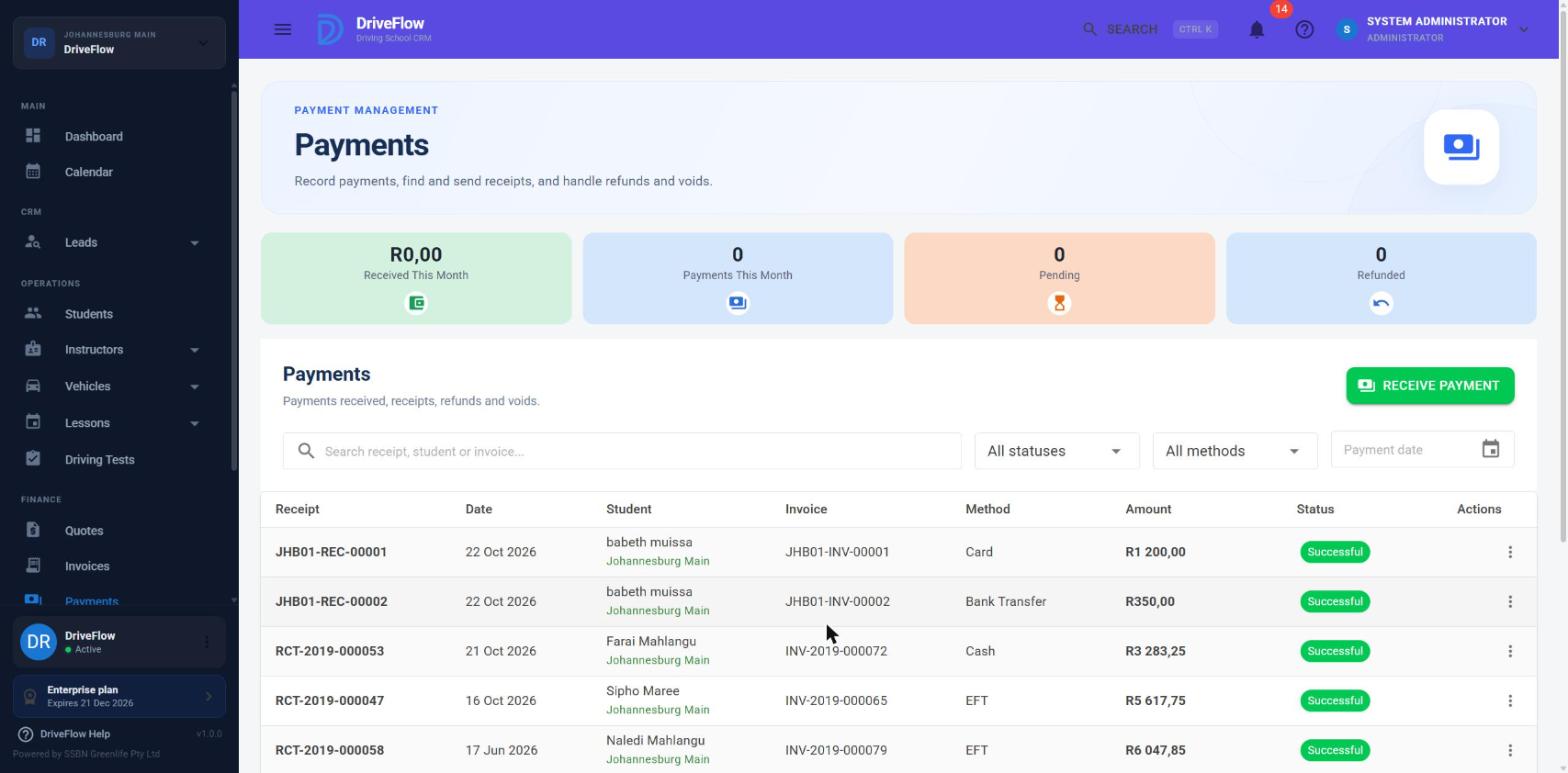
Summary cards
| Card | How it is calculated |
|---|---|
| Received This Month | Sum of payments with status Successful and a payment date in the current calendar month. |
| Payments This Month | Number of those payments. |
| Pending | Number of payments with status Pending, all time. |
| Refunded | Number of payments with status Refunded, all time. |
Note
For a user without Payments.View, the cards count only the payments that user recorded.
Table columns
| Column | Content |
|---|---|
| Receipt | Receipt number. |
| Date | Payment date. |
| Student | The student, or the walk-in customer named on the invoice. |
| Invoice | The invoice the payment was recorded against. |
| Method | Cash, Card, EFT, Bank Transfer or Online / Mobile. |
| Amount | |
| Status | See below. |
| Actions | View Details, Download Receipt, Email Receipt, Refund, Void (see Payments and Refunds and voids). |
Receipt, Student, Amount and Status can be sorted. The default order is newest payment first.
Filters
| Filter | Behaviour |
|---|---|
| Search receipt, student or invoice... | Matches the receipt number, the reference number, the student's first name, last name or student number, or the walk-in customer's name. It does not match the invoice number. |
| Status | All statuses, Pending, Successful, Failed, Refunded, Cancelled. |
| Method | All methods, Cash, Card, EFT, Bank Transfer, Online / Mobile. |
| Payment date | One day. Shows payments dated that day. There is no from-to range on this page; for a period use the Financial Report. |
Payment statuses
| Status | Meaning |
|---|---|
| Successful | Money received. Counts towards the invoice and all revenue figures. |
| Pending | Not confirmed. Payments recorded by staff or through PayFast are never left in this status, so this is normally empty. |
| Failed | A payment that did not go through. Normally empty for the same reason. |
| Refunded | Was successful, then refunded. No longer counts. |
| Cancelled | Voided. No longer counts. |
Payments on one invoice
FINANCE > Invoices > three-dot menu > View Payments (needs Payments.View).
The dialog Payments - <invoice number> shows Invoice total, Paid and Balance, then a table of every payment on the invoice: Receipt, Date, Method, Status, Amount, with a Total received row that adds only Successful payments.
Up to the latest 100 payments are shown ("Showing the latest 100 payments." appears if there are more). When there are none: "No payments have been recorded against this invoice."
Payments of one student
Open the student's profile and go to the Payments tab. Summary cards:
| Card | Meaning |
|---|---|
| Outstanding | Sum of the balances of the student's invoices. See the caution in Outstanding balances. |
| Total Invoiced | Sum of the totals of the student's invoices. |
Total Paid (or Paid (recorded by you) without Payments.View) |
Sum of the student's Successful payments. |
| Last Payment | Date of the most recent payment, or "No payments". |
Below the cards the student's payments are listed with their receipt number, description (the first line of the invoice), date, amount, method, status, invoice number and reference. The rest of the student profile is described in the student management documentation.
What the student sees
In the student portal, Invoices > three-dot menu > View payments lists the payments on that invoice, including an online payment that is still being confirmed. The web portal has no download button for invoices or receipts; students receive them by email and can open them in the mobile app. See the student portal documentation.
Who recorded a payment
Each payment stores the user who captured it; online payments store "Online (PayFast)". This is what limits staff without Payments.View to their own payments. The name is not shown as a column on the Payments page or in the Payment Details dialog.
Look up a payment: example
A parent phones to ask whether Friday's EFT of R 1 500.00 was received.
- Go to FINANCE > Payments.
- Set Payment date to Friday and Method to EFT.
- Find the row for the student. Status Successful means it was recorded.
- Open the three-dot menu and click Email Receipt to send the proof.
Tip
If the bank reference was captured, typing it in the search box finds the payment directly.
Limitations and notes
- No date-range filter on the Payments page, and no export from it. The Financial Report's Payment Transactions table can be exported for a period, but it lists only Successful payments.
- The search box does not search by invoice number, despite its placeholder text. Use View Payments on the invoice.
- The user who recorded a payment is not displayed.
- Voided and refunded payments keep their original date; the date of the void or refund is not shown separately. The reason, if one was stored, is appended to the payment's notes.
- A user whose sign-in is tied to one branch sees only that branch's payments.
Related articles
- Payments: record payments and send receipts.
- Refunds and voids: reverse a payment.
- Financial Report: payments for a period, with export.
- Outstanding balances: what is still owed.