Scheduling lessons
Applies to: Owner, Administrator, Manager, Receptionist, Instructor (own lessons only). Last reviewed: 2026-11-18.
This page explains how staff book a driving lesson for a student in the web application, field by field, and what the system checks before it accepts the booking.
Lessons and bookings: two different records
DriveFlow keeps two kinds of record, and it helps to know the difference before you start.
| Record | What it is | Who creates it | Where you see it |
|---|---|---|---|
| Lesson | A real appointment in the diary: student, instructor, vehicle, start and end time. It has a lesson number and a status (Scheduled, Confirmed, and so on). | Staff, using the Schedule Lesson dialog. Also created automatically when staff approve a student's request. | Lessons, Calendar, the student's profile |
| Booking (shown to staff as a lesson request) | A request for a lesson that is waiting for the school to say yes or no. It holds the requested time, instructor and vehicle so nobody else can take them while it waits. | A student, from the student portal or the mobile app. | Lessons > Lesson requests |
When staff schedule a lesson themselves, no booking record is created - the lesson is created directly. A booking only exists for a student's online request. When a request is approved, the system creates the lesson and links it to the booking. See Bookings and online requests.
Who can schedule a lesson
| Action | Permission needed |
|---|---|
| See the Schedule Lesson button on the Lessons page | Lessons.Create or Lessons.Edit |
| See the Schedule Lesson button on the Calendar page, or click an empty calendar slot | Calendar.Manage or Lessons.Manage |
| See Schedule Lesson on a student's profile, the Student Calendar or the Instructor Calendar | Lessons.Create |
| Actually save the lesson (checked by the server) | Lessons.Create |
By default the Owner, Administrator, Manager, Receptionist and Instructor roles hold Lessons.Create. Finance and Viewer do not.
Important
Your subscription plan must include the Bookings feature; without it every lesson action is refused by the server.
Instructors who do not manage lessons. A user linked to an instructor profile who does not hold Lessons.Manage only works with their own lessons. In the dialog the Instructor field is locked to them, and the server refuses any other choice with: "You can only schedule your own lessons." If the user has the Instructor role but the account is not linked to an instructor profile, a warning is shown at the top of the Lessons and Calendar pages and no lessons can be scheduled.
Where to open the dialog
You can open Schedule Lesson from five places. The dialog is the same each time; only what is filled in for you differs.
| Where | How | Filled in for you |
|---|---|---|
| Lessons page | Menu Lessons > Lessons, then Schedule Lesson | Nothing. Date defaults to today, start time to 09:00. |
| Lessons page, calendar view | Switch to Calendar and click an empty slot | Date and start time of the slot |
| Calendar page | Menu Calendar, then Schedule Lesson, or click an empty slot | Date and start time. In Day view, also the instructor whose column you clicked. |
| Student profile | Students, open the student, Lessons tab, Schedule Lesson | The student (and their branch and licence code) |
| Instructor Calendar or Student Calendar | Click an empty slot | The instructor or the student, plus date and time |
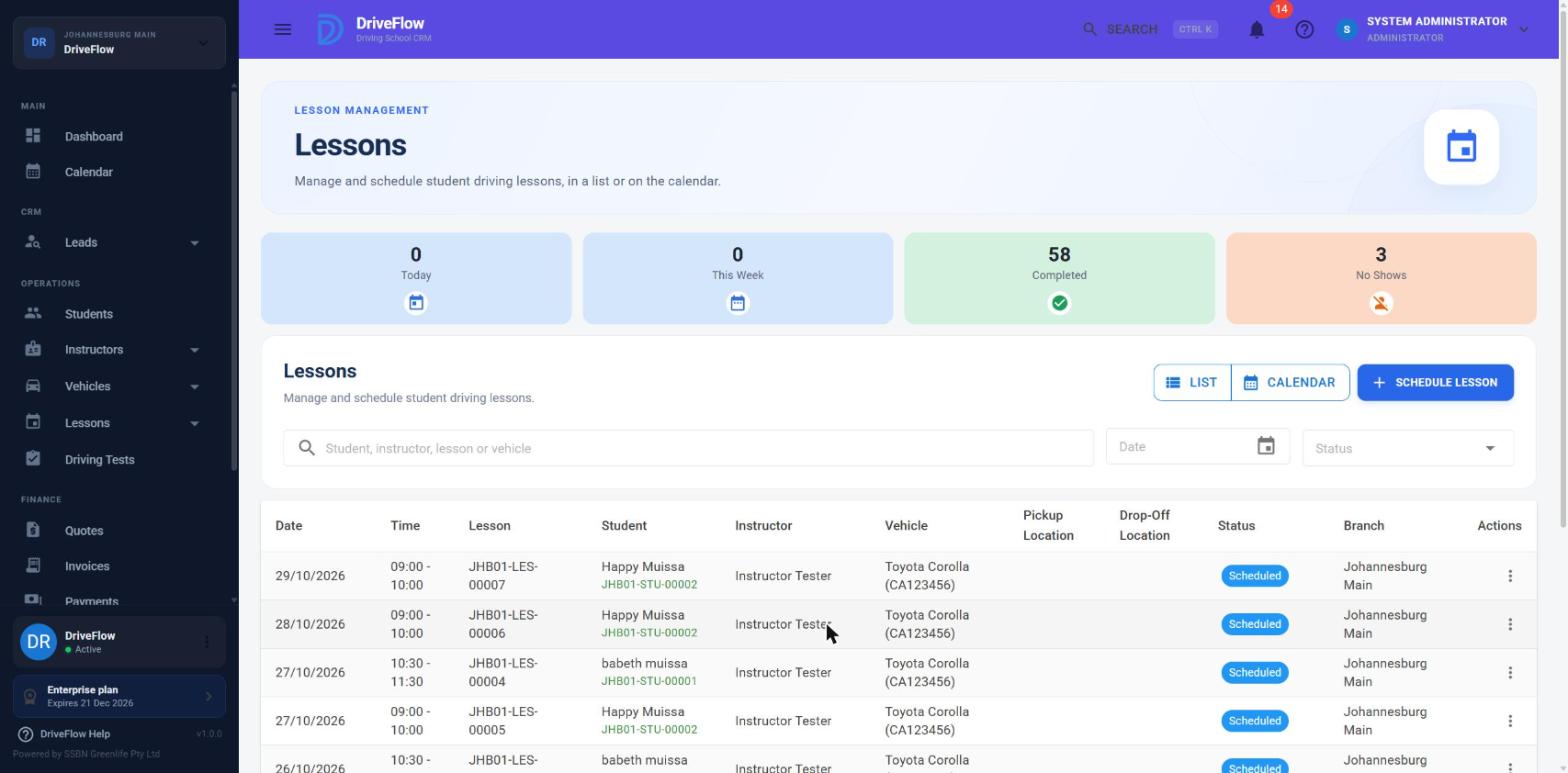
The Schedule Lesson dialog, field by field
Fields appear in this order.
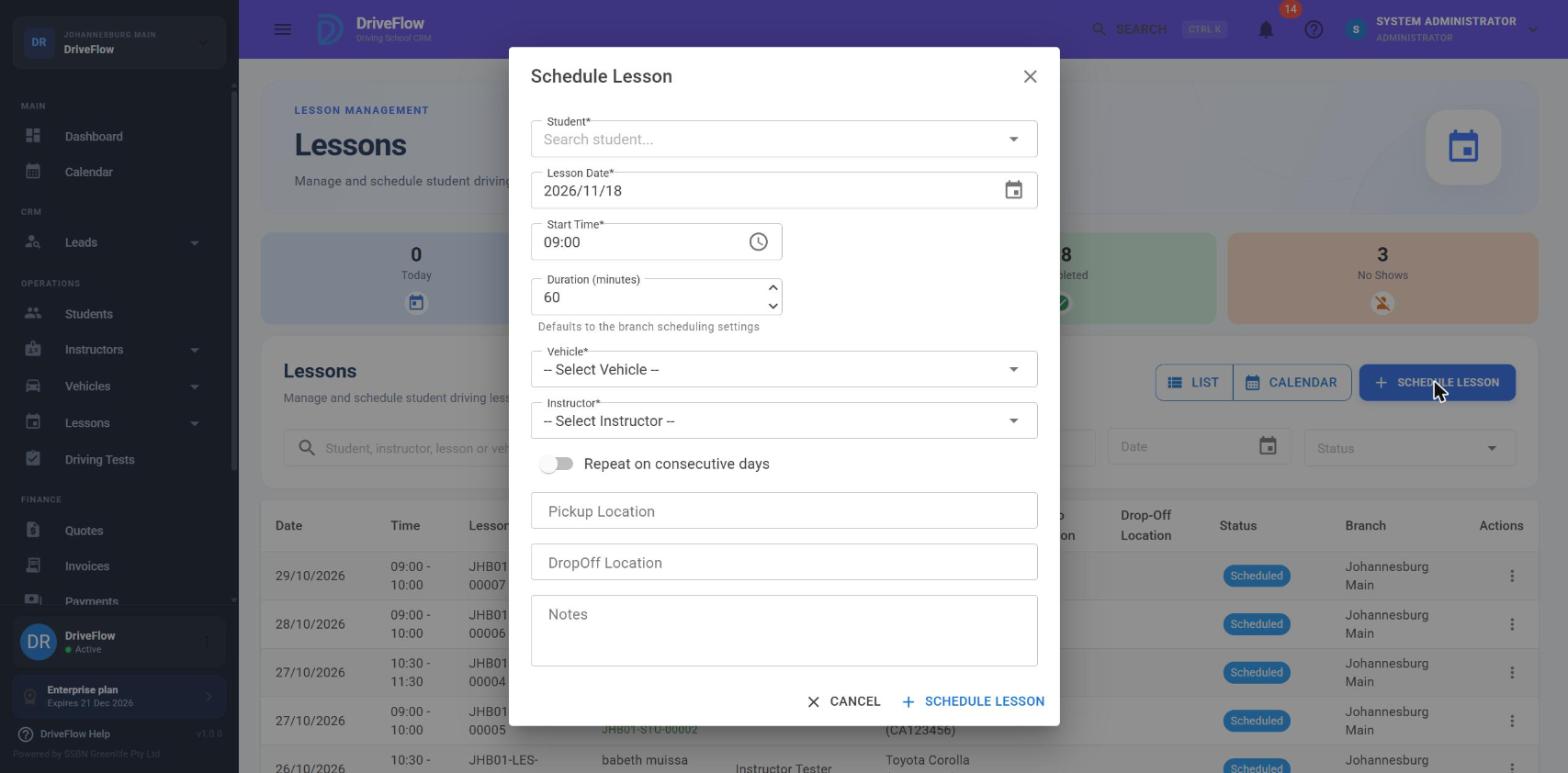
Screenshot to be added
Screen: Schedule Lesson dialog. Should show: all fields, with the "Available start times" buttons showing.
1. Student (required)
Type part of the student's name and pick them from the list. If you opened the dialog from a student's profile, the field is filled in and cannot be changed.
Choosing the student also decides three things that are not shown as fields:
- Branch. The lesson is always booked at the student's own branch.
- Licence code. Taken from the student's active course if there is one, otherwise from the student record. It controls which instructors and vehicles are offered.
- Training package. Taken from the student's active course or the student record. It sets the default lesson length and the number of lessons the student may book.
There is no course or package field in the dialog; you cannot choose them here. If the student has an active course, new lessons are linked to it automatically.
If you leave it empty: "Please select a student."
2. Lesson Date (required)
Defaults to today, or to the date of the calendar slot you clicked. Changing it reloads the available start times.
3. Start Time (required)
Defaults to 09:00, or to the calendar slot you clicked. You can type a time, but it is quicker and safer to use the buttons described next.
4. Available start times
Once a student is chosen, the system asks the scheduling engine which start times it will accept for this student on this date, and shows one button for each (for example 08:00, 08:30, 09:00). Click a button to set the start time.
- If no time is bookable you see an information box with the reason, for example "The branch is closed on Sunday, or no opening and closing times have been configured for that day." or "Same-day bookings are not allowed for this branch." If no specific reason is known: "No bookable times for this student on this date. Times outside this list will be rejected."
- Under the buttons, Why N other time(s) are unavailable can be expanded. It lists each rejected time and the reason, for example "No instructor is free at this time: they are outside their working hours, on leave, or already booked (a 10 minute gap is required between lessons)."
Note
These times are worked out without your instructor and vehicle choice: a time appears if any qualified instructor and suitable vehicle are free. Your actual choice is checked when you save.
5. Duration (minutes)
Defaults to the lesson length of the student's training package. If the package has no lesson length, the branch's Default lesson duration is used.
- You may change it between 30 and 240 minutes, in steps of 15.
- The text under the field tells you where the value comes from: "Default from the scheduling settings, can be changed" or "Changed from the default of 60 minutes".
- When you have changed it, a restore icon appears at the end of the field. Click it to go back to the default.
- If you make the lesson longer than the default, a hint shows how it compares, for example "= 2 lessons of 60 minutes" or "Not a whole number of 60 minute lessons". See Double and triple lessons.
6. Vehicle
Lists active vehicles that can be used at the student's branch and suit the licence code. The label is Vehicle when a vehicle must be chosen and Vehicle (optional) when the branch has Automatically assign vehicle switched on. In that case you may leave it on "-- Assign automatically --" and the system picks a free vehicle.
Choosing a vehicle reloads the instructor list. See Vehicle assignment.
If a vehicle is required and you leave it empty: "Please select a vehicle."
7. Instructor
Lists active instructors at the student's branch who are approved for the licence code and have no other lesson overlapping the chosen time. The label is Instructor, or Instructor (optional) when the branch has Automatically assign instructor switched on. In that case you may leave it on "-- Assign automatically --".
When the dialog was opened from an instructor's calendar column, the field is locked and shows "Instructor selected from calendar."
If an instructor is required and you leave it empty: "Please select an instructor."
8. Repeat on consecutive days
Switch this on to book the same lesson on several days in one go. Three more controls appear:
| Control | Meaning |
|---|---|
| Number of days | How many days to book, from 2 to 14. Default 3. Helper text: "Same time, instructor and vehicle each day". |
| Skip weekends | Leaves out Saturdays and Sundays when counting the days. |
| Check availability | Checks every day without saving anything. |
After Check availability the dialog lists each day with its start and end time. A green tick means the day can be booked. A day that cannot be booked shows the reason in red and its tick box is disabled. "Untick a day to leave it out. Unavailable days cannot be booked." A summary line shows, for example, "3 day(s) selected = 3 lesson(s). The student has 7 lesson(s) remaining."
If you click Schedule Lessons without checking first, the system runs the check for you and shows: "Check the days below, then click Schedule Lessons again." If no day is ticked: "Select at least one available day."
The whole series is booked or nothing is. If one of the days you kept fails when saving, none are saved and the message starts with the day, for example "Wed 25 Nov 2026: The instructor is not available at that time." The server accepts at most 31 dates in one request ("At most 31 dates can be booked at once."), but the dialog only offers up to 14.
Lessons booked this way are remembered as a series. When you later cancel one of them, you are asked whether to cancel only that lesson or that lesson and all later ones. See Lesson cancellation.
9. Pickup Location (optional)
Free text, up to 250 characters. It is included in the lesson notifications sent to the student and instructor.
10. DropOff Location (optional)
Free text, up to 250 characters.
11. Notes (optional)
Free text, up to 1000 characters. Later actions add to these notes: cancelling with a reason adds a line starting "Cancelled:", and the instructor's sign-off notes are added on a new line.
Fields that do not exist
- Lesson type. The system stores a lesson type (Yard, Road, Assessment, Refresher) but the dialog has no field for it and the type is not shown anywhere in the web application. See Limitations and notes.
- Course / package. Decided from the student, as described above.
- End time. Always start time plus duration.
Double and triple lessons
If the duration you enter is a whole multiple of the package lesson length (for example 120 minutes on a 60 minute package), clicking Schedule Lesson asks a question first:
Double lesson? 120 minutes is 2 lessons of 60 minutes. Book it as 2 back-to-back lessons? They will use 2 lessons from the student's package.
| Button | Result |
|---|---|
| Yes, 2 lessons | Two separate 60 minute lessons are created back to back, each with its own lesson number. Two lessons come off the package. They are remembered as a double lesson, so cancelling or moving one asks whether to treat them together. |
| No, one long lesson | One 120 minute lesson is created. One lesson comes off the package. |
| Back | Returns to the dialog without saving. |
For three lessons the title is Triple lesson?, and for more it is, for example, 4 lessons?
If the duration is longer than the default but not a whole multiple (for example 90 minutes on a 60 minute package), you see Not a whole number of lessons with the choice Book as one lesson or Back. It is booked as one lesson that uses one lesson from the package.
A double lesson counts as two lessons against the branch's Maximum lessons per student per day.
Saving
Click Schedule Lesson (or Schedule Lessons when repeating). While saving, the button shows "Scheduling...".
On success:
- The message "Lesson scheduled successfully." appears (or, for example, "3 lessons scheduled successfully.").
- Each lesson gets a lesson number and the status Scheduled.
- If the student's status was Registered, Learners Pending or Learners Passed, it changes to In Training.
- The student receives a "lesson booked" notification and the instructor a "lesson assigned" notification, one per day booked. See Notifications.
On failure nothing is saved and the reason is shown in red. The most common messages are listed in Availability and conflicts.
What the system checks, in order
flowchart TD
    A[Student, branch, course, package and licence code belong to your school] --> B[Student's status allows lessons]
    B --> C["Learner's licence rule (has a licence, or lesson is on/after a booked learner's test)"]
    C --> D["Training not already completed (unless an extra lesson is available)"]
    D --> E[Package has enough lessons left]
    E --> F["For each date: branch open, within working hours, on a slot boundary,<br/>inside the booking window, enough notice, daily limit,<br/>student free, instructor qualified and free, vehicle suitable and free"]
F --> G["Lessons saved (all dates, or none)"]Example
Thandi Mokoena is on a 10 lesson Code B package with 60 minute lessons. The receptionist wants to book her for 10:00 on Tuesday with instructor Sipho in the Polo.
- Go to Lessons > Lessons and click Schedule Lesson.
- In Student, type "Thandi" and choose Thandi Mokoena.
- Set Lesson Date to Tuesday.
- Under Available start times, click 10:00.
- Leave Duration (minutes) at 60.
- In Vehicle, choose the Polo. In Instructor, choose Sipho.
- In Pickup Location, type "12 Kerk Street".
- Click Schedule Lesson.
The lesson appears in the list with status Scheduled, and Thandi and Sipho are notified.
Limitations and notes
- No lesson type field.
LessonType(Yard, Road, Assessment, Refresher) exists in the database, but the Schedule Lesson dialog never sets it, so lessons booked by staff on the web are saved without a valid type. Lessons created by approving a student's request are saved as Road. The type is not displayed or used by any rule in the web application. - The vehicle list is not filtered by time. A vehicle that is already booked at that time still appears in the list. The clash is caught when you save ("The vehicle is already assigned to another lesson at that time.").
- The instructor list is stricter than the booking rules in one way and looser in another. It hides an instructor who has any overlapping lesson, but it does not look at instructor working hours, time off or the buffer between lessons. Those are checked when you save.
- The available start times ignore your instructor and vehicle choice. A time can be offered and still be refused on save because your chosen instructor is busy.
- Dialog width differs. Opened from the Calendar page the dialog is wider than from the Lessons page; the fields are the same.
- Different buttons need different permissions. The Lessons page shows the button to anyone with
Lessons.CreateorLessons.Edit, but saving needsLessons.Create. The Calendar page hides the button from users who haveLessons.Createbut neitherCalendar.ManagenorLessons.Manage. With the default roles, an Instructor sees no Schedule Lesson button on the Calendar page but does on the Lessons page.
Related articles
- Availability and conflicts - every rule the system applies and the exact messages.
- Lesson calendar - booking by clicking a time slot.
- Bookings and online requests - lessons that students ask for themselves.
- Scheduling settings - working hours, slot length, booking window.
- Instructor assignment - how the instructor is chosen.
- Vehicle assignment - how the vehicle is chosen.