Customer Referrals
Applies to: SuperAdmin (viewing all referrals, applying a code for a school); school users with the Subscription.Manage permission (applying a code for their own school). Last reviewed: 2026-11-18.
A referral links one driving school to one salesperson. It is created when the salesperson's referral code is applied to the school. From the school's first payment onwards, the referral decides who earns commission, at what percentage and for how long.
Menu: Sales Management > Customer Referrals (/sales/referrals)
The rules in short
| Rule | Detail |
|---|---|
| A referral code is optional | A school can subscribe without one. Nothing is earned by anyone. |
| One salesperson per school | A school has at most one referral. The database enforces this. |
| Only before the first payment | A code can be applied, changed or removed only while the school has never paid for a plan or a monthly add-on. |
| Locked afterwards | The first payment fixes the referral for good. Nobody can change or remove it after that, not even the SuperAdmin. |
| Only active salespeople | The code must belong to a salesperson whose status is Active. |
| No self-referral | A salesperson cannot refer their own school. |
| Terms are fixed at the first payment | The salesperson's percentage and period at that moment become the school's agreed terms. Later changes to the salesperson do not reach this school. |
What counts as having paid
A payment for a plan or a monthly add-on with status Successful or Refunded. A payment that was later refunded still counts, so a refund does not reopen the referral. Buying an SMS bundle does not count, and neither does a payment that is still pending.
How a code gets applied
There are two ways. The rules are the same in both.
1. The school enters it at checkout
Who: a school user with the Subscription.Manage permission (the Owner by default).
- In the school's account, open Settings > Subscription and choose a plan to upgrade to. The upgrade dialog opens.
- In the field Salesperson / Referral Code (placeholder "Enter salesperson referral code (optional)") type the code.
- Click Apply. The dialog shows "Referral code DF-THILY-001 is applied." with a Remove button.
- Click Continue to Payment.
If a code was typed but Apply was not clicked, clicking Continue to Payment applies it first. If the code is refused, the payment does not start and the error is shown under the field.
The field is only shown while the school may still set a code. Once the school has paid, an applied code is shown without a Remove button, and a school with no code sees no field at all.
The procedure for upgrading a plan is in the school's subscription documentation: Subscription settings.
2. The SuperAdmin enters it for the school
Who: SuperAdmin.
Use this when the school pays by EFT and never goes through the online checkout.
- Open Subscriptions in the PLATFORM menu.
- Choose the school in the School box.
- In the Upgrade Subscription table, find the row Salesperson code.
- Type the code (placeholder "Optional - e.g. DF-THILY-001") and click Apply.
The message "Salesperson code DF-THILY-001 applied to {school}." appears and the row shows the code as a green chip with a Remove button.
Note
If you type a code and click Activate Subscription without clicking Apply, the code is applied first, so the payment you are recording earns the salesperson commission. If the code is refused, the activation stops.
What the row shows in each situation:
| Situation | What you see |
|---|---|
| No code, school has not paid | A text box and an Apply button |
| Code applied, school has not paid | The code as a chip and a Remove button |
| Code applied, school has paid | The code as a chip and the text "Fixed by the school's first payment" |
| No code, school has paid | "None - a code can only be applied before the school's first payment." |
See Subscription management for the rest of that page.
Error messages
| Message | Cause |
|---|---|
| The salesperson code is invalid or inactive. | The code does not exist, or the salesperson is Inactive or Suspended. The same message is used for both. |
| You can't use your own referral code. | Shown to a school. The salesperson's email is the same as the school's email address, or the same as the email of the user applying the code. |
| This code belongs to the school itself: a salesperson can't refer their own school. | Shown to the SuperAdmin. The salesperson's email is the same as the school's email address. |
| Your referral code can no longer be changed. | Shown to a school whose referral is locked |
| This school's referral code can no longer be changed: it has already paid. | Shown to the SuperAdmin for a locked referral |
| A referral code can only be applied before your first subscription payment. | Shown to a school that has already paid and has no referral |
| A referral code can only be applied before the school's first subscription payment. | The same, shown to the SuperAdmin |
| School not found. | The SuperAdmin applied a code for a school that does not exist |
| A referral code is applied by a driving school. | A user with no school (for example the SuperAdmin) called the school's own endpoint |
The self-referral check compares email addresses, ignoring letter case and surrounding spaces.
Changing or removing a code before the first payment
- Changing: remove the code, then apply the new one. Applying a new code over an existing unlocked referral also replaces it.
- Removing: click Remove. The referral record is removed. Nothing was earned on it yet, so no history is lost.
When a code is applied, the referral shows the salesperson's current percentage and period. These are provisional. They are set again at the first payment.
What happens at the first payment
When the school's first payment for a plan or a monthly add-on is received:
- The referral status changes from Pending to Active. It is now locked.
- First payment date and commission start date are set to the moment the payment was received.
- The agreed percentage and agreed period are copied from the salesperson as they are at that moment. The period is kept between 1 and 12 months.
- The commission expiry date is set to the start date plus the agreed number of months.
- The payment earns its commission. See Commission management.
Example: Kagiso Driving Academy has the code DF-THILY-001 applied on 3 November 2026. Thily's terms are 20% for 12 months. The school's first payment arrives on 15 November 2026 at 10:00. The agreement is 20% from 15 November 2026 10:00 up to, but not including, 15 November 2027 10:00. If Thily's terms are changed to 15% in March 2027, Kagiso Driving Academy still earns her 20% until its own expiry date.
The Customer Referrals list
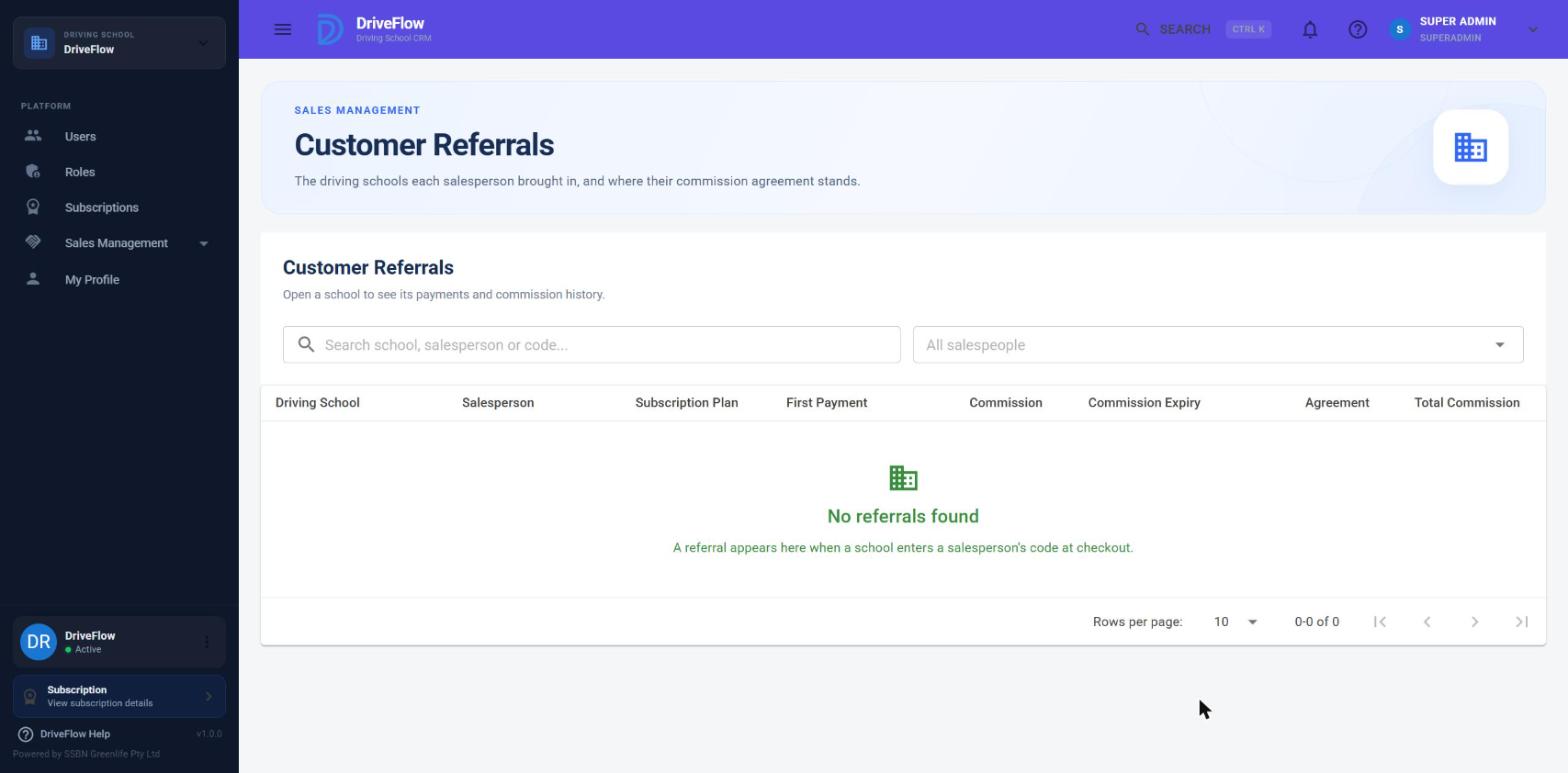
Columns
| Column | Meaning |
|---|---|
| Driving School | The school's name |
| Salesperson | The salesperson's name, with the referral code as it was applied underneath |
| Subscription Plan | The school's current plan, with its subscription status underneath |
| First Payment | Date of the first payment, or - |
| Commission | The agreed percentage and period, for example 20% · 12 months |
| Commission Expiry | The date from which payments no longer earn commission, or - before the first payment |
| Agreement | See below |
| Total Commission | Commission generated on this school (reversed and clawback lines left out) |
Agreement values
| Value | Meaning | Colour |
|---|---|---|
| Awaiting first payment | The code is applied but the school has not paid. The referral can still be changed. | Amber |
| Earning | The school has paid and the commission period has not ended | Green |
| Expired | The commission expiry date has passed. The referral is kept, but new payments earn nothing. | Grey |
Searching and filtering
- Search box ("Search school, salesperson or code..."): matches the school name, the salesperson name and the referral code.
- Salesperson filter ("All salespeople"): shows one salesperson's referrals. Opening the page from Referred customers on the Salespeople page sets this filter for you.
The list opens with the most recently applied code first.
If there are no referrals the page reads "No referrals found" and "A referral appears here when a school enters a salesperson's code at checkout."
Opening a referral
Click a row. A dialog opens with the school's name as its title and four blocks:
| Block | Shows |
|---|---|
| Driving school | Name, current plan (or "No plan") and subscription status |
| Salesperson | Name and code |
| Agreement | For example "20% for 12 months" and the agreement chip |
| Commission period | First payment date to expiry date, and "Earned R ..." |
Below these is a table of every payment that earned commission, with the columns Plan, Gateway, Payment Date, Amount, Fee %, Gateway Fee, Net Revenue, Commission %, Commission and Status. If nothing was earned yet it reads "No payment has earned commission yet." Click Close to return.
Limitations and notes
Warning
There is no way to move a locked referral to another salesperson, to end it early, or to extend its period.
- The Customer Referrals page is read-only. A referral is created, changed or removed only at checkout or under Subscriptions.
- The referral code is not offered in the mobile app. It is entered in the web app only.
- A school is not told which salesperson a code belongs to. It only sees that the code was applied.
Related articles
- Salespeople - referral codes and commission terms
- Commission management - what a referral earns
- Subscription management - applying a code for a school
- Sales Management overview - the Sales Management pages
- Referral code - entering a code as a school